The candidate board is the screen the recruitment team opens most during the day. Each column is a step in the pipeline, each card is a candidate, and dragging a card to another column moves the candidate to that step.
Reading the board
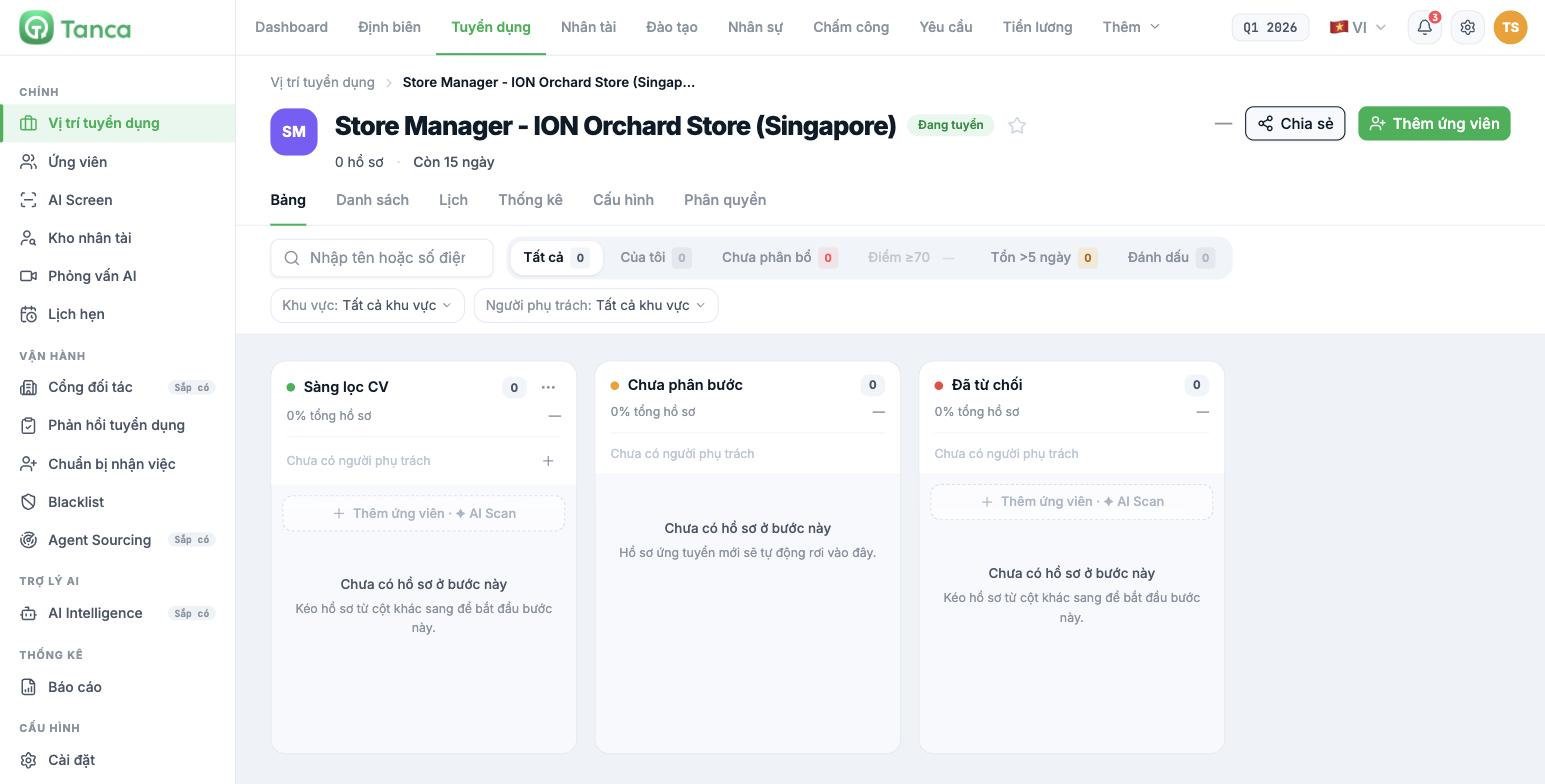
| Element | Meaning |
|---|---|
| Column name | The name of the step in the pipeline. The dot color is the step color set in Settings |
| Number at the top of the column | Number of applications currently at that step |
| % of total applications | Share of applications currently at this step |
| Owner | The person who receives applications at this step. Shows No owner assigned if not yet assigned |
| + Add candidate · ✦ AI Scan | Add applications directly into this column |
Two columns that are always present
| Column | Meaning |
|---|---|
| Unassigned | New applications automatically land here. This is a queue that needs clearing every day |
| Rejected | Rejected applications, with the reason |
The Unassigned column is where applications are most often forgotten. Make a habit of opening the board every morning and clearing this column before doing anything else.
Six quick filters
| Filter | What it shows |
|---|---|
| All | All applications for the position |
| Mine | Applications you're responsible for |
| Unallocated | Applications with no owner — need immediate attention |
| Score ≥70 | Applications scored 70 or higher by AI |
| Idle >5 days | Applications that have sat at one step for more than 5 days |
| Flagged | Applications you've flagged |
Below these are two more filter fields: Region and Owner, along with a search box for name or phone number.
Three filters are worth using daily, in exactly this order: Unallocated (applications nobody has picked up) → Idle >5 days (applications that are stuck) → Mine (your own work). The Score ≥70 filter is only meaningful when the position has AI scoring turned on.
Moving a candidate to another step
- Drag the candidate's card from the current column to the target column.
- If the target step has Send email or Send Zalo turned on, the system sends the message as soon as the application enters the step.
- If the target step has AI Interview turned on, the candidate is sent an interview link.
Dragging a card is an action with outward-facing consequences. Before dragging a batch of applications to a step with email sending turned on, make sure that step's email template has been updated with the correct company name and position name (article B15-08).
Four views of the same data
| Tab | Use when |
|---|---|
| Board | Day-to-day work, seeing overall progress |
| List | You need to sort, filter by multiple conditions, or export data |
| Calendar | Viewing scheduled interviews for this position |
| Statistics | Viewing the funnel and conversion rates for this position |
Recommended operating habits
- Every morning: clear the Unassigned column, then check the Unallocated filter.
- Every day: process all applications in the Idle >5 days filter.
- When rejecting a candidate: always select a reason from the list; don't leave it blank — that's the data for future reports.
- When the position is filled: close the position instead of leaving the posting running (article B15-10).

