One project, four ways to look at it. Each view answers a different question — choosing the right view for the right meeting will save a lot of time spent explaining.
Four views
| View | Answers the question | Best for |
|---|---|---|
| List | What tasks are there, who's doing them, and when are they due? | Detailed reviews, adding tasks in bulk |
| Board | Which step are tasks stuck at? | Daily stand-up meetings |
| Calendar | What's due this week? | Weekly planning |
| Progress | How do the tasks overlap? | Project planning meetings with milestones |
Switch using the tabs at the top of the project. The default view is the one you chose when creating the project, and it can be changed at any time.
Filters shared by all views
- Incomplete — a toggle that hides completed tasks; on by default.
- Task group — group by step, by assignee, or by other criteria.
- Search tasks — search by name.
- Customize — choose which columns are shown or hidden.
Progress — timeline view
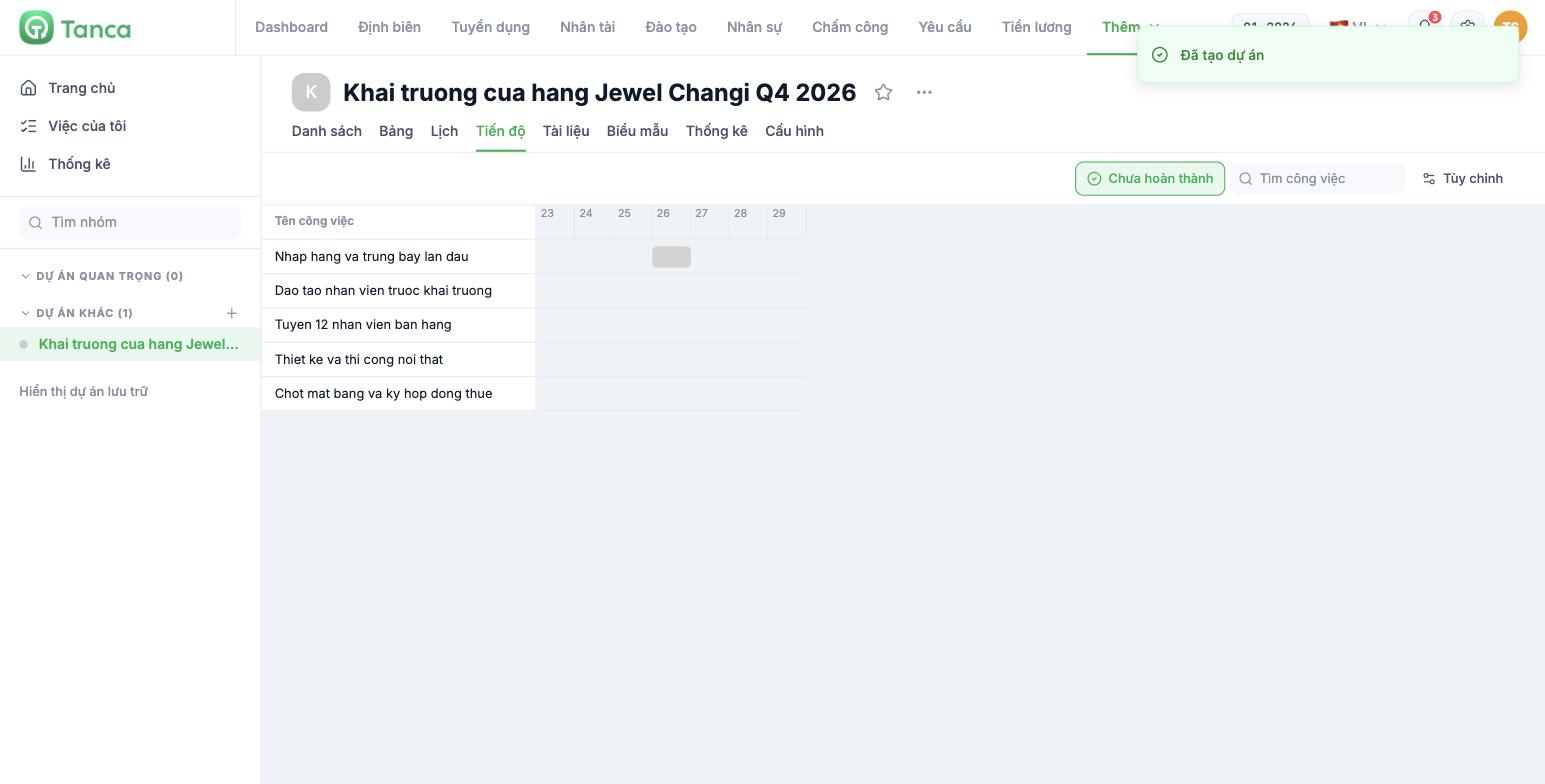
The Progress tab draws each task as a horizontal bar spanning its dates. This is the best view when you need to answer "if task A is a week late, will task B still make it?".
Tasks only show a bar once they have both a Start date and a Due date. Tasks without dates still appear in the name column on the left but nothing is drawn. If your Progress tab is almost empty, the usual cause is that the team has only set due dates and left start dates blank.
Calendar — monthly
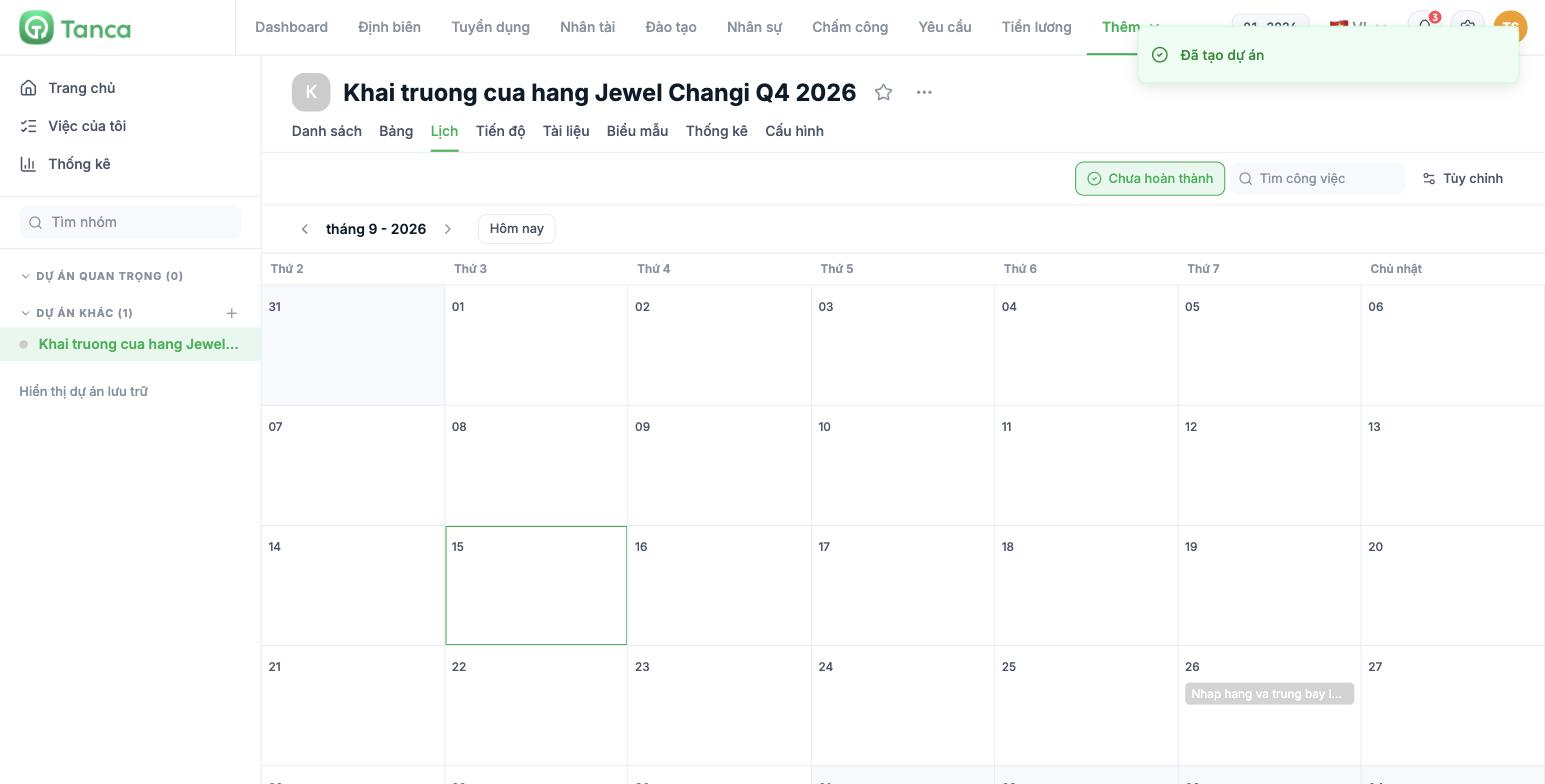
The Calendar tab shows the month as a seven-day grid, with tasks placed on their due dates. The Today button and two arrows navigate between months. This is the easiest view to understand for people unfamiliar with project management tools — great for putting on screen during a store team meeting.
Choose a default view for each type of project
| Project type | Recommended default view |
|---|---|
| Ongoing operations | Board — the team immediately sees which step their tasks are at |
| Campaign with a launch date | Progress — everyone sees the critical path |
| Weekly store tasks | Calendar — visual, no explanation needed |
| Long checklists | List — add and tick off quickly |
Don't force the whole company to use one view. The default view is a per-project setting, and everyone can still switch tabs freely when needed.

