Once employees have set their objectives, managers need to review them: are they headed in the right direction, are they measurable, are they linked to department objectives? This article shows how to review them and how to set permissions for who can edit what.
Viewing your team's objectives
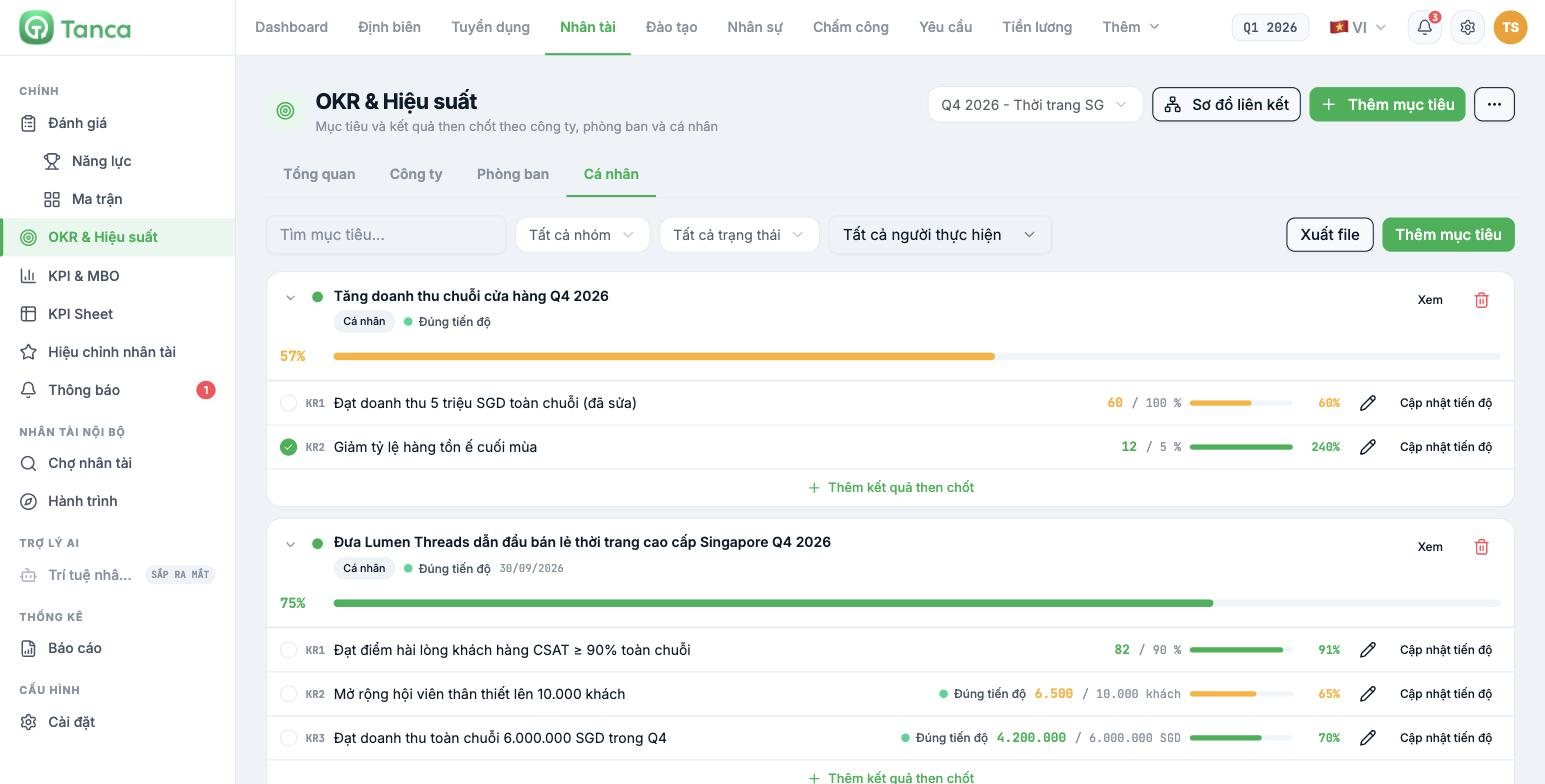
- Go to Talent › OKR & Performance and select the correct cycle.
- Select the Department tab (unit-level objectives) or the Individual tab (each person's objectives).
- Use the All assignees filter to see only people in your team; add the All groups and All statuses filters if the list is long.
- Click the arrow to the left of the objective name to expand the KR list, or click View to open the detail page.
Four questions when reviewing an objective
- Is it linked to a department objective? Open the detail page and check whether the Details block has a parent objective row. If not, click Edit and choose a Parent objective.
- Does it have at least 2 key results? An objective with no KRs will always show 0% and cannot be measured.
- Can the KRs be measured in numbers? Each KR must have a Start value and a Target value. "Improve service" is not a KR; "CSAT from 82 to 90" is.
- Are inverse KRs checked? Metrics where lower is better must have Inverse target enabled (article B11-08), otherwise progress is calculated in the opposite direction.
Editing directly: the Edit button on the detail page opens a dialog with all fields; the pencil icon on each KR row opens the KR edit dialog. For feedback that doesn't need an immediate fix, discuss it with the employee and let them make the change themselves — ownership of the objective should stay with the assignee.
Who can edit what
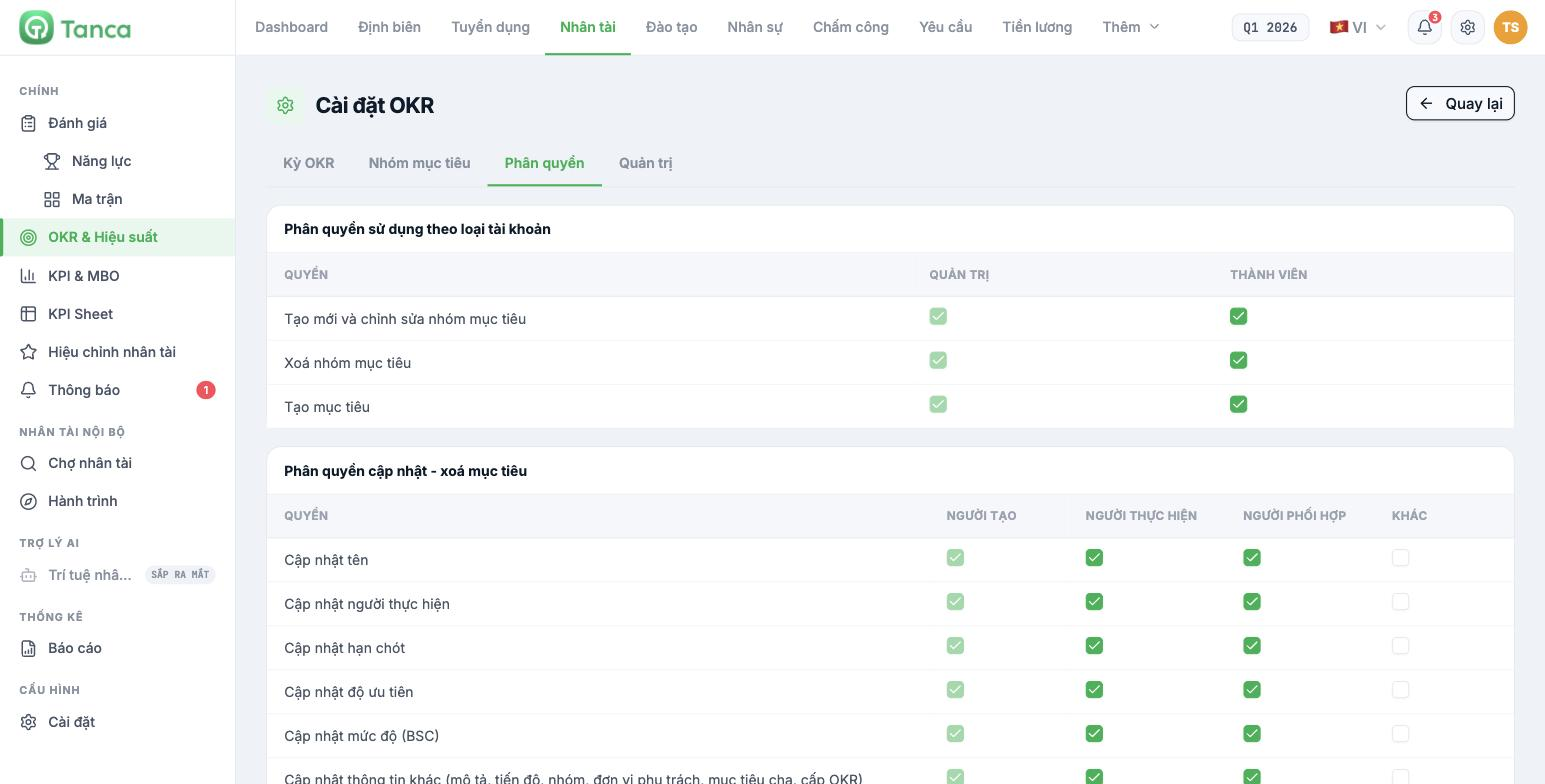
Administrators open ⋯ › OKR Settings › Permissions. There are two tables:
- Usage permissions by account type — columns ADMIN and MEMBER, with three permissions: create/edit objective groups, delete objective groups, create objectives. The Admin column is always enabled.
- Objective update - delete permissions — four columns CREATOR, ASSIGNEE, COLLABORATOR, OTHERS; seven permissions: update name, assignee, deadline, priority, level (BSC), other information, and delete objective.
Review the OTHERS column before opening a cycle to the whole company. This column applies to people not involved in the objective; enabling the Delete objective permission here means anyone can delete someone else's objective.
Who the OKR administrators are
The Admin tab in OKR Settings lists the people who currently have administrator rights for the module. Click Make administrator in the Members list to add someone, and Remove administrator rights to remove them. You should have at least two people, to avoid the situation where the only administrator is on leave right when the cycle is being closed.

