The thing you'll do most often in Tanca. Twice a day: once at the start of your shift, once at the end.
Steps
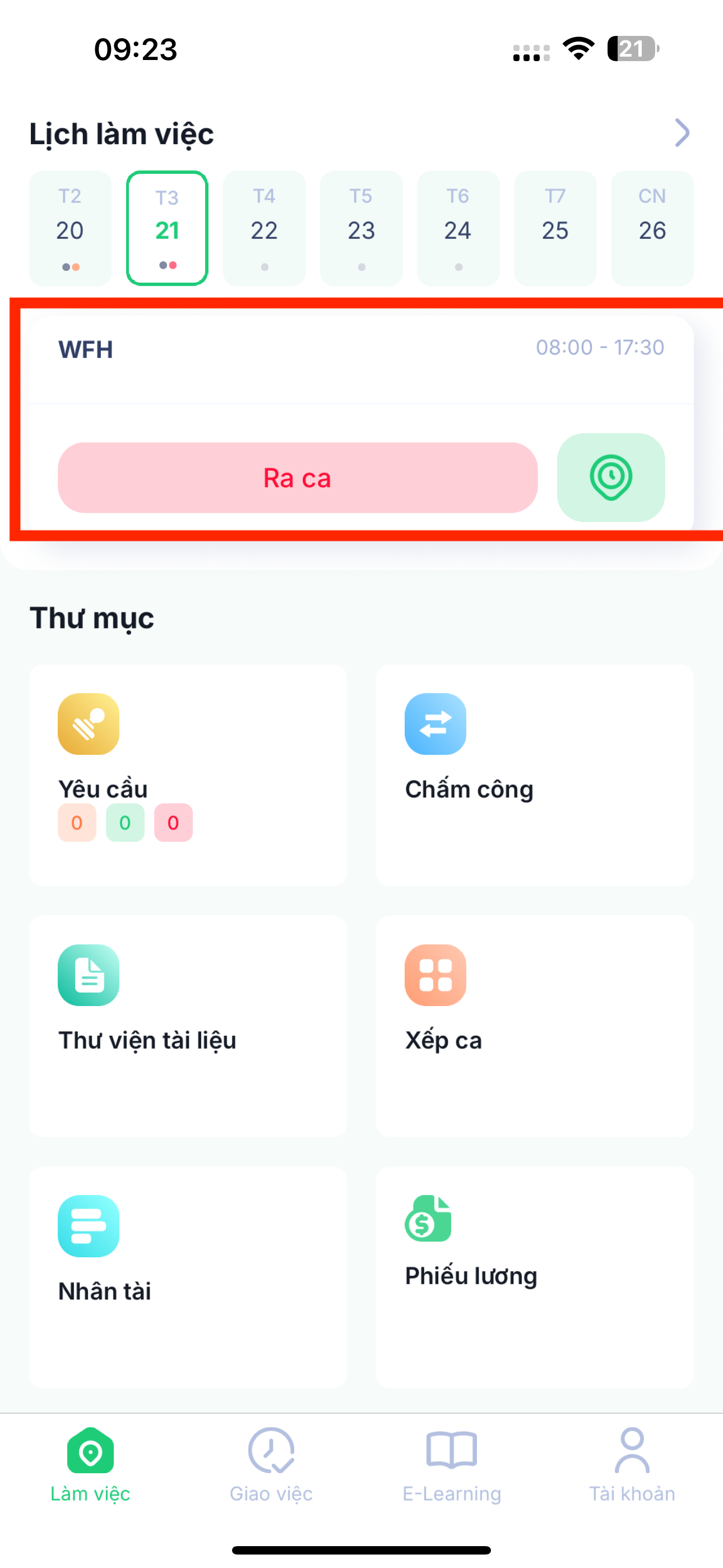
- Open the Tanca app and tap the clock-in button on the home screen.
- The app detects your location or WiFi network, or asks you to scan your face — depending on how your company has configured it.
- Wait for the confirmation message. Your clock-in time appears on the screen right away.
At the end of your shift, repeat the same steps to clock out.
| Method | What you need to do |
|---|---|
| GPS | Turn on location and stand within the branch's allowed radius |
| WiFi | Connect to the company's correct WiFi network |
| Face recognition on your phone | Position your face within the frame, in good lighting, without a face mask |
| Attendance machine at the door | Scan your fingerprint or card as usual; no need to open the app |
| AI Camera | Walk past the camera; the system recognizes you automatically |
If you can't clock in
| Symptom | What to do |
|---|---|
| Out-of-range error | Check that location is turned on and that you're at the correct branch. If you're in the right place and still get the error, ask HR to recheck the branch coordinates. |
| Face not recognized | Find a well-lit spot, remove your face mask and sunglasses, and hold the phone at eye level. |
| Forgot to clock in | Submit an attendance adjustment request — see article A3-03. Don't ask a colleague to clock in for you. |
| Phone battery died mid-shift | Tell your manager the same day, then submit an adjustment request. |
Clocking in on someone else's behalf violates company rules at most businesses, and the system has ways to detect it. If you forget to clock in, submit an adjustment request — that's the right way to handle it, and it takes less than a minute.

