These are the two things employees look up most often. Both can be viewed right in the app, without asking HR.
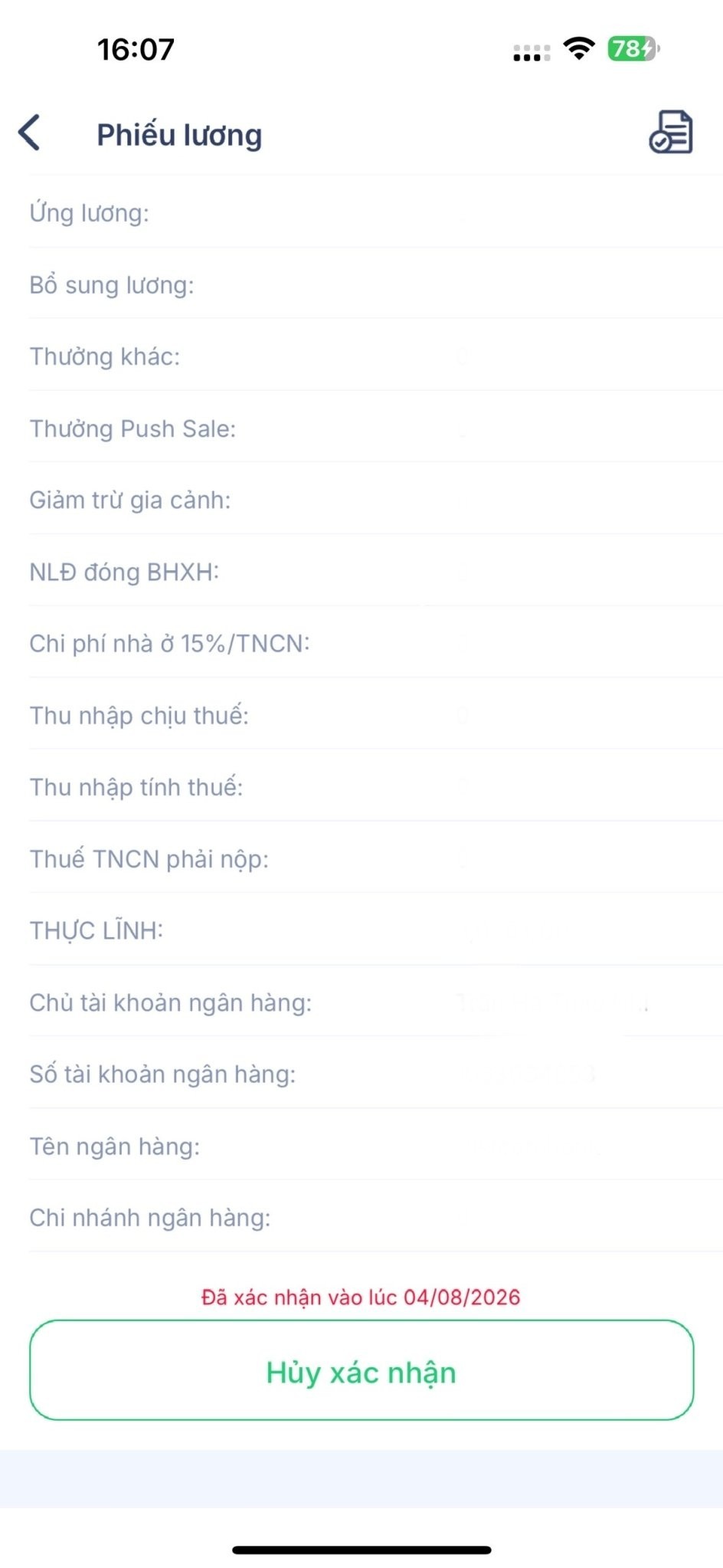
View your payslip
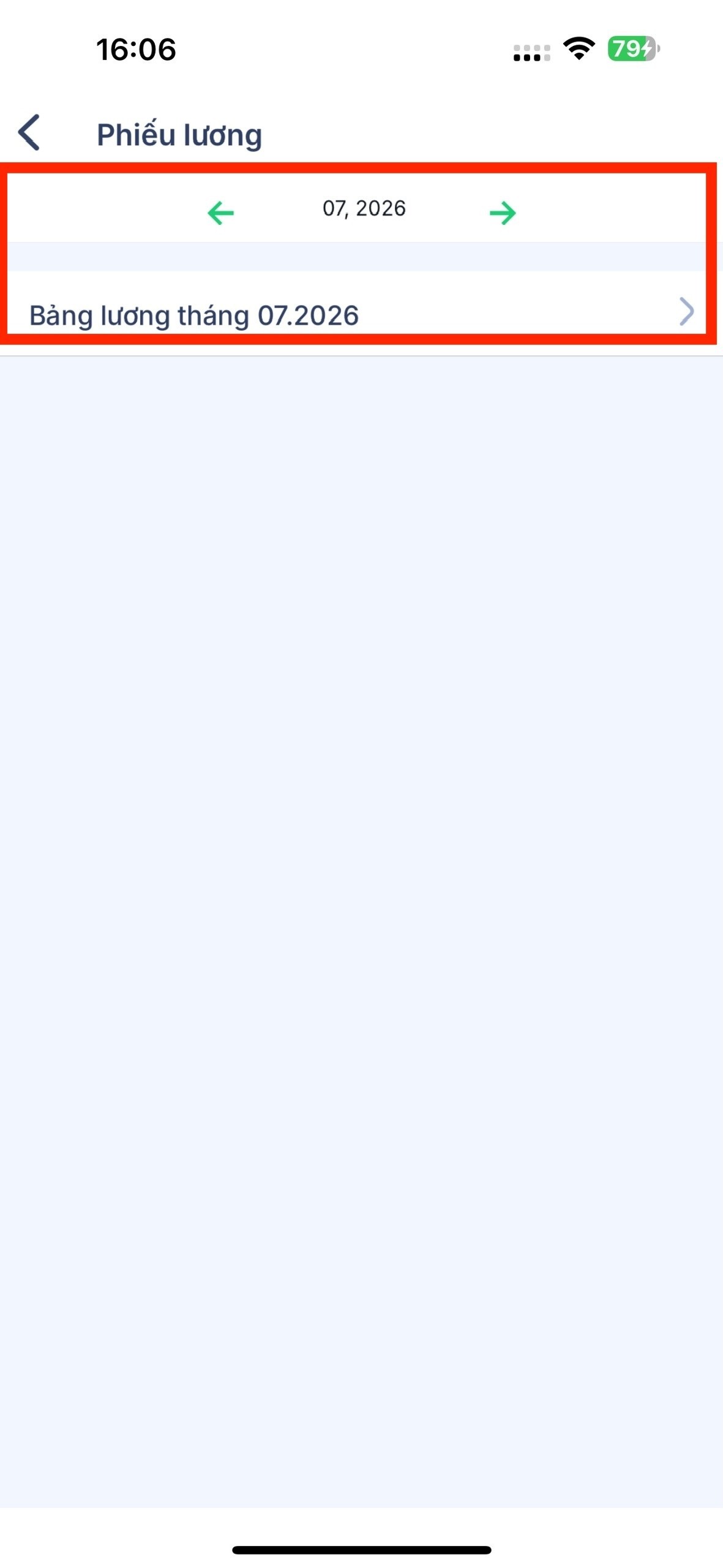
- Open the app and go to your personal payslip section.
- Select the month you want to view.
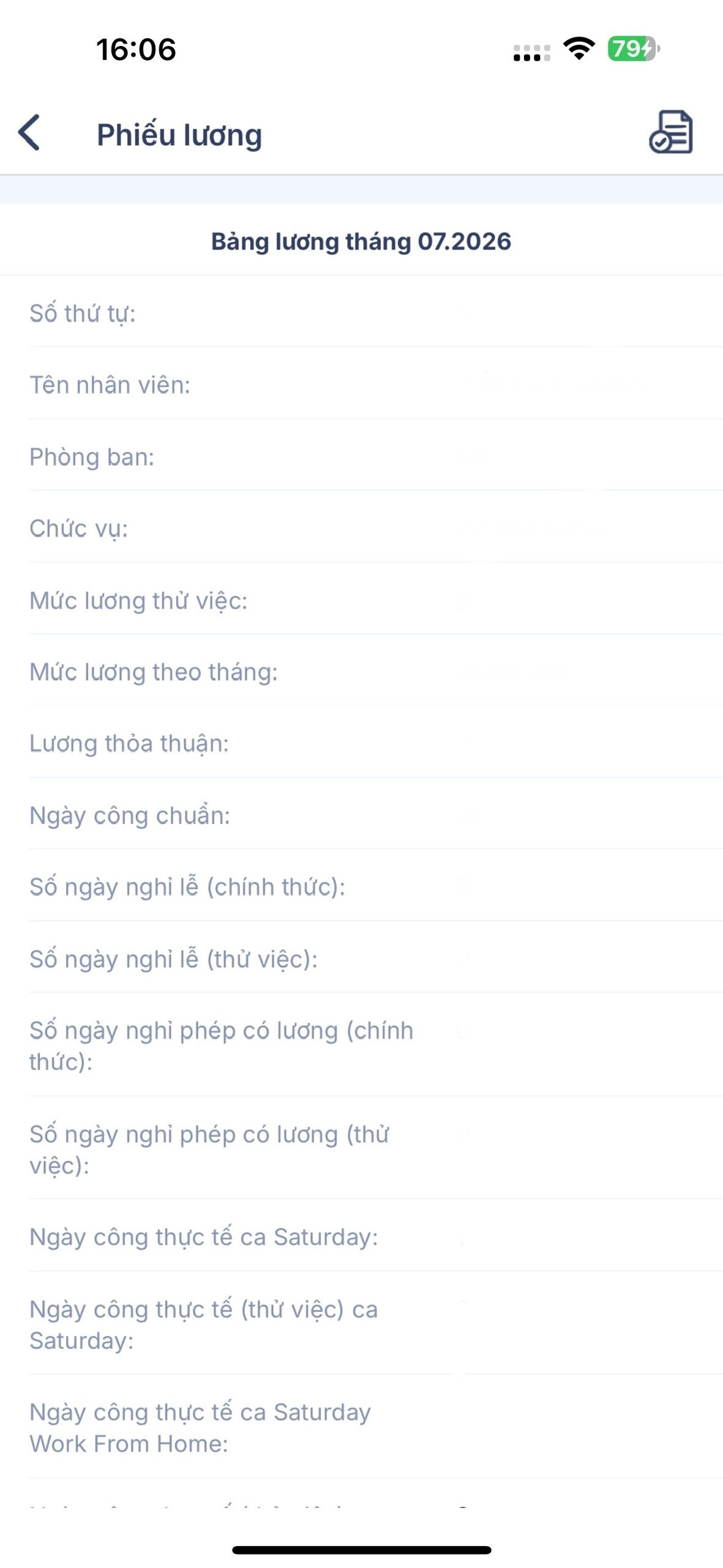
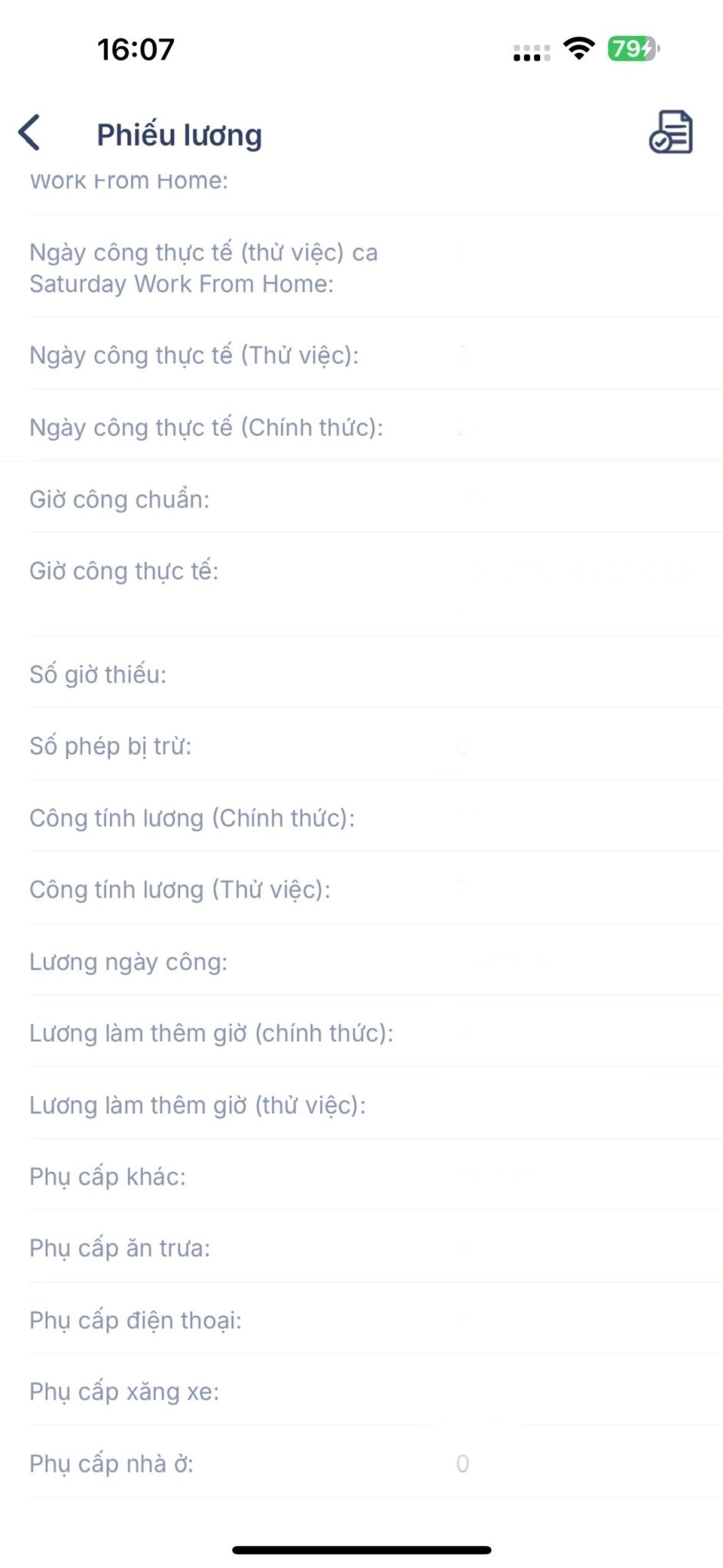
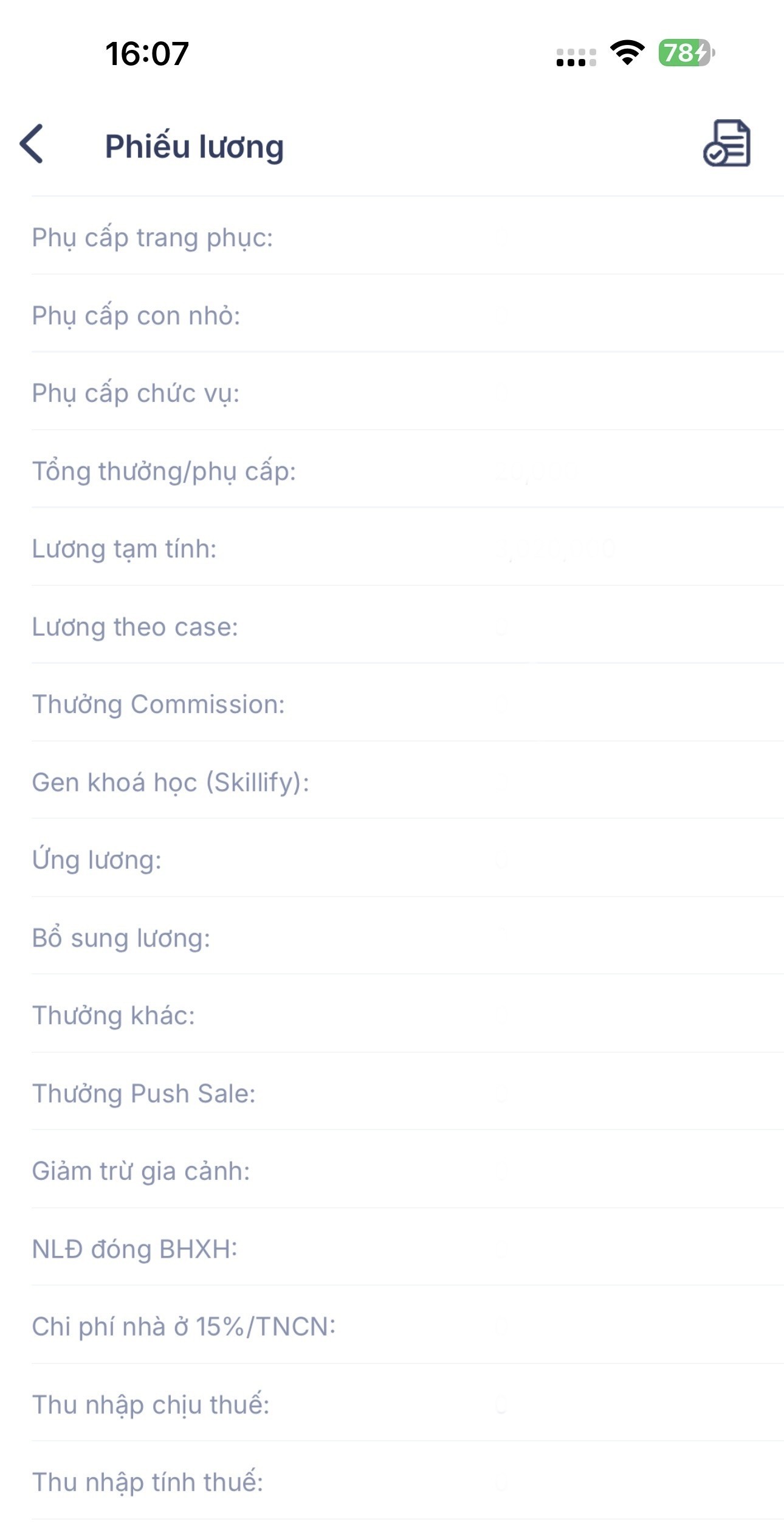
- The payslip shows the details: base salary, allowances, working days, overtime, deductions, insurance, personal income tax, and net pay.
Download or save it if needed.
View your remaining leave days
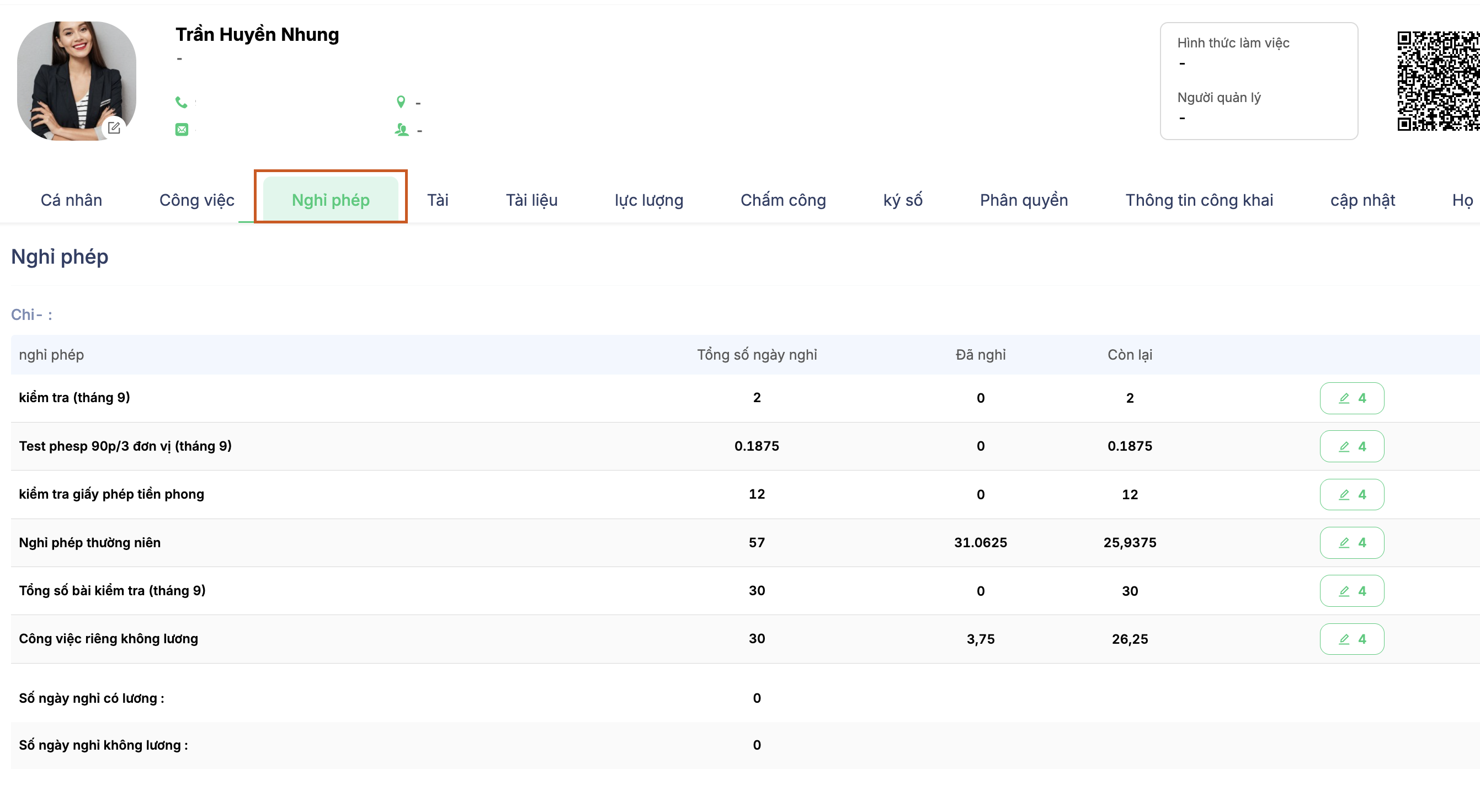
- Go to your personal profile, in the leave section.
View your total annual leave balance, the days used, and the days remaining.
If the numbers don't look right
| Symptom | What to do |
|---|---|
| No payslip for the month yet | Accounting hasn't released it yet. Payslips only appear after the pay period has been approved and sent. |
| Working days don't match reality | Check your personal timesheet first. If days are missing, submit an attendance adjustment request. |
| Leave days don't match | Check the leave requests approved during the year. If there's still a discrepancy, ask HR to reconcile your leave balance from the start of the year. |
| Questions about an item on the payslip | Contact the payroll accountant directly; don't ask in a shared group chat. |
Your payslip is your private information. Only you and people with the right permissions can view it. Don't take screenshots and post them in group chats.

