Your company has sent you a survey or a poll. This article shows how to respond, how to submit anonymously, and what happens after you click submit.
Finding surveys sent to you
You'll receive a “You have a new survey …” or “You have a new poll …” notification via the notification bell and as a push notification on your phone. Go to More › Surveys to see the full list; the My Status column shows whether you've completed it.
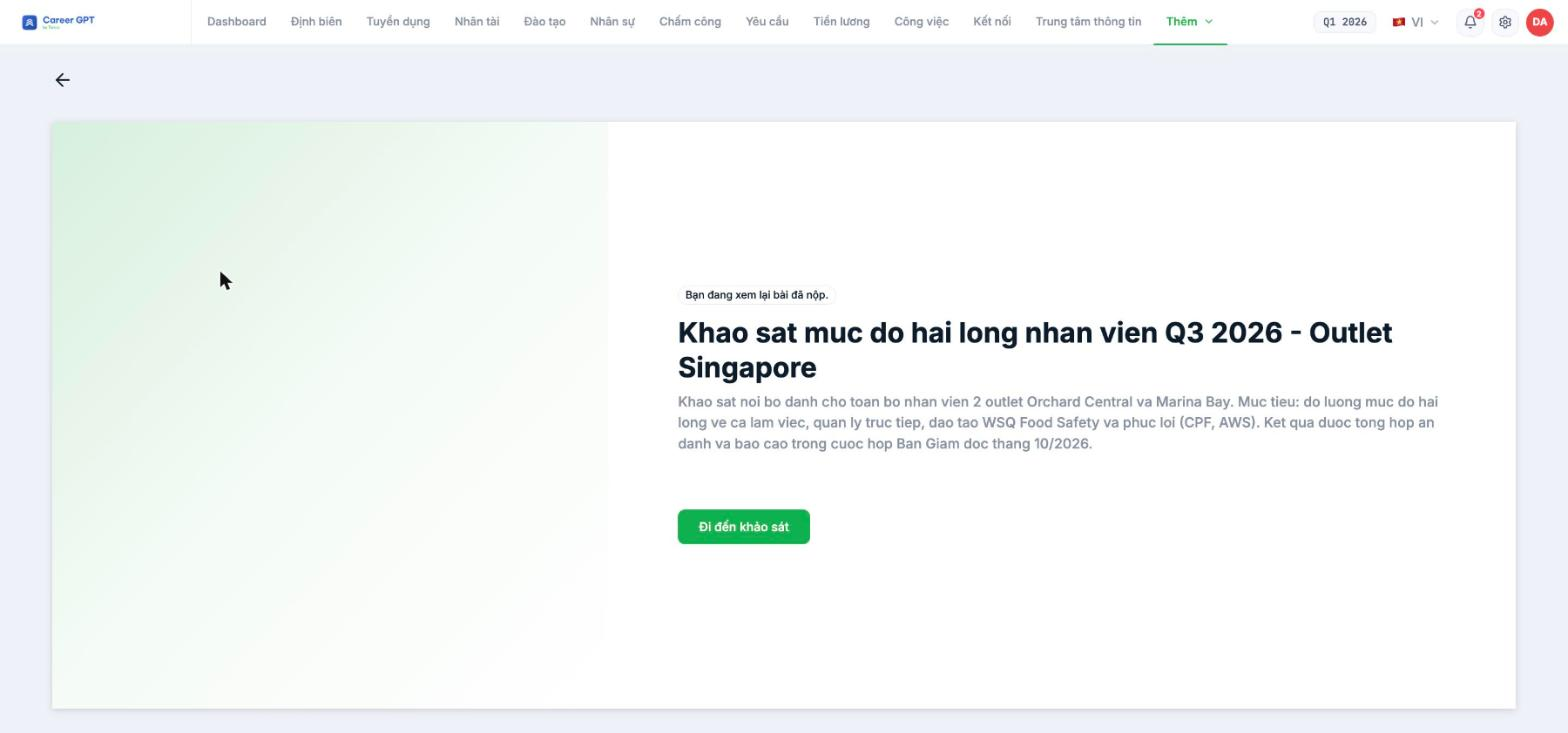
When you open a survey, you'll see an intro page with the title, the company's description, and a Go to Survey button. Read the description — the response deadline, purpose, and instructions about anonymity are usually there.
Answering each question
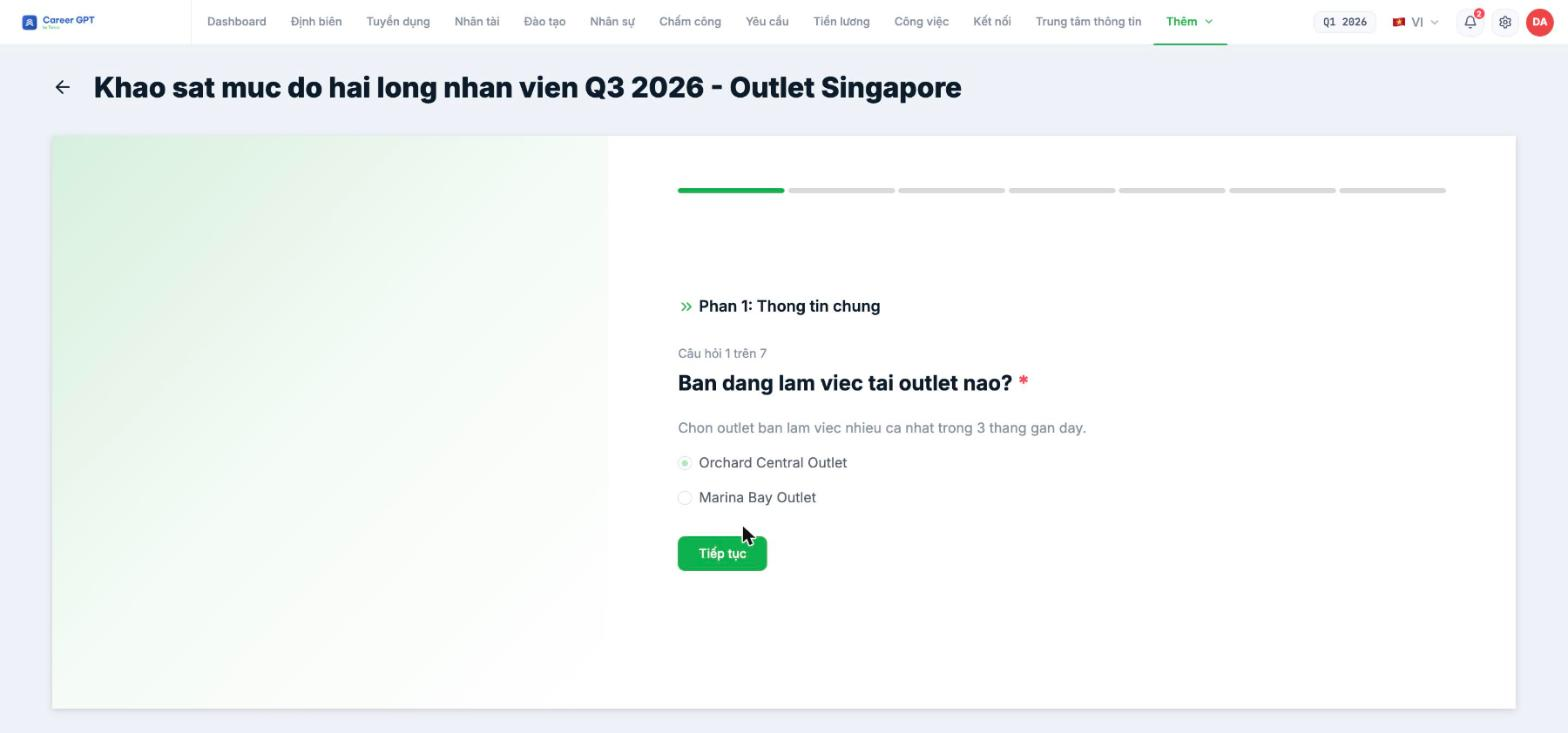
Surveys usually show one question per page. At the top is a progress bar divided into segments by number of questions, and each question shows the section name and its number — for example “Question 3 of 7”. Questions marked with a red \* are required.
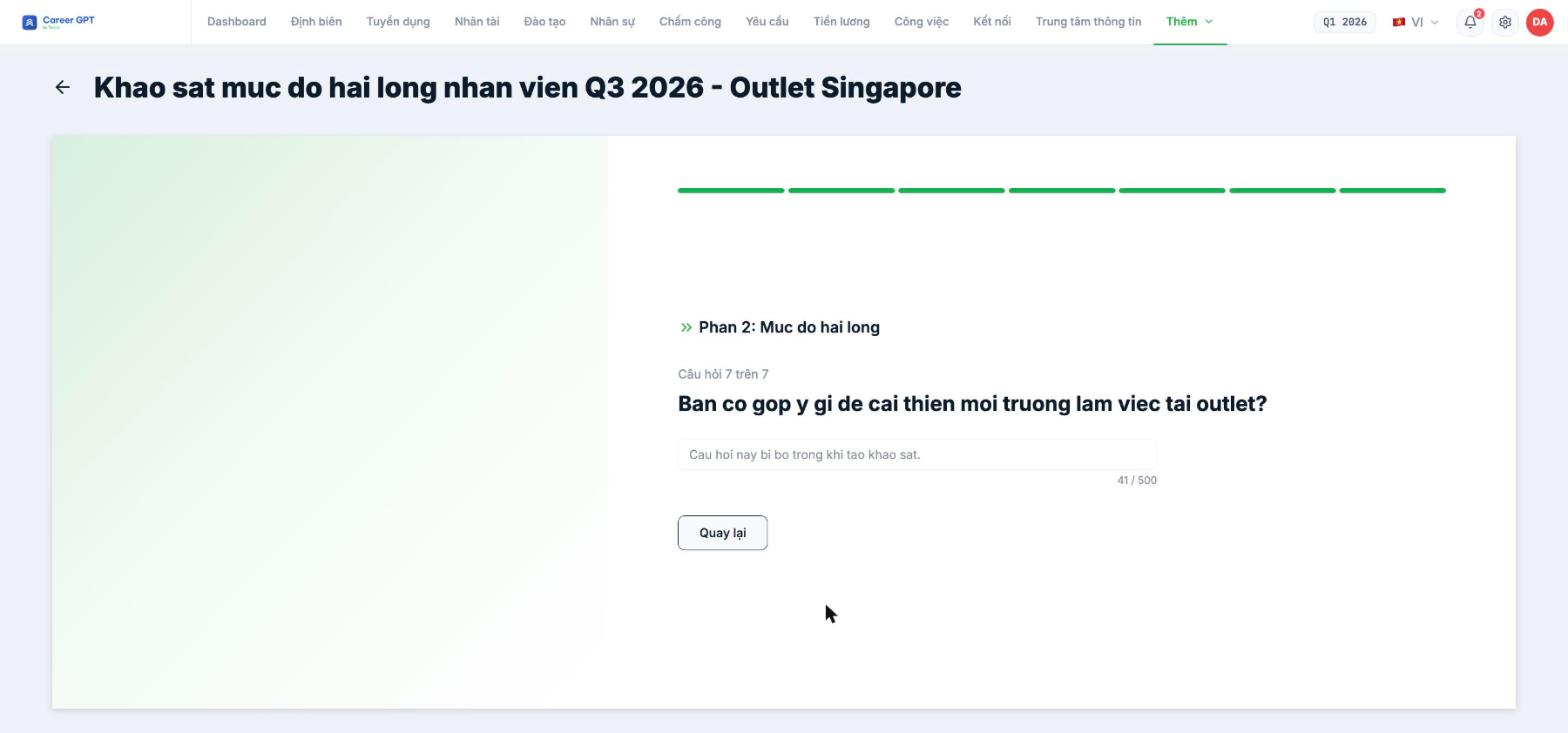
Click Continue to move to the next question, or Back to change a previous one. Your answers are automatically saved as a draft after each question, so if you close your device midway, they'll still be there the next time you open it.
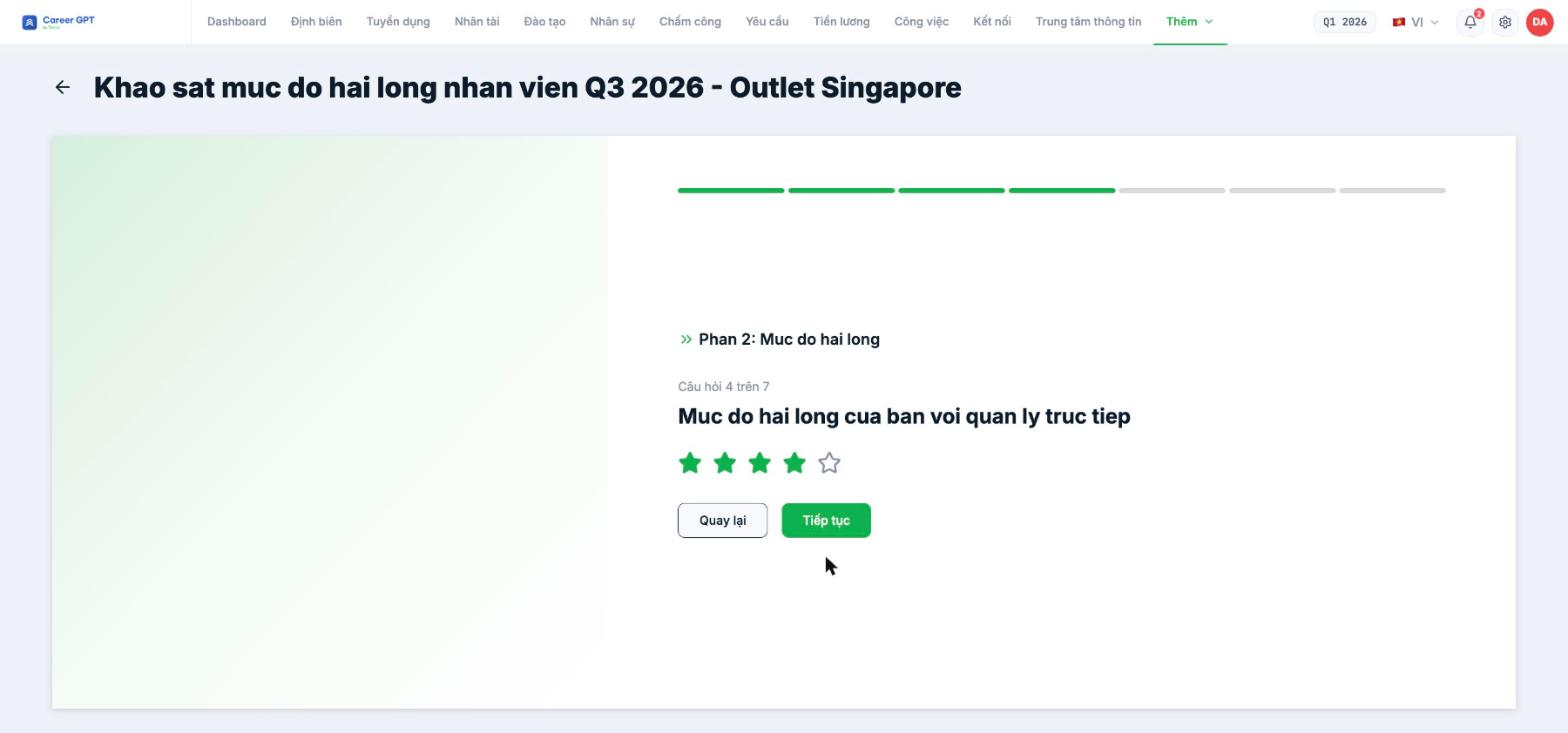
Question types you may encounter: single choice, multiple choice, dropdown list, 0–10 scale, star rating, multi-criteria grid, text input with a character limit, date or time picker, and file upload.
Submitting anonymously — the step most often missed
If your company has set the survey as anonymous, the submission screen has a toggle “Submit anonymously — Turn on this option to hide your identity when submitting”. This toggle is OFF by default. You have to turn it on yourself if you want your response not to include your name. Check that toggle before clicking submit.
After submitting
Before submitting, the system asks you to confirm once. If the survey doesn't allow resubmission, the dialog clearly states “Once submitted, you won't be able to edit your answers” — read this before confirming.
After submitting, if you reopen the survey you'll see the label “You are reviewing your submitted response” and can read your answers again. The My Status column in the list changes to Completed.
Polls
A poll has only one question. Open it, pick an option, and submit. Results usually appear immediately: a percentage bar for each option along with the avatars of the people who voted. If your company has set results to be hidden, you'll only see a thank-you message.
If the poll doesn't allow changing your vote, the button is locked after you submit.
Can't see a survey your company says it sent?
- Check the Status filter in the Surveys list — it may be filtering by Active while the survey has already expired.
- Check the app's notification permission on your phone (B24-03 for iOS, B24-04 for Android).
- Ask HR which branches and departments the survey was sent to — you may not be in the recipient group.

