A screen for reviewing photos captured by the AI Camera and rejecting those where the system identified the wrong person. Only relevant if your business has installed an AI Camera.
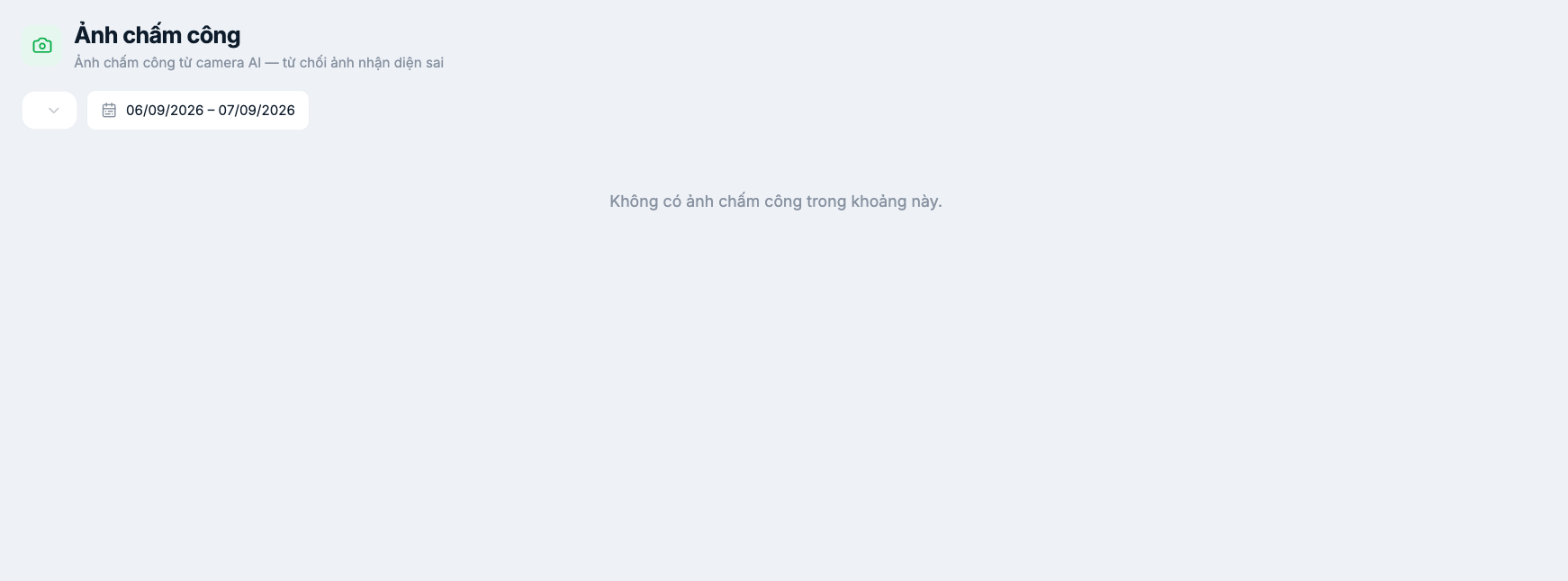
Layout
- A description line states the purpose clearly: Attendance photos from the AI camera — reject misidentified photos.
- A filter dropdown and a date range picker.
- When there is no data, the screen shows No attendance photos in this period.
What it's for
| Task | Why it's needed |
|---|---|
| Review photos during the first week after installing the camera | The misidentification rate is highest at the beginning, when there is little facial data |
| Reject photos that identified the wrong person | A wrong photo leads to a wrong attendance record and a wrong timesheet |
| Check when there is an attendance complaint | Photos are the most objective evidence |
| Assess installation quality | Many blurry or backlit photos mean the camera position needs adjusting |
Facial photos are biometric data — a category of sensitive personal data. Keep the number of people who can view this screen to a minimum, and agree on the photo retention period with your legal team.
Recommended process
- First week after installation: review photos every day.
- After that: review once a week, or whenever there is a complaint.
- Immediately reject misidentified photos so the corresponding attendance records don't go into the timesheet.
- If one camera location produces many wrong photos, review the lighting and mounting angle.
If the screen is always empty
- Check the selected date range.
- Check whether the AI Camera is connected — see B6-05.
- If your business doesn't use an AI Camera, it is normal for this screen to be empty.

