The competency framework is the yardstick. The review cycle is when you take the yardstick out and measure. This article walks through an entire cycle, from creation to reading the results.
Before creating a cycle
- There is a competency framework for the job title to be reviewed (article B13-04).
- Every skill in the framework has all five behavioral levels written (article B13-03).
- The framework has a required level selected for each skill (article B13-05).
- You have decided who reviews whom and the weight of each reviewer.
Step 4 is the step most often skipped. Opening the cycle first and only then thinking about who will rate is the fastest way to have a review cycle drag on for two months without finishing.
Review cycle list
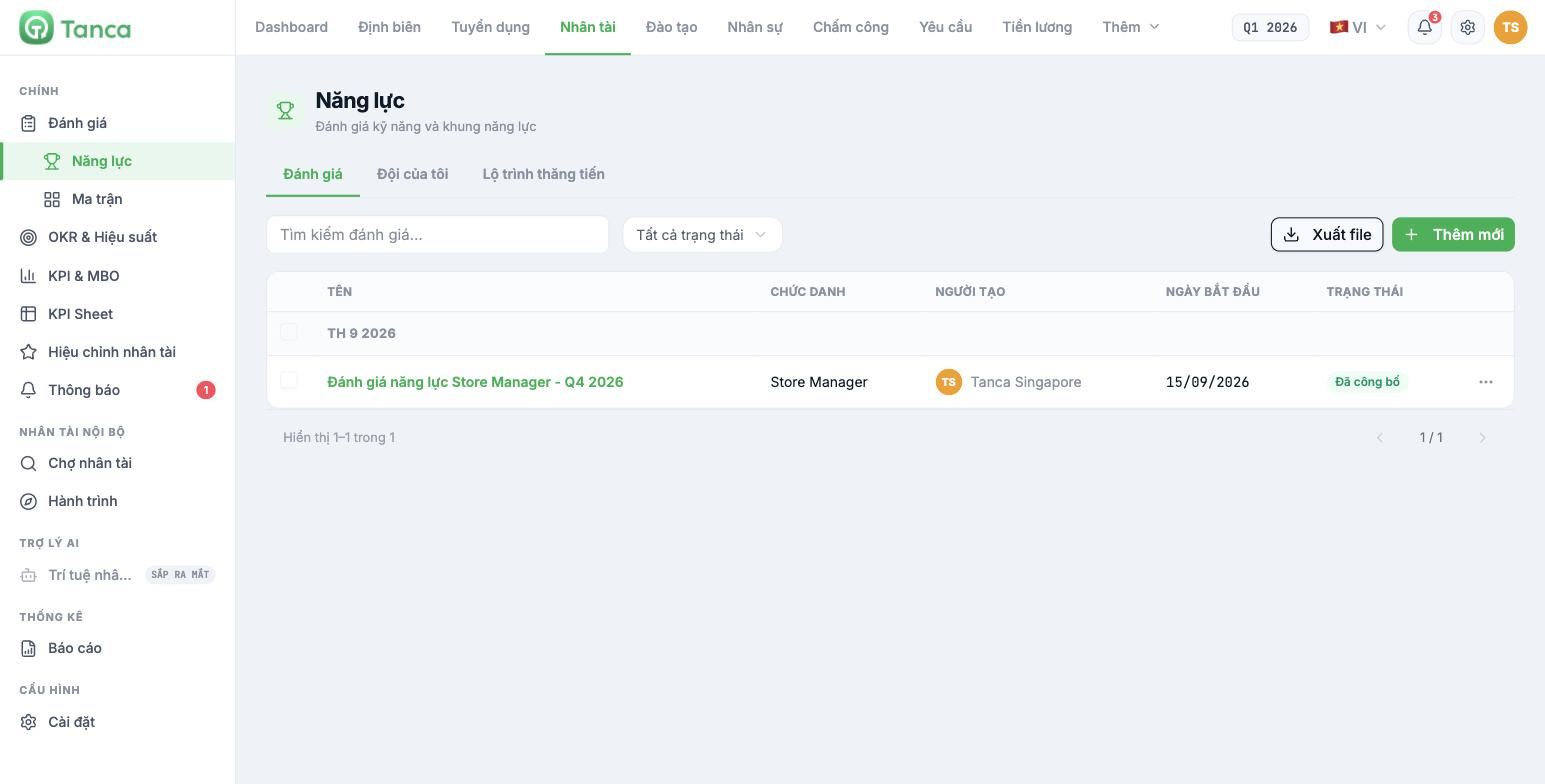
Go to Talent › Reviews › Competencies and select the Reviews tab. The list is grouped by period and has these columns:
| Column | Content |
|---|---|
| Name | Name of the review cycle |
| Job title | Job title of the competency framework used in the cycle |
| Created by | Who opened this cycle |
| Start date | Opening date |
| Status | For example Published |
At the top of the page there is a search box, an All statuses filter, an Export File button and an Add New button.
Step 1 — choose the method
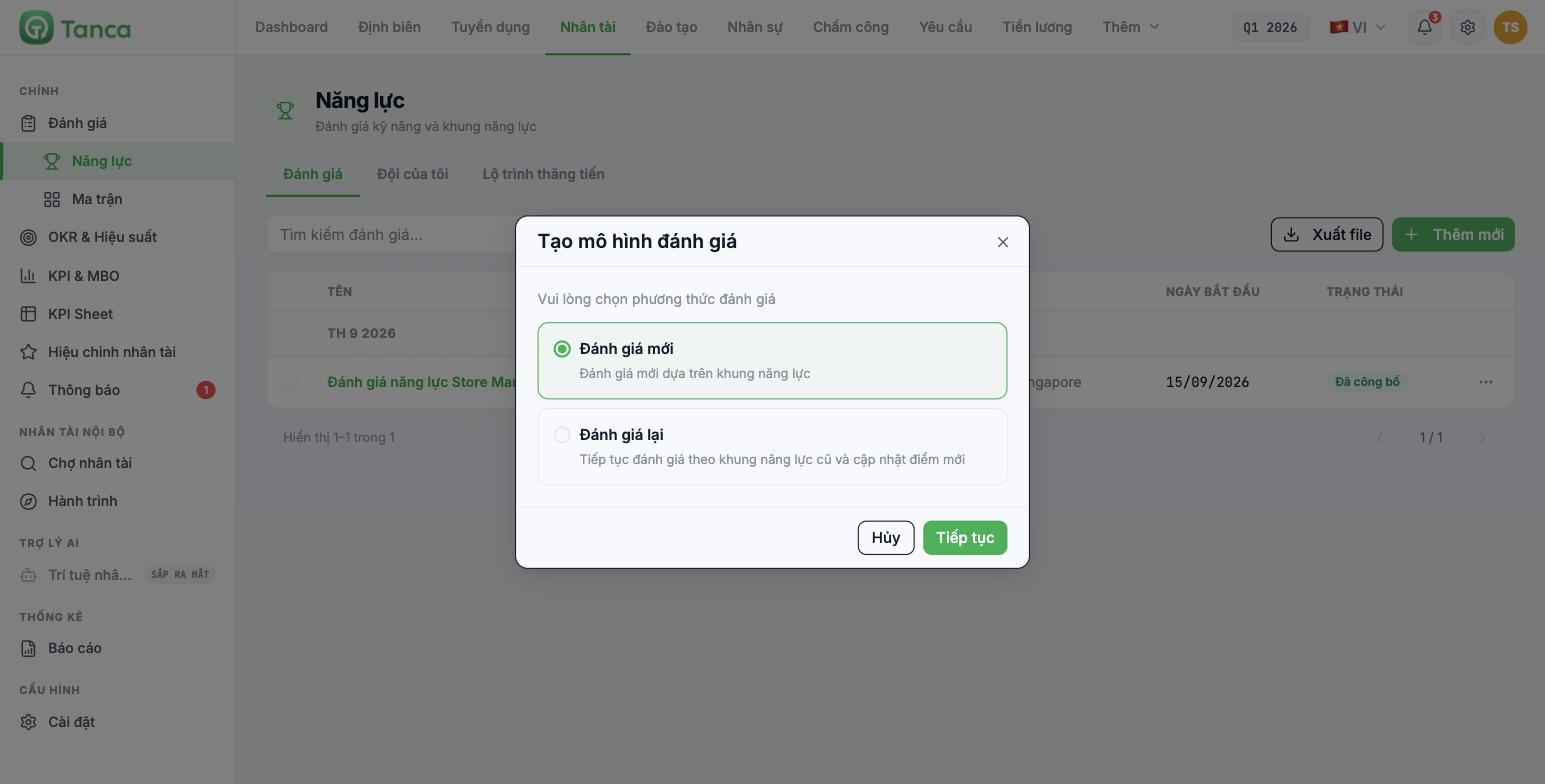
| Method | Use when |
|---|---|
| New review | A new review based on a competency framework. Choose this the first time |
| Re-review | Continue reviewing with the old competency framework and update new scores. See article B13-07 |
Step 2 — enter the cycle information
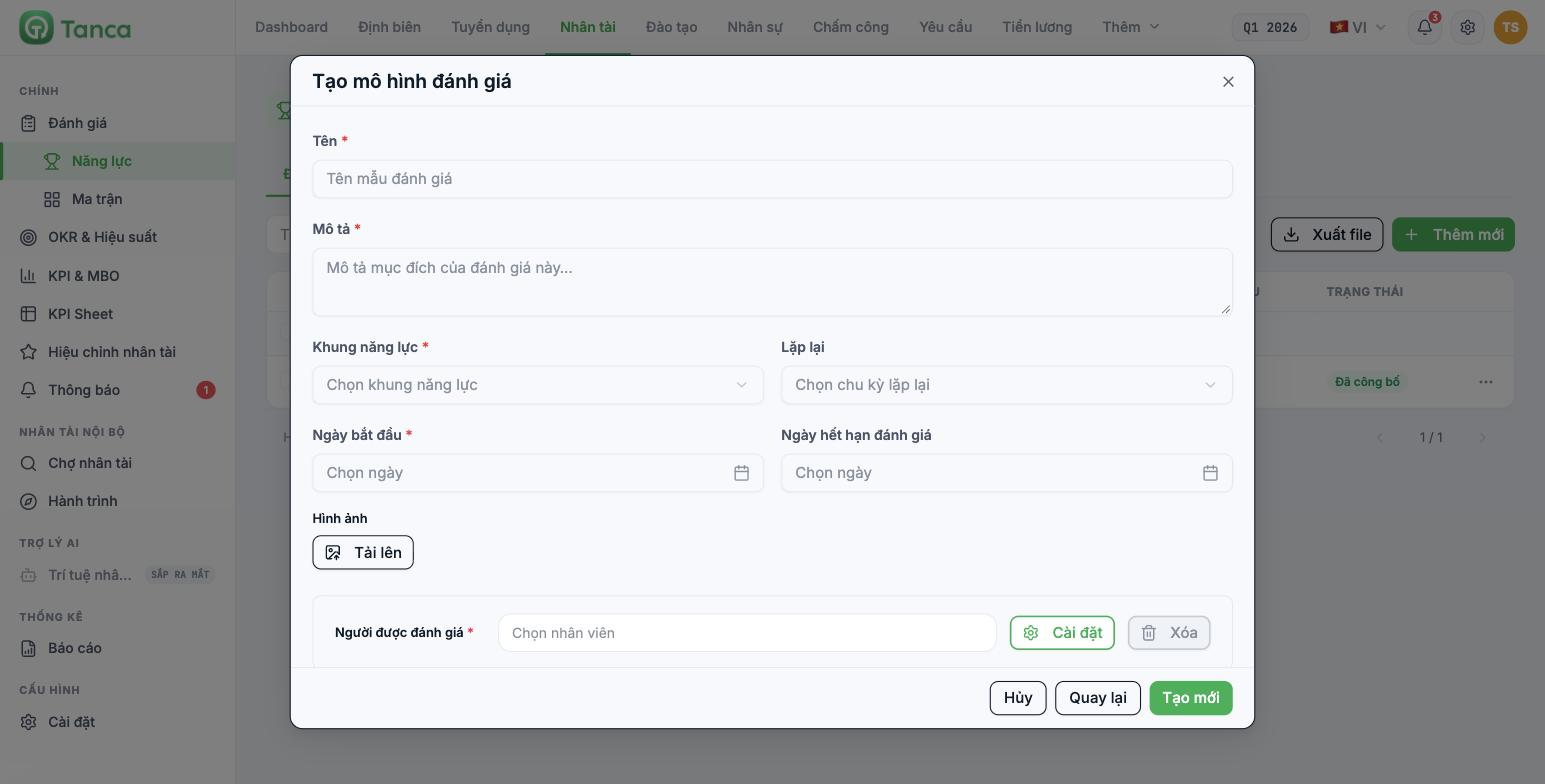
| Field | Notes |
|---|---|
| Name * | Should include the job title and period — `Store Manager Competency Review - Q4 2026` |
| Description * | The purpose of the cycle. The people being reviewed will read this line |
| Competency framework * | Select a framework built in Settings |
| Repeat | Don't repeat · 1 month · 3 months · 6 months |
| Start date * | The date the cycle opens |
| Review deadline | The deadline by which raters must finish |
| Image | Illustrative image, optional |
| Reviewees * | Select employees. Use the Add button below to add people |
You can only select a competency framework that matches the reviewee's job title. If no one appears in the employee selection box, check the job title in their profile — without a job title they are not within the scope of any framework.
Always set a deadline. A cycle without a deadline is a cycle that never finishes. Practical experience: give raters about two weeks, no longer.
Step 3 — set up reviewers
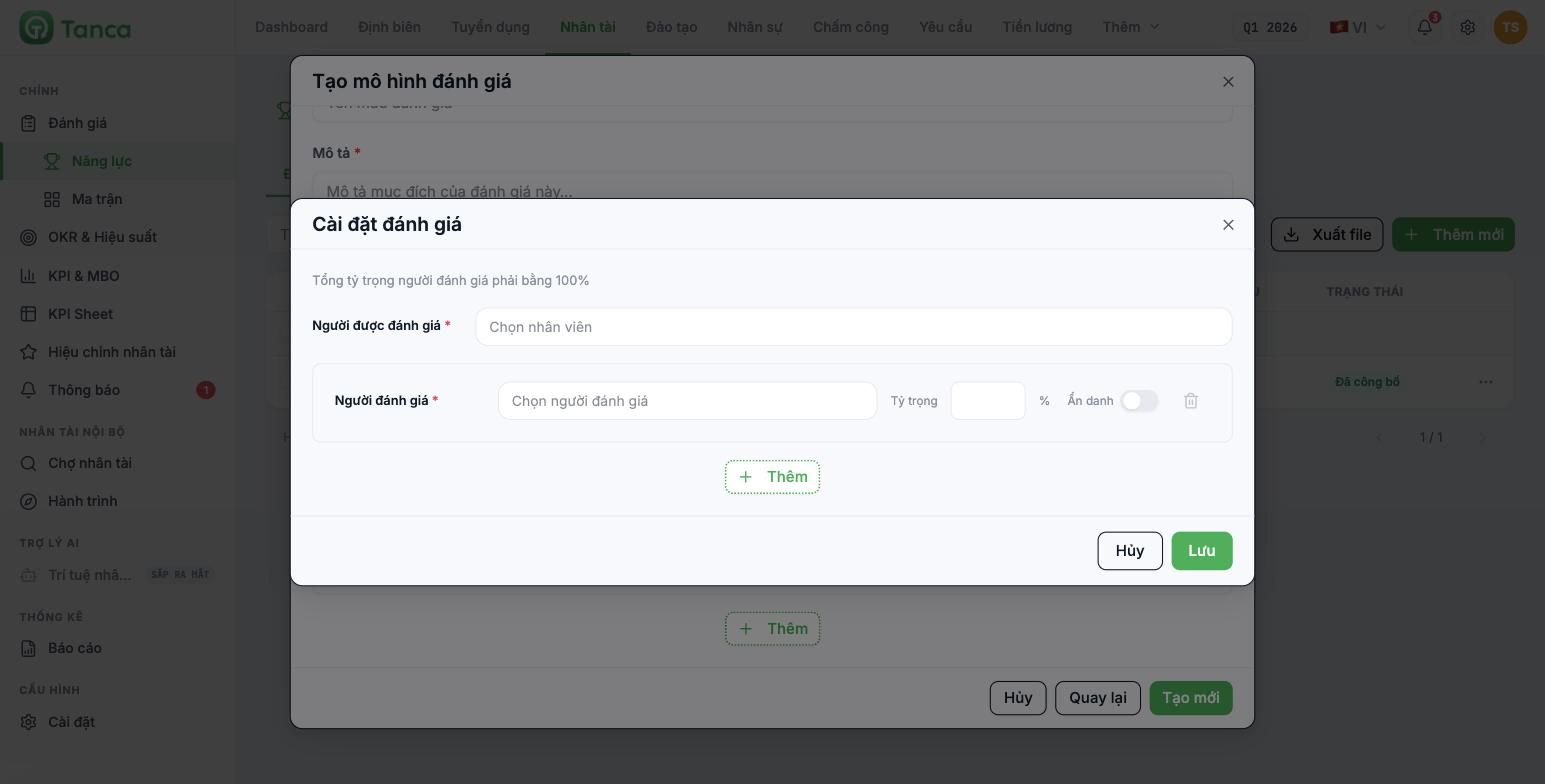
Click Settings on the row of each reviewee. The system reminds you right at the top: the total reviewer weight must equal 100%.
| Field | Meaning |
|---|---|
| Reviewer * | Who rates this person |
| Weight % | What percentage of the result this rater's score accounts for |
| Anonymous | The reviewee doesn't see the rater's name |
Click + Add to add a rater. Click Save when the total reaches 100%.
Three common ways to split weights
| Approach | Configuration | Suits |
|---|---|---|
| Manager only | Line manager 100% | First rollout, small teams |
| Self-review + manager | Self 30% · manager 70% | When you want employees to participate |
| Multi-rater review | Self 20% · manager 50% · peers 30% | Once you're used to the system |
Turn on Anonymous for peer and subordinate raters. Don't turn it on for the line manager — employees have the right to know how their manager rates them, and hiding the name here only takes away the opportunity for discussion.
Don't run a multi-rater review in the very first cycle. In the first cycle, let the line manager rate alone, see whether the results make sense, and only then expand in the next cycle.
Reading the results
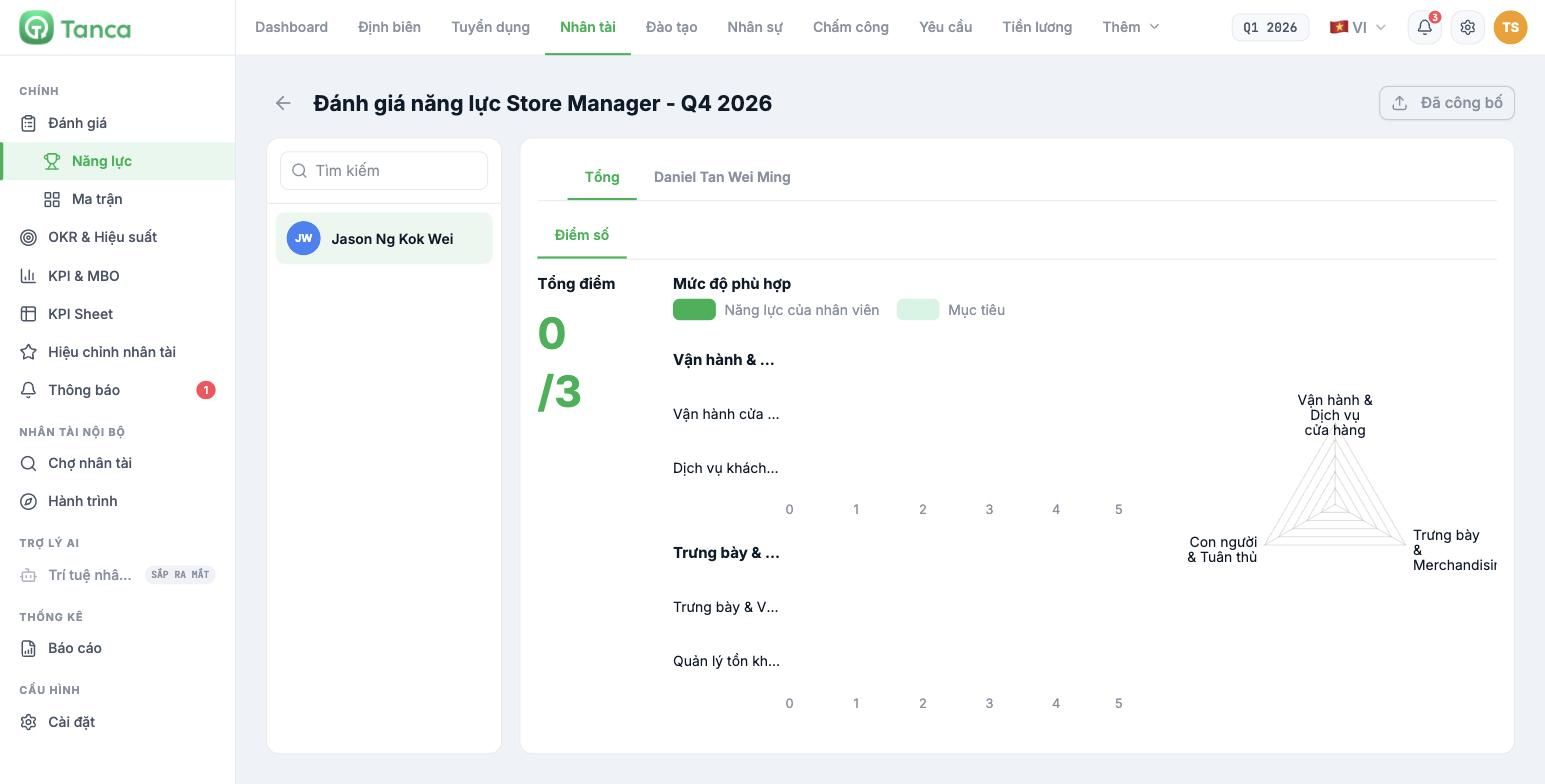
Click the cycle name to open the results. The left column is the list of reviewees; select a person to see the details.
| Element | Meaning |
|---|---|
| Total tab | Combined results from all raters according to their weights |
| Tab with the rater's name | Each rater's individual scores |
| Total score | Overall score against the job title's required level |
| Fit level | Two bars compared: Employee competency and Target |
| Bar chart | Score for each skill on a 0–5 scale, grouped by competency type |
| Radar chart | The shape of competencies by group — a quick view of strengths and weaknesses |
The thing most worth reading isn't the total score but the gap between the two bars for each skill. Any skill where the Employee competency bar is clearly shorter than the Target bar is exactly what this person's training plan for the next cycle should cover.
Publishing the results
The cycle has its own status, and the button in the top-right corner of the results screen shows whether the cycle has been published. Only publish once all raters have finished — publishing midway will produce incomplete scores.
- Check that each reviewee has scores from all raters.
- Skim the results for anyone unusual — scores far too high or too low compared to the general impression.
- Publish.
- Schedule a results discussion with each person. This is the part that creates value; a scoresheet by itself doesn't change anyone.

