All the permission paperwork that used to be done on paper now lives in the Requests section. Requests go straight to the approver and are automatically added to your timesheet once approved.
Steps
- Open the app, go to Requests, and tap to create a new request.
- Choose the request type. The four most used types: Leave, Overtime, Business trip/Going out, Late arrival/Early departure.
- Enter the time and reason. For leave, choose a full day or half day.
- Submit the request. The approver is notified immediately.
- Track its status in your list of requests.
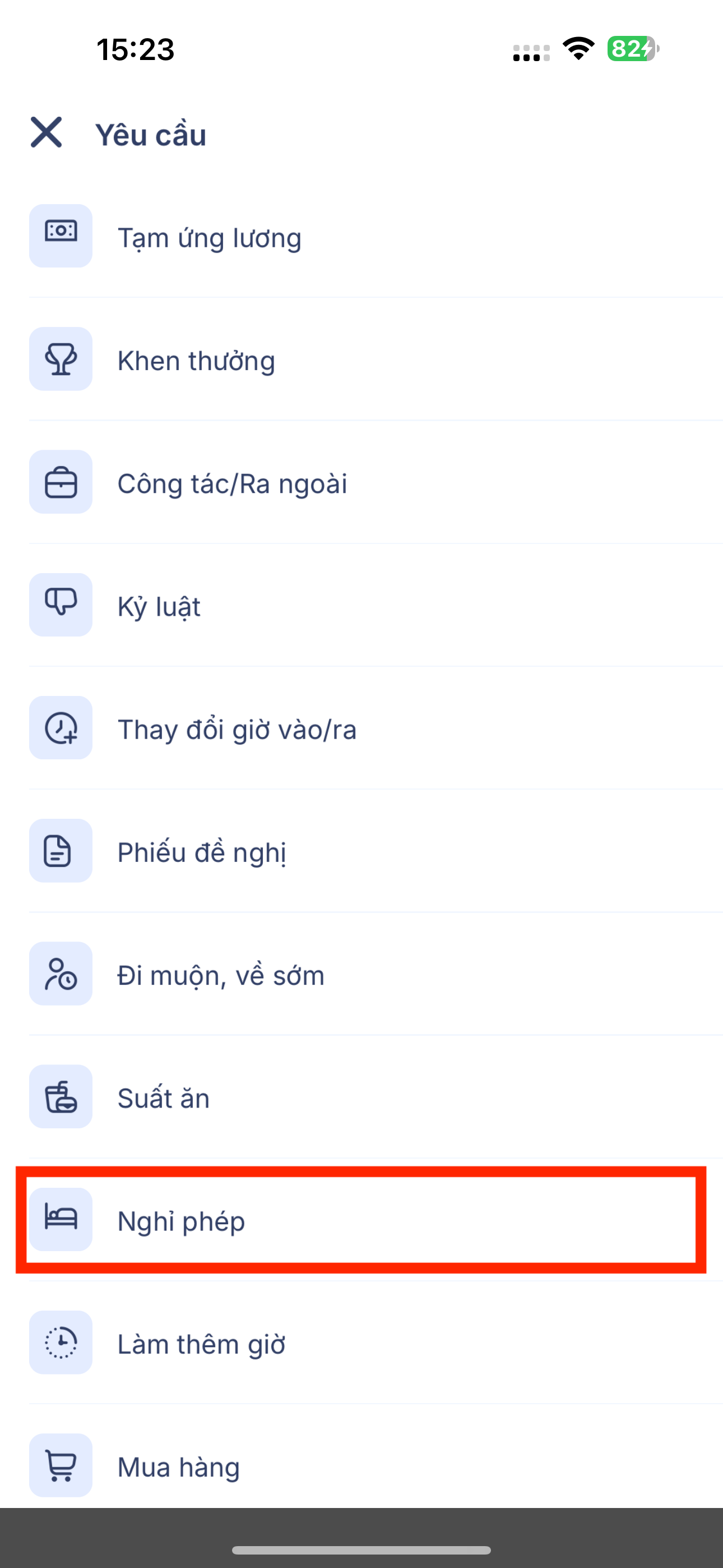
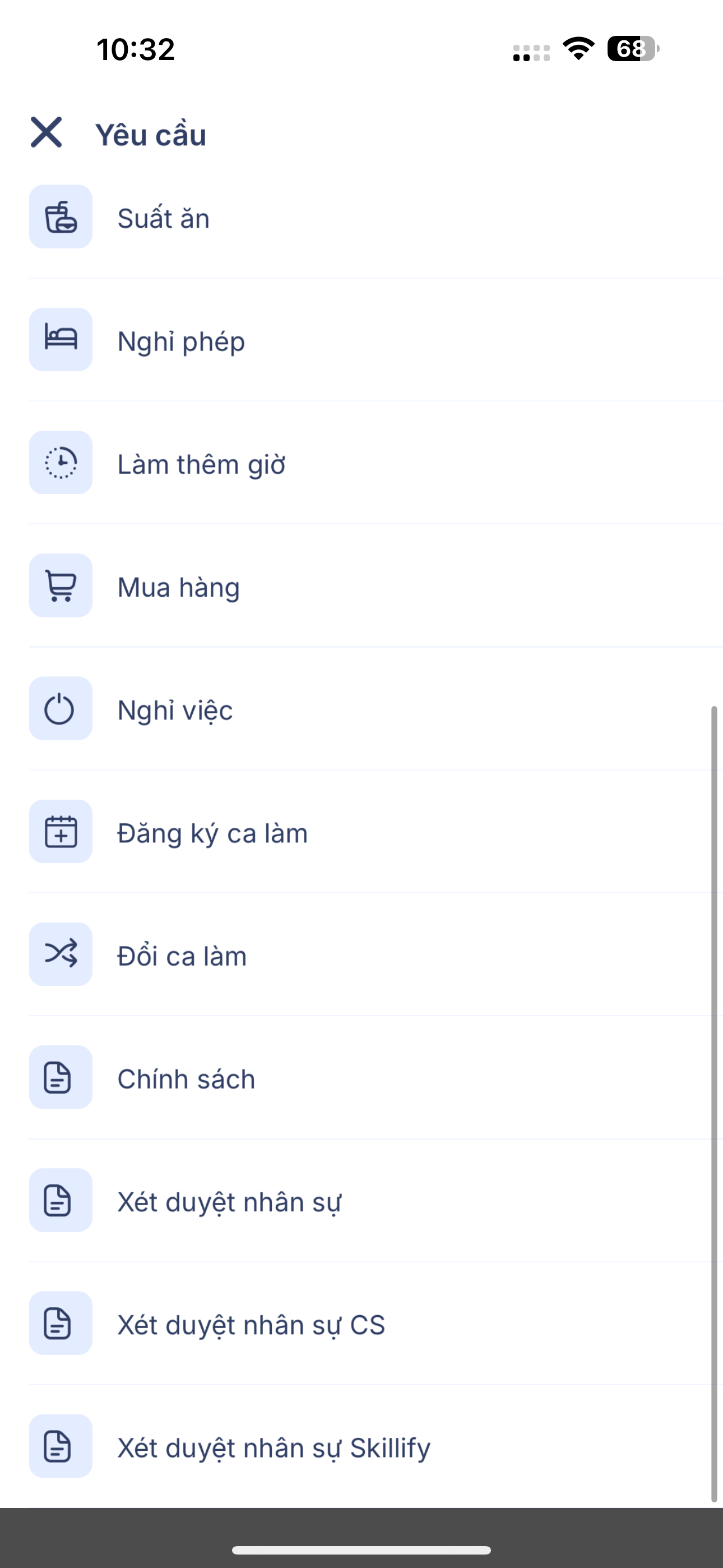
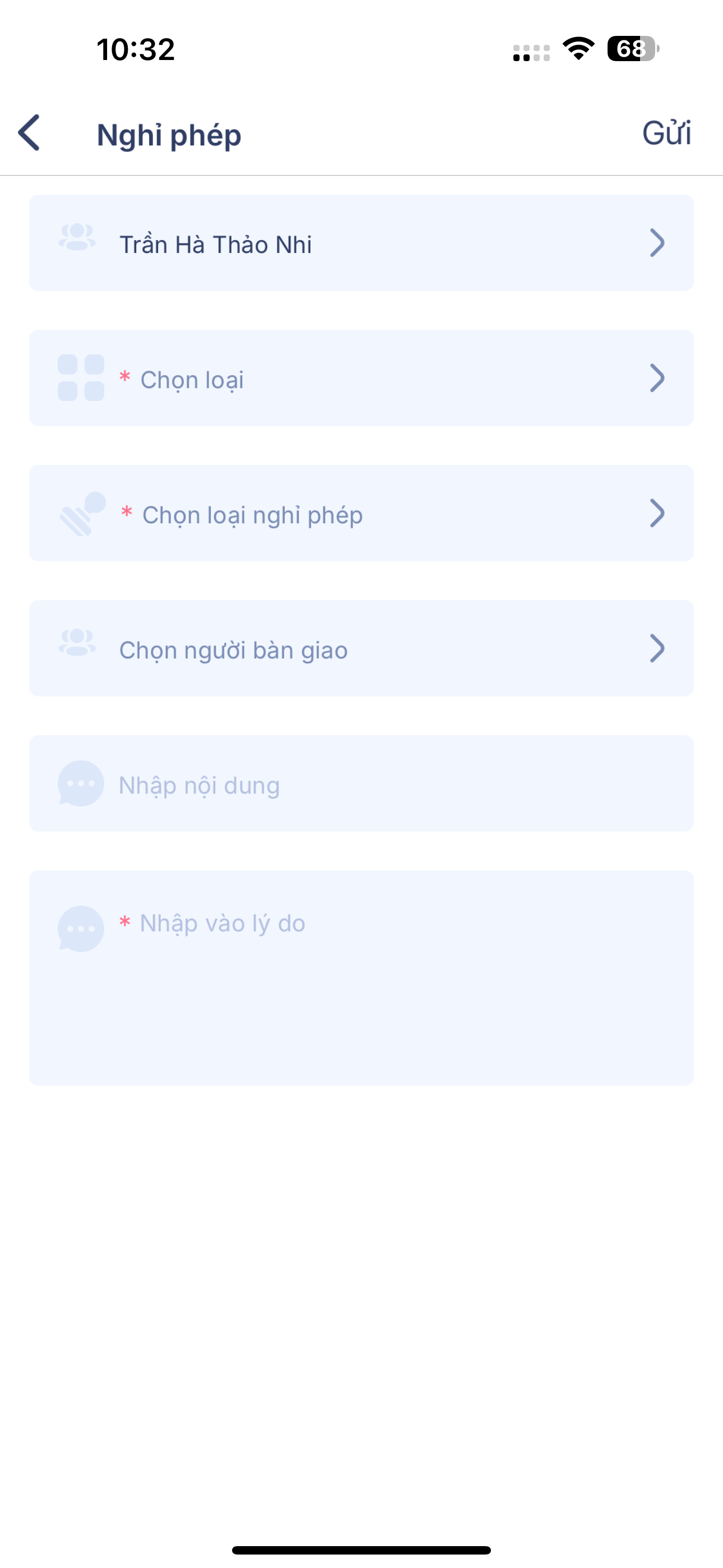
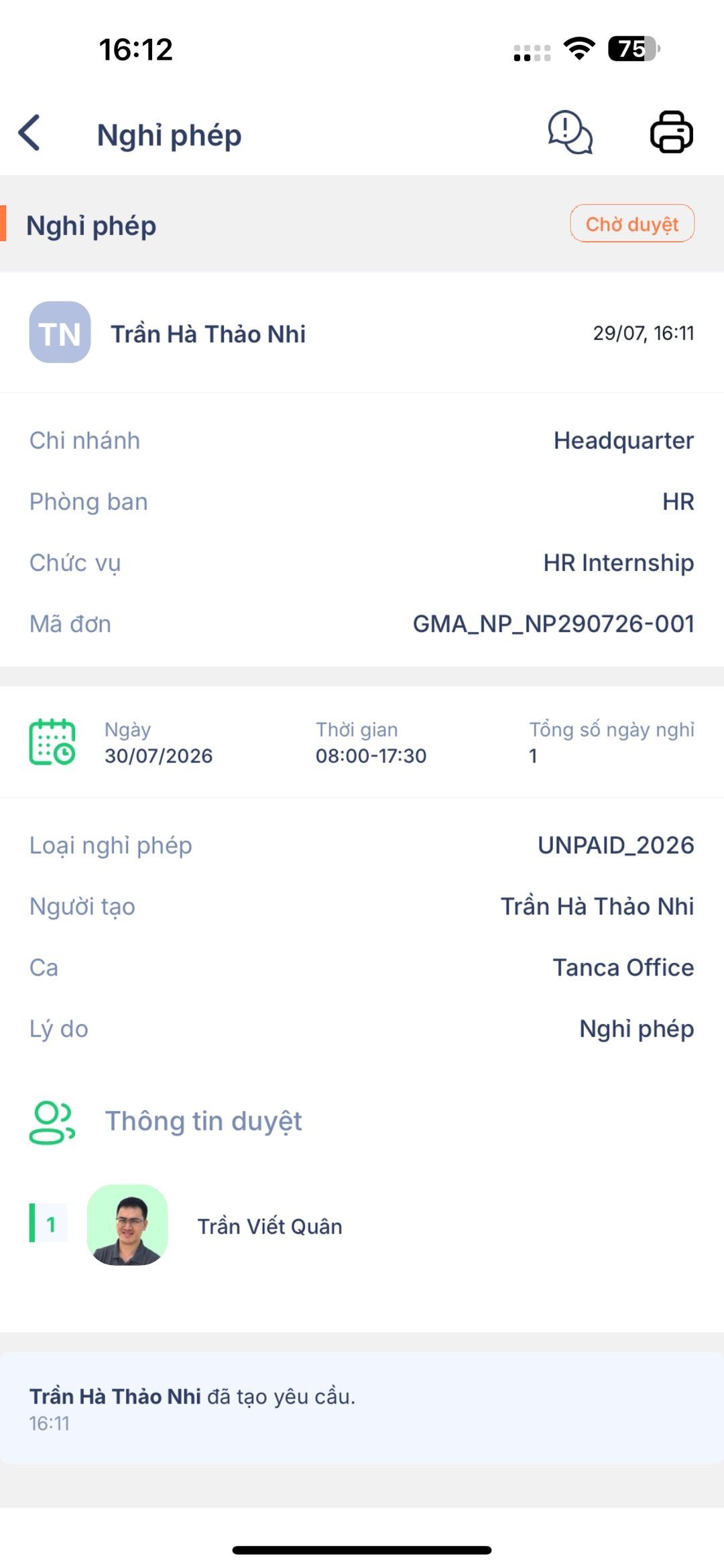
Four common request types
| Request type | Use when |
|---|---|
| Leave | Taking approved leave for a full day or half day |
| Overtime | Working outside your standard shift hours and wanting it counted as overtime |
| Business trip/Going out | Meeting clients, traveling for business, or going out during working hours |
| Late arrival/Early departure | Asking to arrive late or leave early with a reason |
Notes
- Submit in advance, not after the fact. Requests submitted in advance give your manager time to approve; requests submitted after you've already been absent become justifications.
- Check your remaining leave days before requesting leave — see article A3-04.
- You can edit or withdraw a request while it is still pending approval.
- If a request is stuck for a long time, remind your line manager. If your manager is away, ask HR to assign a substitute approver.
Approved requests are automatically deducted from your leave balance and added to your timesheet. You no longer need to message HR about them.

