View and adjust the leave balance for one individual. This is where you go when an employee reports "my leave balance is wrong".
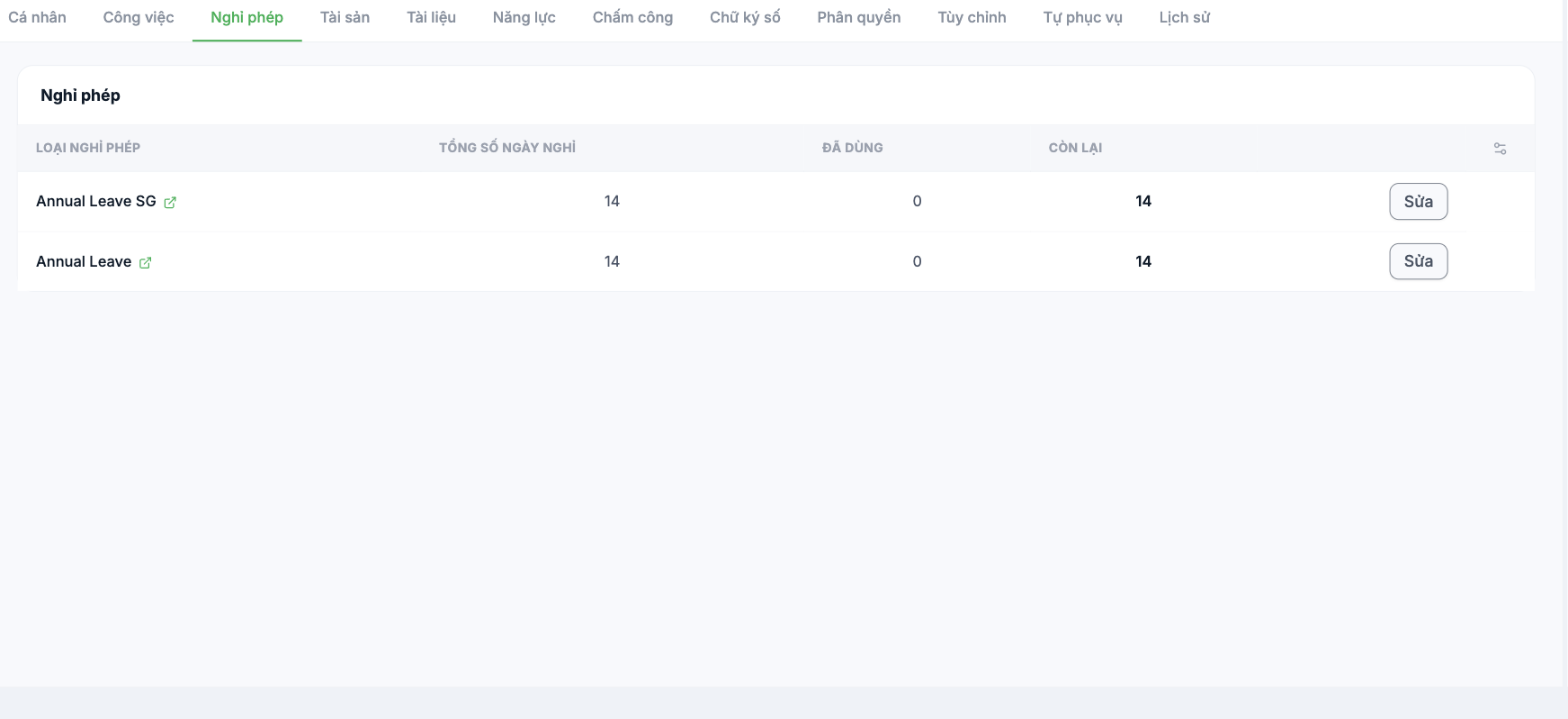
Reading the table
| Column | Meaning |
|---|---|
| Leave type | The name of the leave type declared in the requests configuration. A person can have several types at once. |
| Total days off | The balance granted for the current period |
| Used | Days taken according to approved requests |
| Remaining | Total minus used |
| Edit | Adjust the balance for this person only |
When to edit the leave balance
| Situation | What to do |
|---|---|
| New employee joining mid-year | Grant a balance prorated by the months remaining in the year |
| Migrating from an old system | Enter the remaining leave according to the old records at the time of migration |
| Increased seniority earns additional leave days | Add them to the total |
| Unused leave carried over from the previous year | Add it to the total and note the reason |
| Unpaid leave mistakenly deducted from annual leave | Correct it and check the original request |
Before editing the balance, first check that person's approved leave requests. Most cases of "wrong leave balance" are caused by a request approved under the wrong type, not by a wrong balance — editing the balance in that case only hides the real error.
Notes
- The default leave balance is configured company-wide in Time & Attendance › Settings › Leave. Editing it here only affects one person.
- If a whole group is wrong, fix it in the shared configuration instead of editing each profile.
- Employees can see their remaining days in the app — see A3-04. That means errors here will be noticed very quickly.

