These three items are the automated part of the module. This article describes exactly what can be configured today and clearly states which parts don't work yet, so you don't build a process around something that doesn't exist.
AI Interview — AI conducts the interview
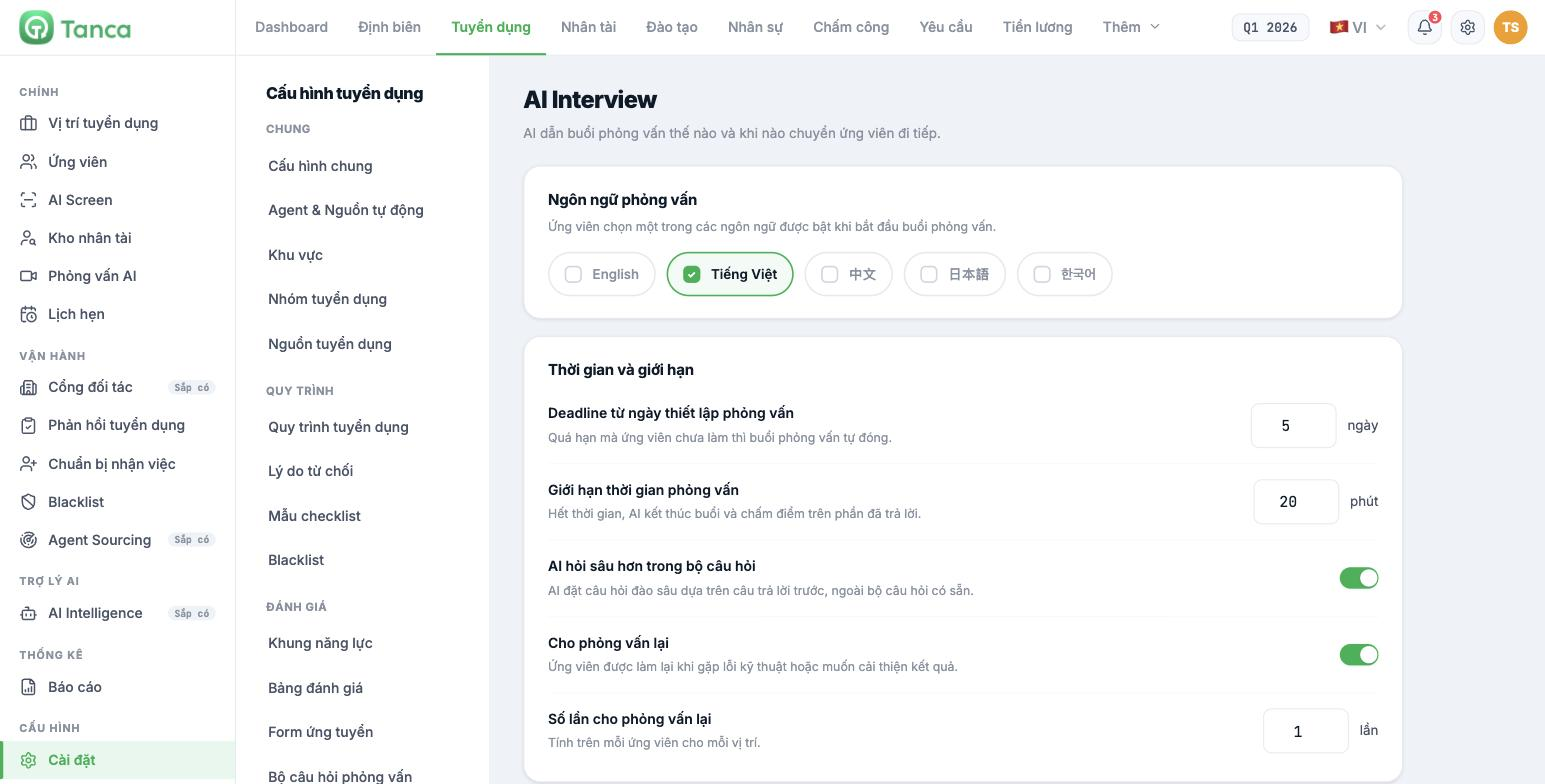
| Setting group | Contents |
|---|---|
| Interview languages | Enable one or more of five languages: English · Tiếng Việt · 中文 · 日本語 · 한국어. Candidates choose one of the enabled languages when they start |
| Deadline from the interview setup date | Number of days. If the candidate hasn't taken the interview by the deadline, it closes automatically |
| Interview time limit | Number of minutes. When time runs out, AI ends the session and scores the answers given so far |
| AI asks deeper questions within the question set | AI asks follow-up probing questions based on previous answers, beyond the existing question set |
| Allow retakes and Number of attempts | Candidates can retake when they encounter technical problems or want to improve. Attempts are counted per candidate per position |
| Interview reminders | Choose the reminder channel: Zalo or Email, with the corresponding message template |
| Greeting and Closing message | What AI says at the start and after the final answer. Leave blank to use the system default |
The greeting and closing message can use four variables: `[[position_name]]`, `[[candidate_name]]`, `[[company_name]]`, `[[question_count]]`.
AI Interview only runs when the position has an interview question set attached (article B15-06) and the pipeline has a step with the AI Interview role enabled (article B15-04). If you configure it here but those two things are missing, no interviews will take place.
Set the time limit more generously than you think. Candidates answer by voice much more slowly than when typing, and if time runs out midway, AI scores an incomplete session — a low result for technical reasons rather than ability.
AI Scan — scanning and scoring CVs
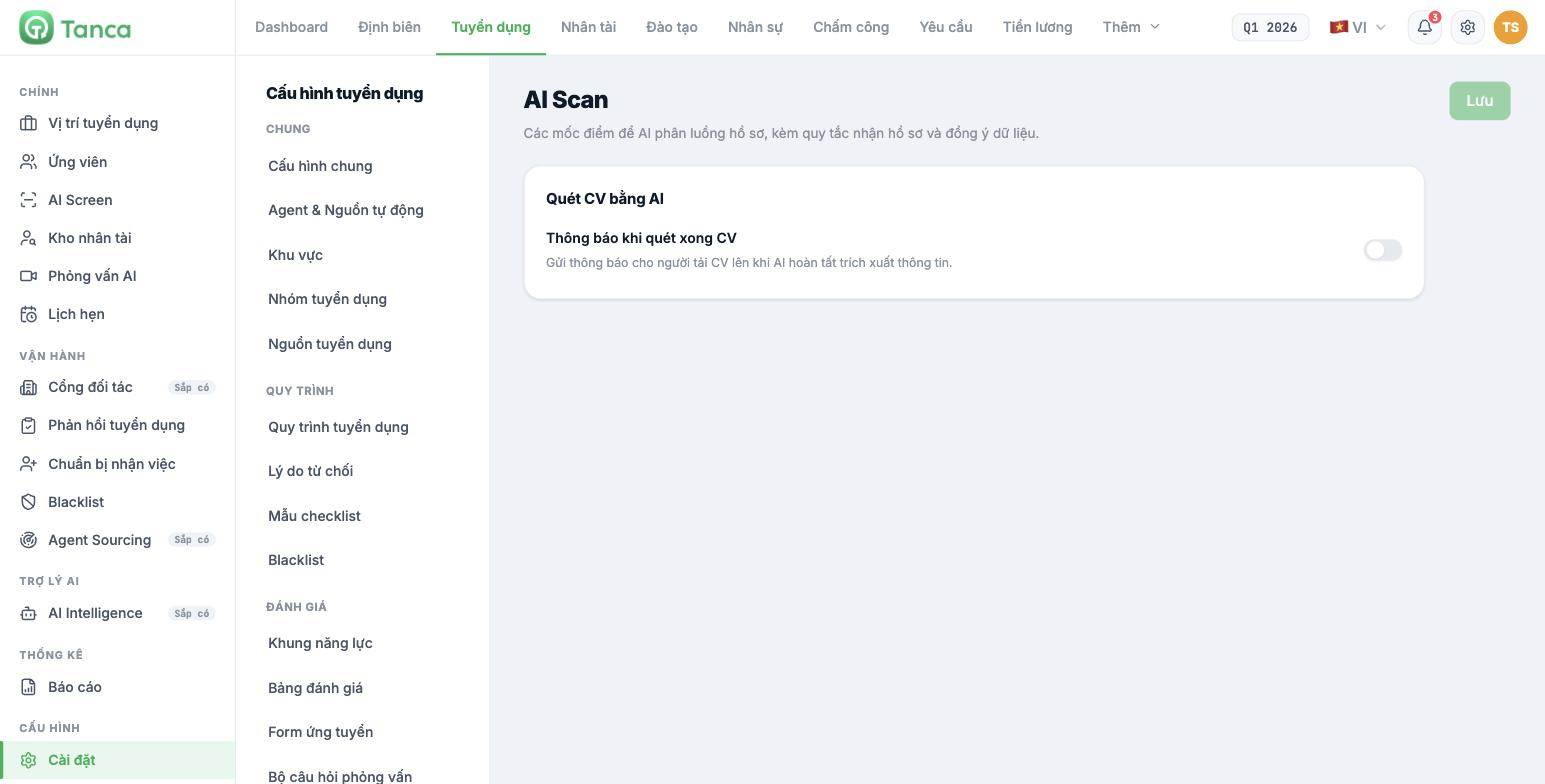
This page is currently incomplete. The description at the top of the page says "score thresholds for AI to route applications, along with application intake rules and data consent", but the actual content has only one toggle: Notify when CV scanning is complete. Routing score thresholds, application intake rules, and the data consent section are not yet available in the interface. This has been logged for the product team to add.
| Setting | Effect |
|---|---|
| Notify when CV scanning is complete | Sends a notification to the person who uploaded the CV when AI finishes extracting the information |
Whether AI scores CVs is turned on for each position, not here: go to the position › Edit job posting › step 4 Team & AI, select a Competency framework, then turn on Automatically score CVs.
The AI score is a tool for ordering which applications to read first, not a hiring decision. Don't configure the pipeline so that applications below a threshold automatically drop into the Rejected column without anyone looking at them — a poorly written CV doesn't mean a poor worker, and a fully automated rejection decision is something a company will struggle to justify when questioned.
Candidate survey
Go to Settings › Candidate Survey. This is a recruitment experience survey sent to candidates after their application is closed.
| Section | Contents |
|---|---|
| Send survey when | Four milestones: candidate is rejected · accepts an offer · starts work · withdraws |
| Survey email | Choose a template from Settings › Email Templates |
| Question set | Star-rating questions, an NPS question, and free-form comments |
| Require comments for low scores | Applies to the whole survey, not to an individual question |
| Survey page | Page title · Introduction · Estimated duration (set to 0 to hide) |
Surveys can't be sent yet. The page clearly states that the list of send triggers is "being saved while waiting for the backend to connect the sending flow". You can compose and save the content, but the system doesn't yet send surveys to candidates. The results statistics aren't available yet either.
The Save button on this screen overwrites all three tabs at once. Check all three before clicking, and don't save when you've only just finished editing one tab.

