You don't need to open every project to know what you have to do. The My tasks screen gathers all tasks assigned to you and sorts them by urgency.
Four groups in My tasks
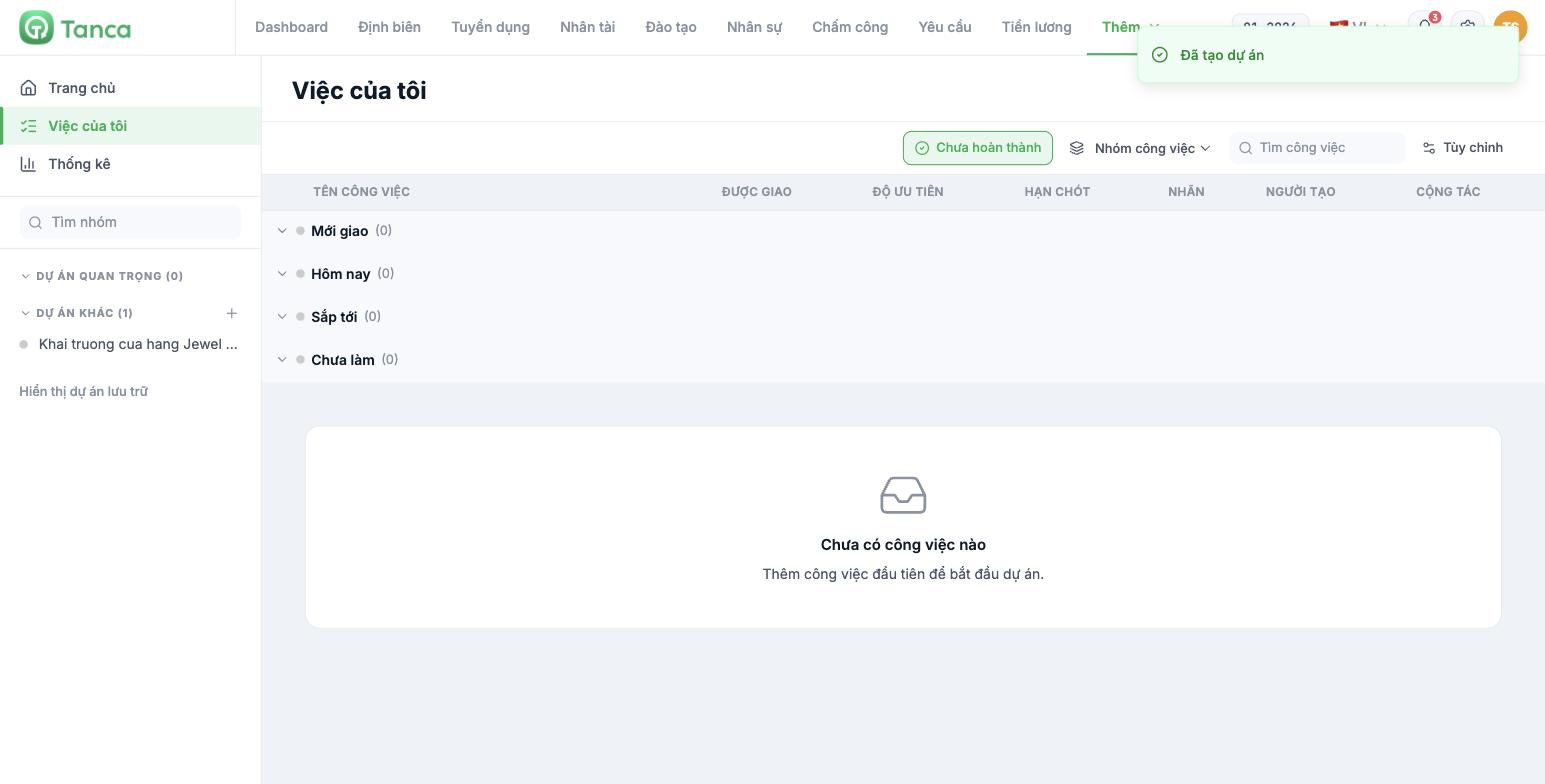
Go to More › Tasks and click My tasks in the left column.
| Group | Meaning | What to do |
|---|---|---|
| Newly assigned | Just assigned, and you haven't opened it yet | Read it and confirm with the assigner if anything is unclear |
| Today | Due today | Top priority |
| Upcoming | Due in the coming days | Fit it into your schedule |
| Not started | Assigned but without a due date | Ask the assigner about the deadline; don't let it drift |
The table shows Assigned to · Priority · Due date · Labels · Creator · Collaborators. Use the Search tasks box and the Task group filter when the list is long.
If this screen is empty but you know you have tasks, it's almost certain your manager added you to the Collaborator field rather than the Assigned to field. The two roles are different: only the Assigned to field brings tasks here.
Update a task
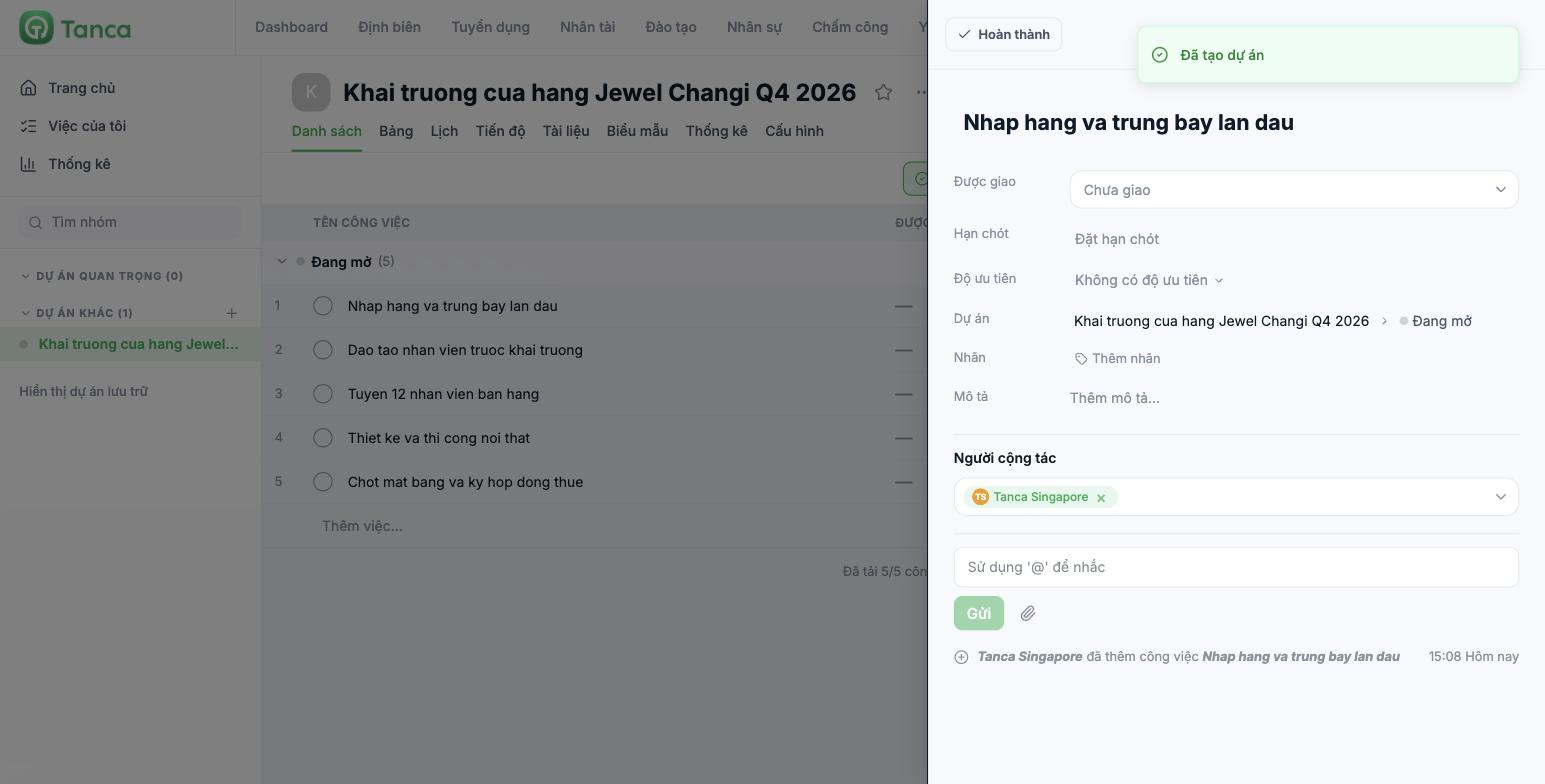
- Click the task name to open the detail panel.
- If your team uses a Kanban board, go to the Board tab and drag the card to the next step (article B10-03).
- Write your update in the comment box — type `@` and pick a name to mention the right person.
- When the task is done, click Complete at the top of the detail panel, or tick the circle to the left of the task name in the list.
Comments on a task beat private messages in one important way: they stay with the task. Three months later, anyone who opens that task can still read why a decision was made.
Four habits that keep you on schedule
- Open My tasks at the start of the day, not the end.
- *The Not started group should always be empty* — every task you receive should have a deadline. If it doesn't, ask.
- Post an update when you're blocked; don't wait until the deadline. A comment saying "waiting for a quote from the supplier" today is worth more than an explanation on the day the deadline is missed.
- Mark tasks complete as soon as they're done. The numbers on your manager's Statistics screen depend on it.
Tasks you create for yourself
You can create tasks for yourself in any project you're a member of: open the project, click Add task…, then set the Assigned to field to yourself. This is useful for turning a request you received by message into a task with a deadline, instead of trying to remember it.

