Two mistakes can ruin a shift: scheduling one person into two shifts at the same time, and leaving a time slot short-staffed. This article shows how to check for both before the schedule takes effect.
Checking for overlapping shifts
- Open Time & Attendance › Work Schedule › Scheduling.
- Select the week you need to check.
- In the grouping filter, select By overlapping shifts.
- The grid now shows only cases where one person has multiple shifts with overlapping time slots on the same day.
Not every pair of shifts in one day is a mistake. A split shift (working in the morning, taking a long lunch break, working in the evening) is two shifts in one day but without overlapping hours — that is valid. Only shifts that overlap in time are errors.
Three causes of overlapping shifts
| Cause | Solution |
|---|---|
| Two shift assignment rules both cover the same employee | Open Settings › Scheduling › Shift Assignment Rules and narrow the department or job title scope of one of the two rules |
| A shift swap request was approved without checking the replacement person's schedule | Delete the extra shift on the Scheduling screen, and reinforce the check-before-approving process (article B7-07) |
| An employee registered for two overlapping shifts | Set Maximum shifts per week in Settings › Scheduling › General to prevent it from the start |
Checking for understaffing by time slot
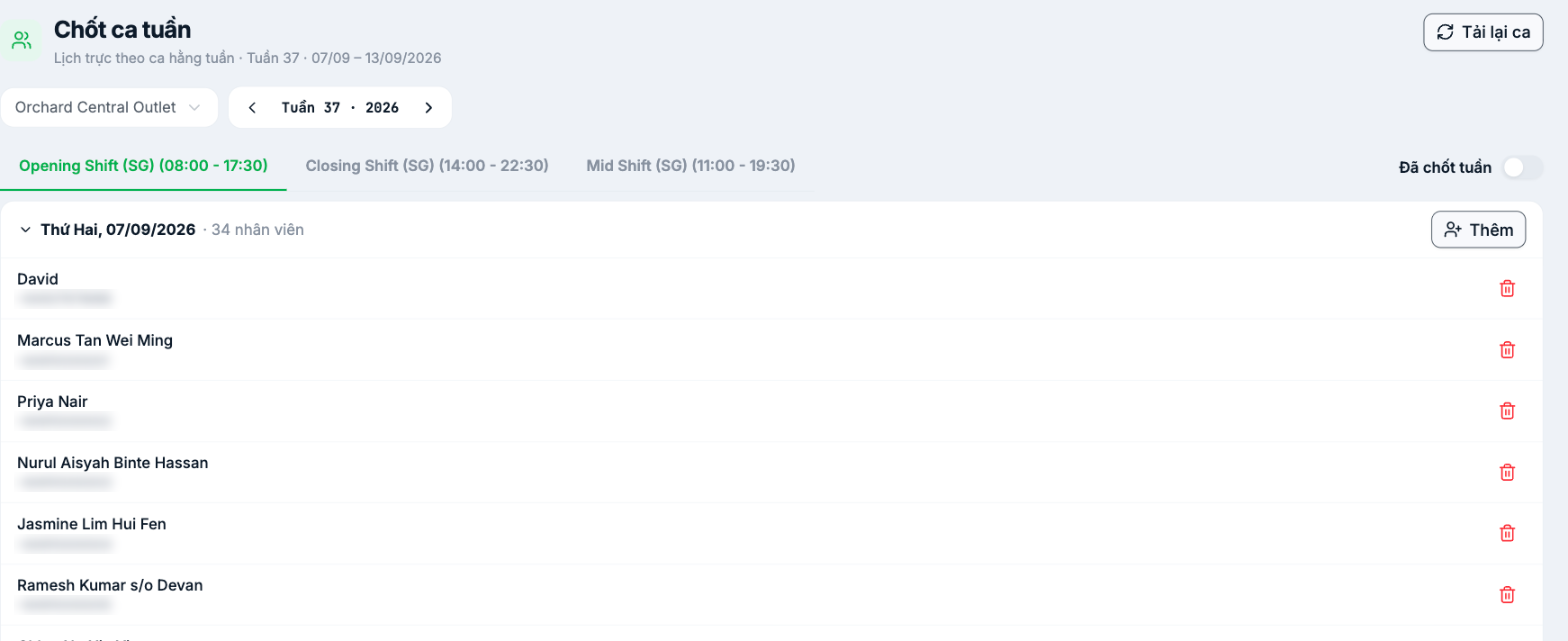
The Finalize Weekly Shifts screen gives the opposite view: instead of which shifts this person works, it answers who is on this shift.
- Go to Time & Attendance › Work Schedule › Finalize Weekly Shifts.
- Select the branch and week at the top of the page.
- Select the tab for the shift you need to check — each shift is a tab, labeled with its time slot.
- Each day is a collapsible block, with the number of scheduled employees shown in its header.
- Compare that number with the minimum number of people the store needs.
| Button | Used to |
|---|---|
| Add | Add an employee to that day's shift |
| Trash icon | Remove an employee from the shift |
| Reload Shifts | Reload the schedule from the shift assignment rules; use after you have just edited a rule |
| Week Finalized | Mark the weekly schedule as finalized, with no further changes |
Turn on Week Finalized after you have finished checking for both overlapping shifts and understaffing. This is the signal for employees to know the schedule won't change anymore, and for the payroll team to know this week's timesheet can be trusted.
Weekly checklist
- No overlapping shifts remain in the By overlapping shifts filter.
- Every shift on every day has the minimum number of people.
- Weekend shifts and night shifts — the two places most often short-staffed.
- Holidays during the week are scheduled according to the company's holiday calendar.
- People currently on leave have been removed from the schedule.

