The payslip is the only thing in the entire module that every employee reads — and reads carefully. One confusing line on a payslip generates dozens of questions for HR.
Publishing payslips
- Complete Approve & lock for the pay period (article B9-11).
- On the pay period screen, turn off Hide payslips.
- Employees can view their payslips in the app and on the web (article B9-16).
Keep Hide payslips on throughout the payroll preparation process. Only turn it off after locking. Employees seeing draft figures and then official figures that differ is an unnecessary source of complaints.
Viewing and exporting payslips
- Go to Payroll › Payslips.
- Select the month in the field at the top left.
- Select the pay period from the list.
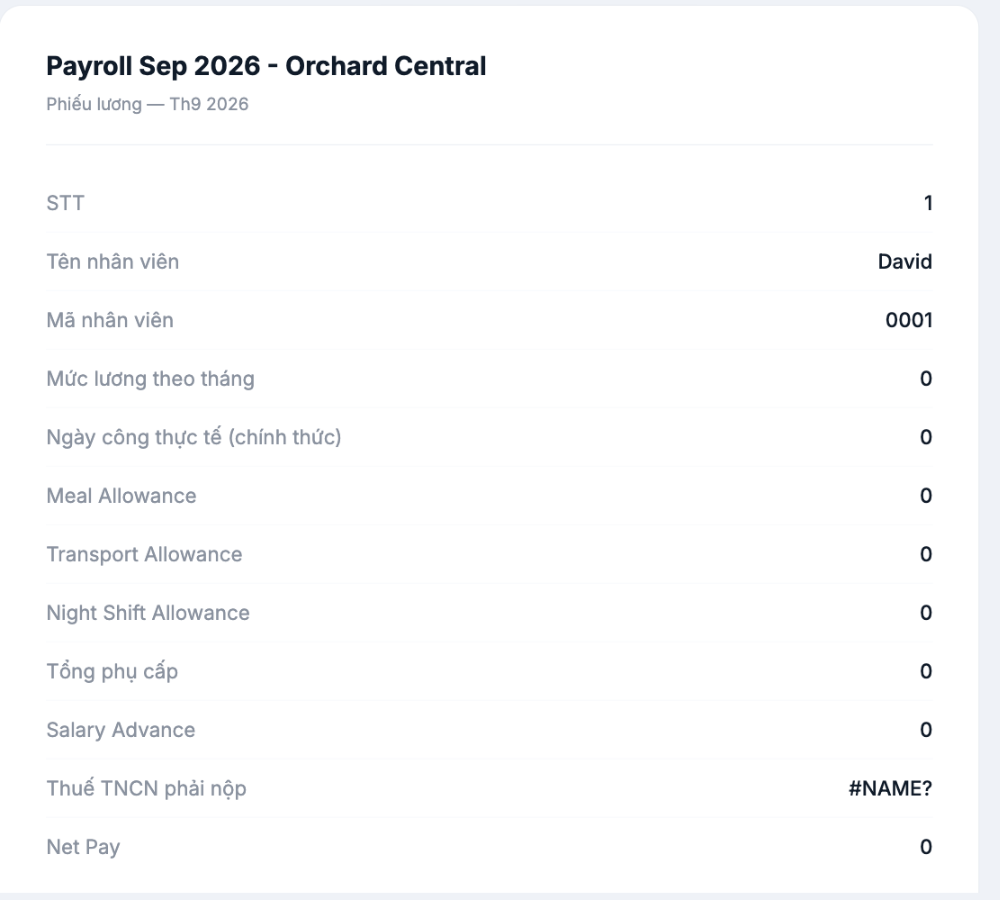
- The payslip appears on the right as a list of lines: column name and value.
- Click Export to download the payslip as a file.
Easy-to-understand payslips
Payslips use exactly the columns of the payroll template, so payslip quality depends entirely on how you name and arrange the columns (article B9-04).
- Name columns in language employees understand. Shift meal allowance is clearer than SHIFT_MEAL_ALW.
- Stick to one language. Having half the columns in Vietnamese and half in English makes the payslip hard to read.
- Keep the order: additions first, deductions next, net pay last. Employees read payslips following this logic.
- Hide intermediate columns that employees don't need using the column manager.
Test your payslips by reading them yourself as an employee would: open any payslip and ask yourself whether each line is understandable. Any line that makes you stop and think is a line that needs renaming.
Before publishing — three mandatory checks
- Open at least five payslips covering different situations and read them from top to bottom.
- Check that no payslip has a formula error cell. Error cells appear directly on the payslip employees see.
- Check that the net pay column matches the amount that will be transferred (article B9-13).
The second check is not hypothetical. In a test version, the Personal income tax payable column showed `#NAME?` right on the payslip — a spreadsheet error code that employees won't understand and will ask about. Always review before publishing.
Accompanying announcement
The first time you publish electronic payslips, send a short company-wide announcement covering four points:
- Where to view payslips — the app and the web.
- On which day payslips are published each month.
- Who to send questions to and how (article B9-17).
- A commitment on security: who in the company can view their payslips.
The fourth point is often overlooked, but it is what employees care about most when moving from paper payslips in envelopes to electronic payslips.

