A competency framework describes "what someone who does this job title well must be good at, and which skills matter more than others". One framework per job title.
Tanca has two separate competency frameworks. The framework in Talent › Settings (this article) is used to rate the competencies of current employees. The framework in Recruitment › Settings is used by AI to score candidate CVs and is a separate system — skills are typed in by hand, not taken from the skill library. Building a framework here does not enable recruitment to score CVs. See article B15-05.
Before building a framework
- The job title already exists in the business's job title tree.
- The skills you need are already in the Skill Library and ticked for that job title (article B13-02).
- Each skill has all five behavioral levels written (article B13-03).
Without step 2, the skill won't appear in the selection box. Without step 3, the required level selection step will show only five empty boxes.
Open the framework list
- Go to Talent › Settings.
- Select the Competency Frameworks tab.
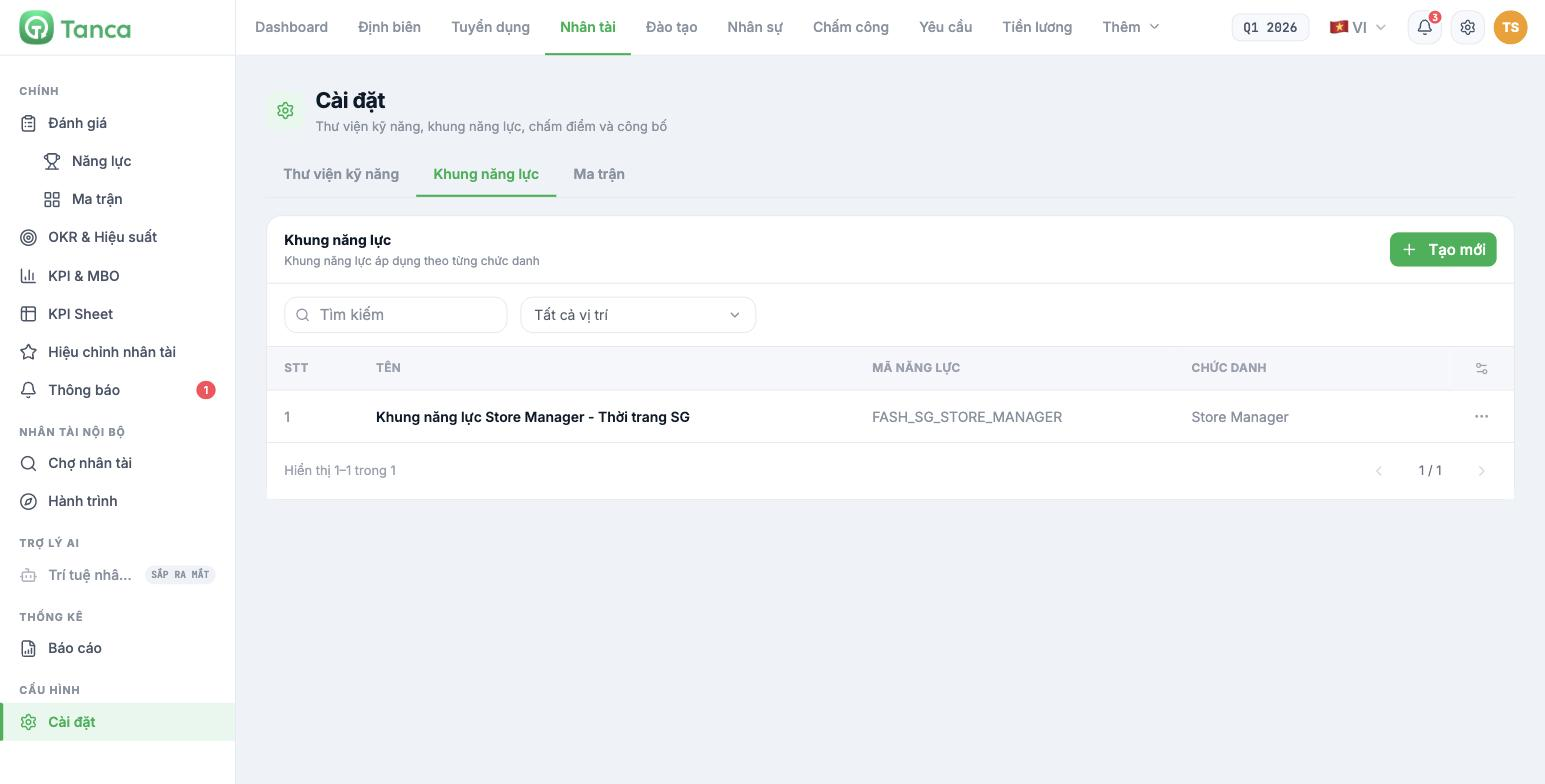
| Column | Content |
|---|---|
| Name | Framework name; should include both the job title and the context |
| Competency code | A code without diacritics used to cross-reference external documents |
| Job title | Applicable job title — one job title per framework |
Click + Create New to build a new framework. For an existing framework, click the three dots at the end of the row and select Edit or Delete. Clicking the framework name doesn't open anything.
Step 1 — set up the framework structure
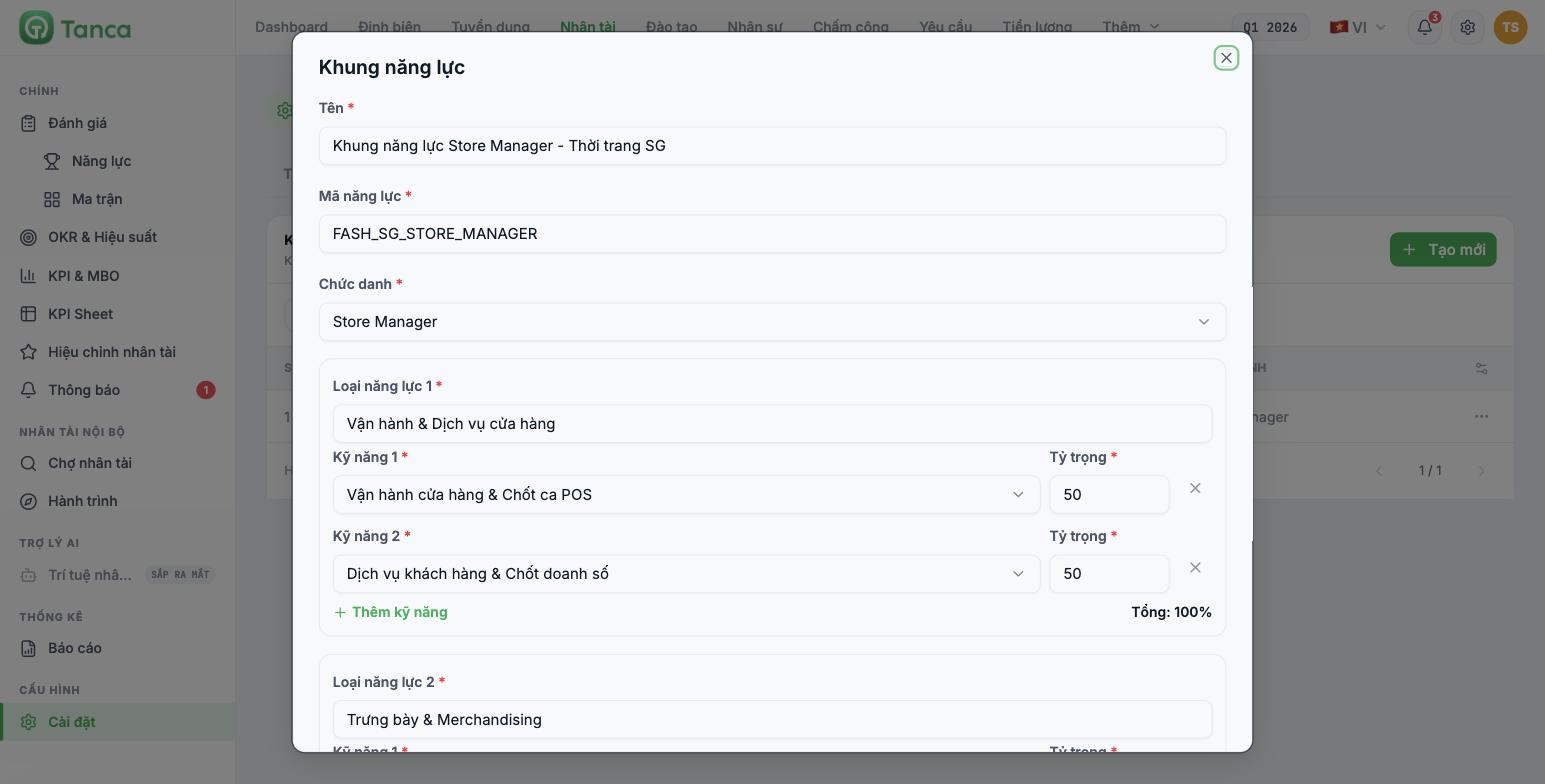
| Field | Notes |
|---|---|
| Name * | For example `Store Manager Competency Framework - Fashion SG` |
| Competency code * | For example `FASH_SG_STORE_MANAGER`. No diacritics, uppercase, underscores |
| Job title * | Select one job title. You can't select multiple |
Below are the Competency types — these are the groups. Each group has a group name field and a list of skills with weights.
- Fill in Competency type name 1 — for example Store Operations & Service.
- In Skill 1, open the list and select a skill from the library.
- Enter the Weight for that skill.
- Click + Add skill to add the next row in the same group.
- Click + Add competency type to open a new group.
- Click Continue when done.
The × at the end of each skill row removes that skill from the framework. Removing it from the framework does not delete the skill from the library.
Example of a complete framework
| Competency type | Skill | Weight |
|---|---|---|
| Store Operations & Service | Store Operations & POS Shift Closing | 50 |
| Customer Service & Sales Closing | 50 | |
| Display & Merchandising | Display & Visual Merchandising | 50 |
| Inventory Management & Receiving | 50 | |
| People & Compliance | Coaching & Onboarding New Staff | 50 |
| Shift Compliance & Time & Attendance | 50 |
Three groups, each with two skills split evenly 50–50. This is the simplest structure that works. Article B13-05 covers how to set weights properly instead of splitting evenly.
Step 2 — choose required levels
After clicking Continue, the screen moves to step two with the instruction "Select one box for each skill to create the framework". Details are in article B13-05.
Three things to know in advance
| Point | Consequence |
|---|---|
| One framework per job title | If you want to split by region or industry, you must create separate job titles |
| No draft status | Once saved, the framework is usable immediately. There is no approval step |
| Editing a framework affects subsequent review cycles | Completed cycles keep their results, but comparisons between two cycles will be skewed if you change skills or weights midway |
Finalize the framework structure on paper with the department head before entering it into the system. Every time you edit a framework between review cycles, historical data loses its comparability.

