This tab determines what this person can see in the system. Mistakes here go wrong in two directions: too restrictive and people can't do their jobs; too broad and employees can see their colleagues' salaries.
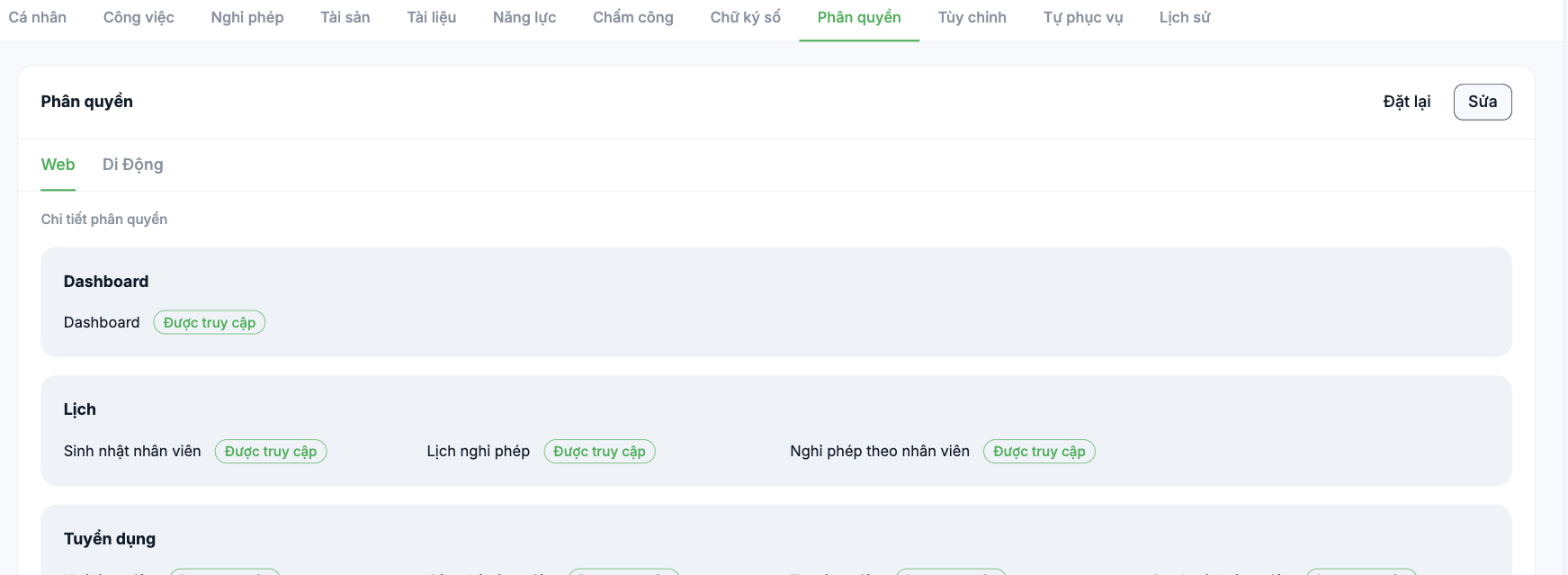
Structure
- Two tabs, Web and Mobile — permissions can differ between the two platforms. For example, allow viewing reports on the web but not in the app.
- Below is the list of permissions, grouped by module: Dashboard, Calendar, Recruitment, HR, Time & Attendance, Payroll…
- Each item shows a status label, e.g. Access granted.
- The Edit button makes changes; the Reset button restores the access group's defaults.
Relationship with Access Groups
Each employee belongs to one access group (Manager · Regional Manager · Branch Manager · Employee), and this group determines the default set of permissions and the data scope that person sees. This tab is for fine-tuning permissions for an individual within that scope — not for expanding the scope.
Changing permissions for one person here is the exception. If many people need the same set of permissions, edit the access group configuration in Settings › Organization › Permissions instead of editing each profile — otherwise, six months from now nobody will understand who has which permissions.
The three permissions to review most carefully
| Permission | Risk if opened too broadly |
|---|---|
| View payroll and payslips | Employees can see their colleagues' salaries — the most serious HR incident an HR system can cause |
| View other employees' profiles | Exposes other people's citizen ID, address and bank account number |
| Edit system configuration | Non-administrators can change attendance rules or payroll formulas |
How to verify
Don't just read the configuration screen. After setting up permissions for a new role, log in with an account belonging to that role and check for yourself what it can see. This is the only way to be sure.

