The Training module's configuration is compact: three tabs, done in fifteen minutes. But doing it before creating your first course will save a lot of cleanup later.
Three tabs
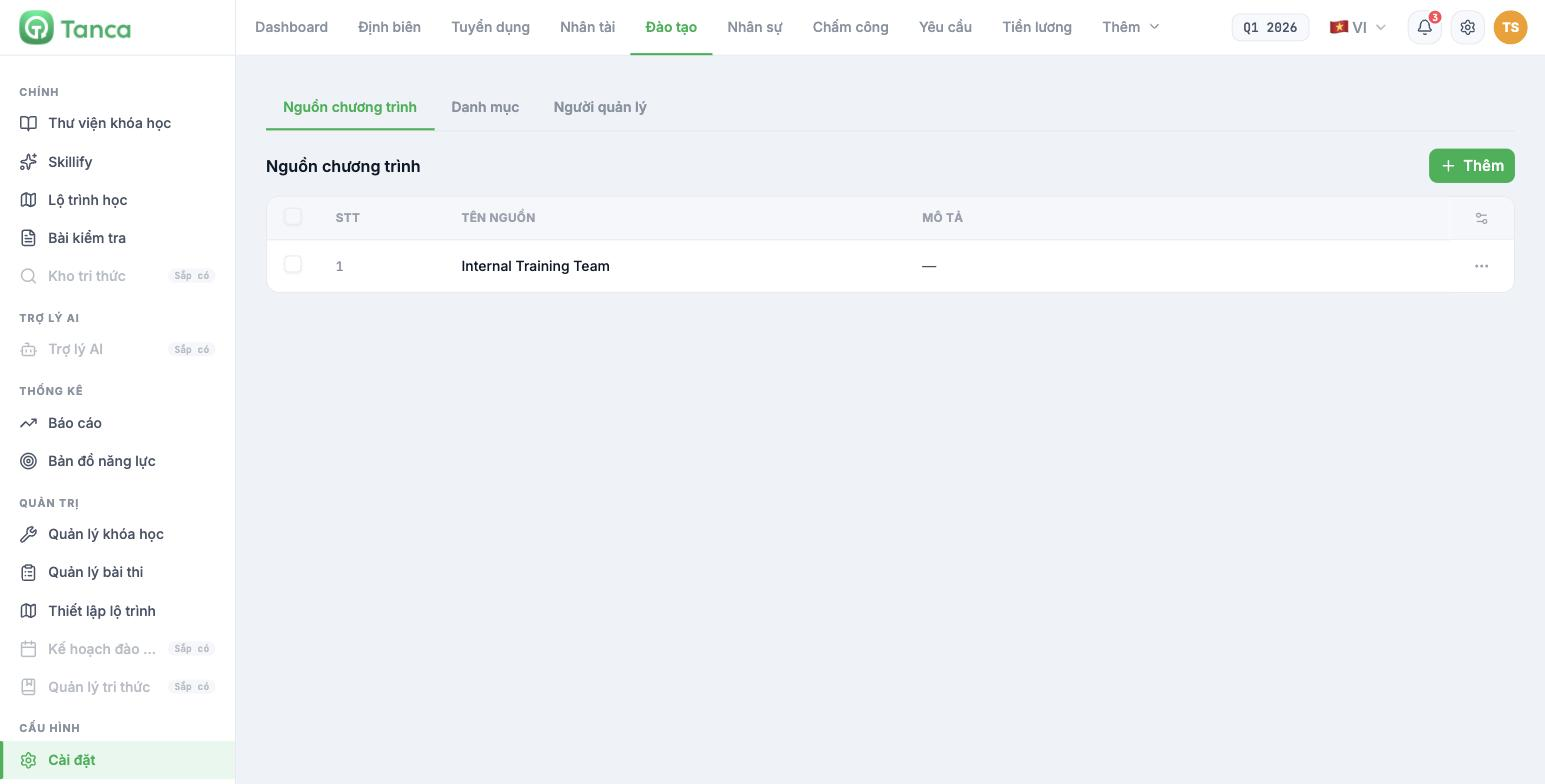
Go to Training, and in the left column under the CONFIGURATION group, select Settings.
| Tab | Used for |
|---|---|
| Program sources | Where content comes from — the internal training team, external providers, content vendors |
| Categories | Classify courses so learners can filter them in the library |
| Managers | Who can administer the Training module |
Program sources
Each row consists of a Source name and a Description. Click + Add to set up a new source.
- Set up at least one internal source, for example `Internal Training Team`.
- Set up each external training partner separately — later, training cost reports can be broken down by source.
- Name sources after the actual organization, not internal abbreviations.
Categories
Categories are what learners use to filter in the Course library. A sensible set of categories for a mid-sized business:
| Category | Contains |
|---|---|
| Onboarding | Courses for new hires: culture, rules, systems |
| Job skills | Role-specific courses: sales, warehouse, accounting |
| Products | Product knowledge, changing by season or product line |
| Compliance & Safety | Courses mandated by regulations |
| Soft skills | Communication, handling situations, time management |
| Management | Courses for managers |
Keep six to eight categories. Fewer, and filtering is useless; more, and learners don't know which category to pick while you end up assigning each course somewhere just for the sake of it.
Managers
This tab defines who has permission to administer the Training module — create courses, edit content, create tests, and turn on mandatory courses.
- Keep the list short. Training managers can edit content the whole company is studying.
- Separate roles when the team is large: the person who writes content and the person who turns on mandatory courses should be two different people.
- Review the list whenever someone leaves the training team.
Permissions on this tab apply only to the Training module. System-wide permissions are in Settings › Permissions, under the Training module (article C1-02) — check both places when someone reports they can't get in.

