The permissions matrix is where you turn each action on or off for each manager group, in each module. This screen is very direct — and that's exactly why it's dangerous: every click takes effect immediately, with no confirmation step.
There is no Save button and no confirmation step. Clicking a cell changes the permission immediately and takes effect for real users. There is no undo button. Take a screenshot of the matrix before making changes so you know how to revert.
Opening the matrix
- Go to Settings (the gear in the top-right corner) › Permissions.
- Select the Permissions tab (the second tab).
- In the Module box, select the module you want to view. By default it opens on Dashboard.
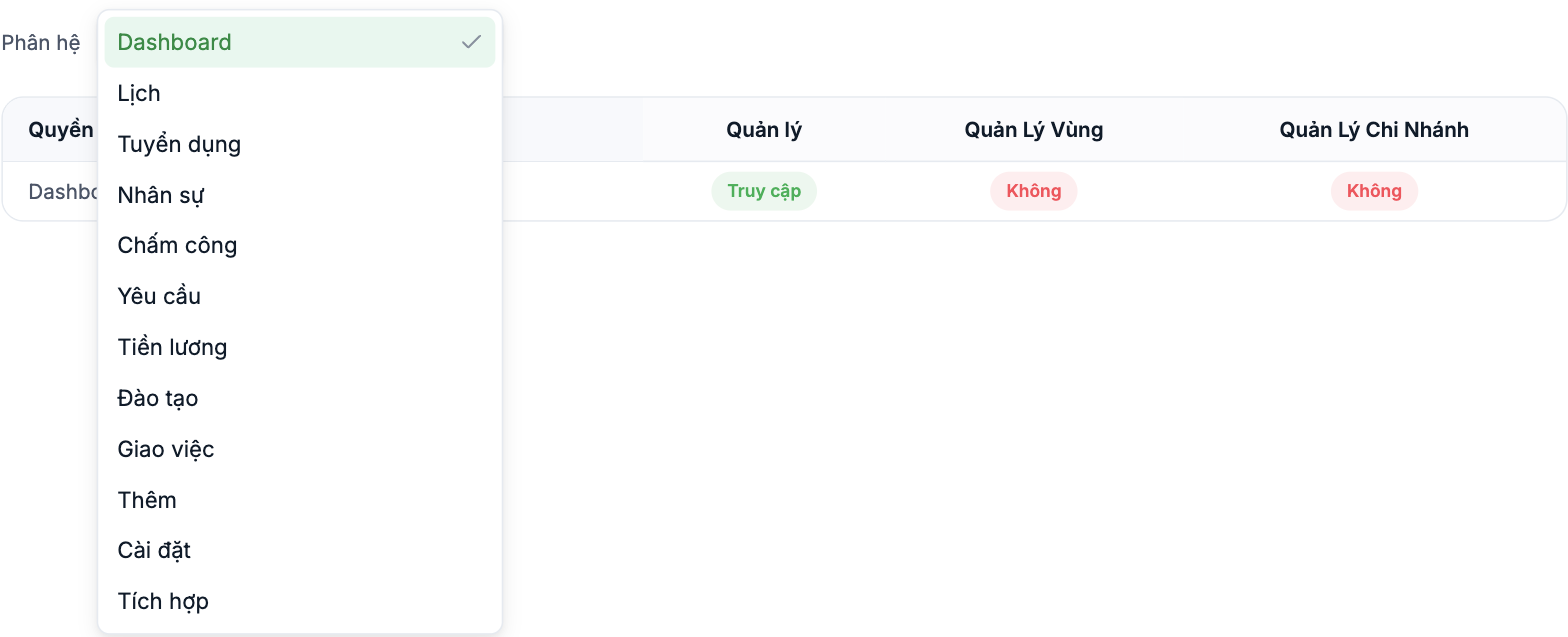
The table takes a few seconds to reload each time you change modules. While waiting, the screen only shows a spinner — don't keep clicking; wait for the table to appear before doing anything.
Twelve modules
| Group | Modules |
|---|---|
| Overview | Dashboard · Calendar |
| Employee lifecycle | Recruitment · HR · Training |
| Daily operations | Time & Attendance · Requests · Task Assignment |
| Money | Payroll |
| Other | More · Settings · Integrations |
The Settings module is the most sensitive: anyone with permissions here can edit the permissions matrix itself. Review this module first and lock it down the tightest.
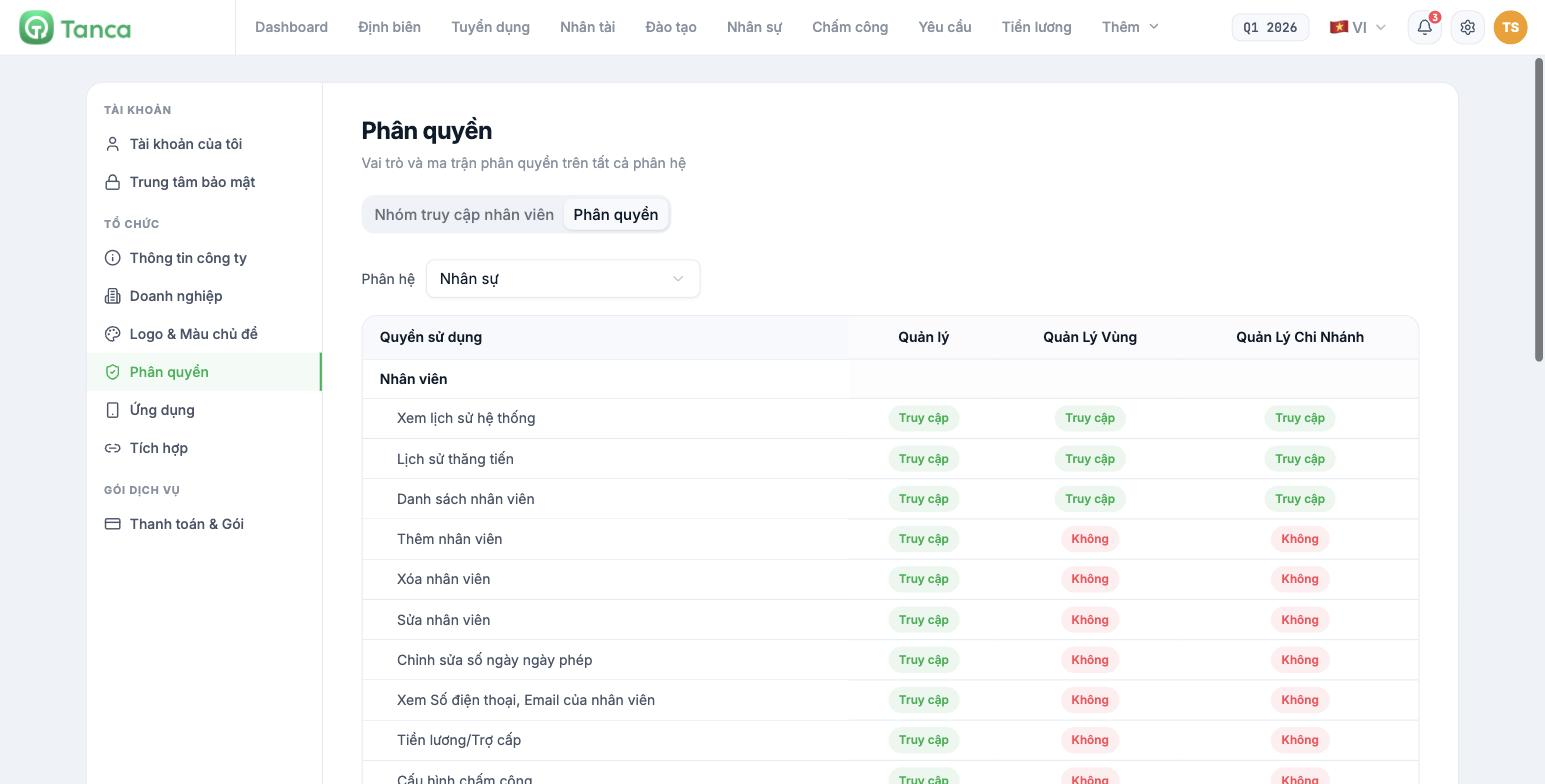
Reading the table
| Element | Meaning |
|---|---|
| Permission column | Action name. Bold, non-indented rows are function group names, not permissions |
| Manager column | `MANAGER` group |
| Regional Manager column | `REGION` group |
| Branch Manager column | `BRANCH` group |
| Access label (green) | That group is allowed to perform this action |
| No label (red) | That group is blocked |
For example, the HR module has 30 permission rows divided into four function groups: Employees (13 rows), Contracts (5 rows), Insurance (5 rows) and Assets (7 rows). The level of detail is per action — view list, add, edit, delete, export file, issue and revoke are all separate.
Four permissions to think carefully about before enabling
| Permission | Why it's sensitive |
|---|---|
| Salary/Allowances (HR module) | Exposes the income information of every person within the scope that group manages |
| View employee phone numbers and emails | Personal data — enabling it broadly risks leaking the staff directory |
| Export File (all modules) | Takes data out of the system, after which Tanca can no longer control it |
| Edit leave days | Directly changes employees' entitlements and affects the payroll |
Display bug: the Edit leave days row currently displays a duplicated word — "Edit leave days days". This is only a typo; the function still works correctly. It has been logged for the product team to fix.
Changing a permission cell
- Take a screenshot of the current matrix.
- Click directly on the Access or No label in the cell you want to change.
- The label changes color immediately — that is the entire save action.
- Reload the page to confirm the new value has been saved.
- Log in with a test account in the group you just edited to check the actual result.
Users with an open session won't see the new permissions immediately. They need to reload the page, or log out and log back in. When tightening permissions for security reasons, tell them to log out.
Three things this screen can't do
- It can't create new roles. The four groups are fixed.
- It can't edit the Employee group's permissions. This group has no column in the matrix.
- There is no permission change log. The system doesn't record who changed which cell or when. Keep your own record every time you make changes — the date, who made the change, which cell, and from what to what.

