Day one has only two tasks: get an administrator account, and fill in your company profile correctly. The date and time formats set in this step affect how every timesheet and payroll is displayed going forward, so don't skip them.
Part 1 — Get an administrator account
- Sign up for an account on the Tanca homepage, or receive an administrator account handed over by the implementation team.
- Log in with the email or phone number you registered.
- Check your role: go to Settings › My Account; the Role field must be Manager. If it isn't, you don't have enough permissions to complete the following steps.
IMAGES TO BE ADDED: the account sign-up screen and the first-time login screen. These haven't been captured yet because the test environment was already logged in.
Part 2 — Enter company information
- Click the gear icon in the top-right corner to open Settings.
- In the left column, under the Organization group, select Company Information.
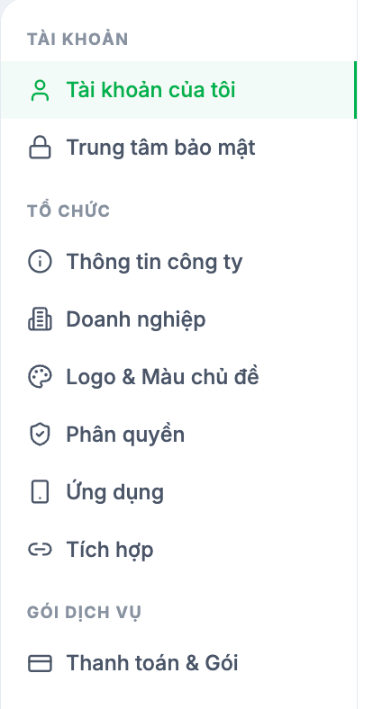
- Fill in the fields in the form. Only Company Name is required, but you should fill in everything from the start because these fields appear on contracts and in some reports.
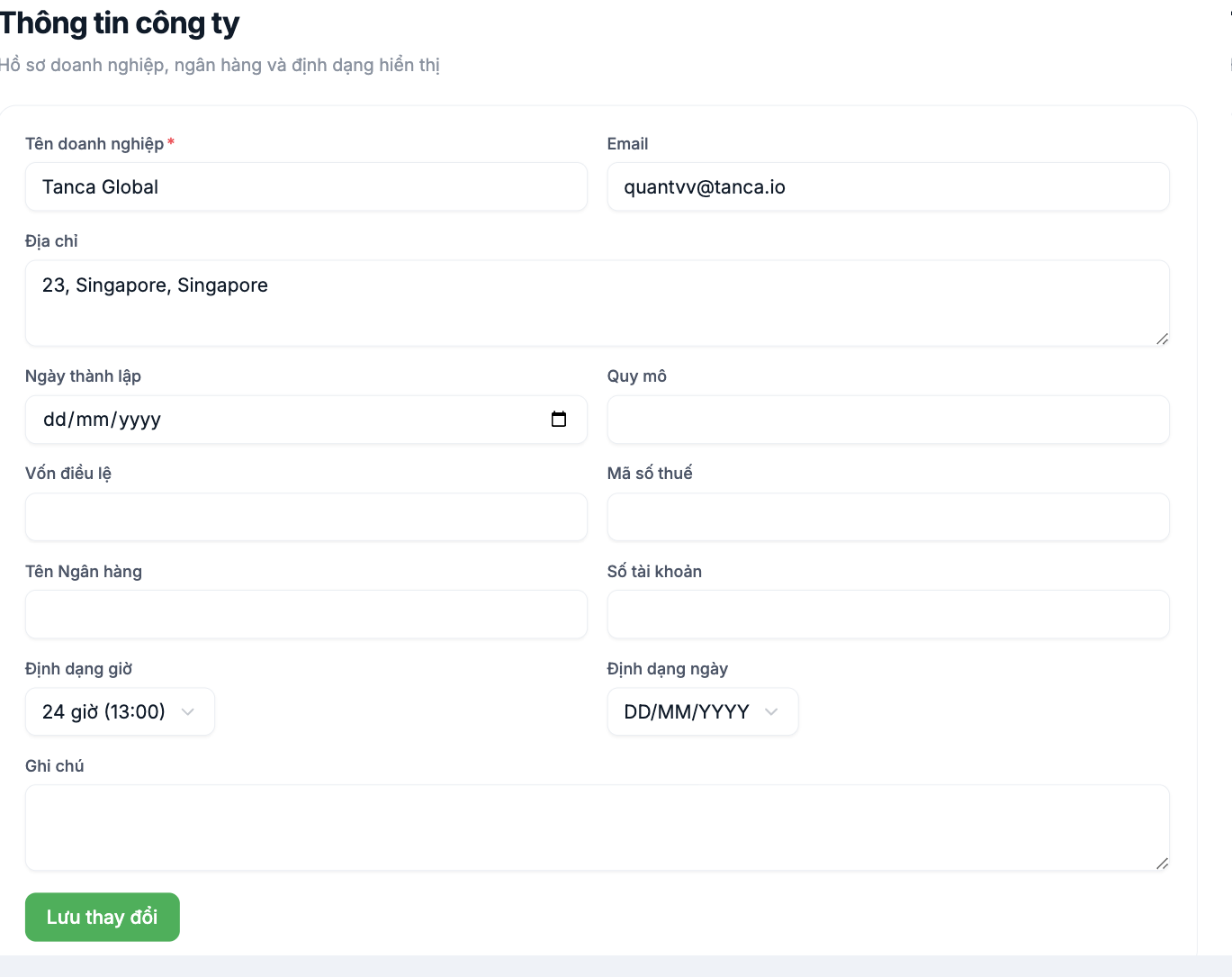
| Field | What to enter | Where it's used later |
|---|---|---|
| Company Name * | Full name as on the business registration certificate | Employment contracts, reports, payslips |
| The company's main contact email | Emails sent by the system | |
| Address | Headquarters address | Employment contracts |
| Founding Date | As on the business registration certificate | Company profile |
| Company Size | Expected number of employees | Company profile |
| Charter Capital | As on the business registration certificate | Company profile |
| Tax ID | The company's tax identification number | Personal income tax reports, contracts |
| Bank Name · Account Number | The company account used to pay salaries | Bank transfer files when paying salaries |
| Time Format | 24-hour (13:00) or 12-hour | All timesheets, shifts, and attendance |
| Date Format | DD/MM/YYYY for Vietnam | The entire system and all exported files |
| Notes | Any internal information | Not shown to employees |
- Click Save Changes.
Choose Date Format DD/MM/YYYY and 24-hour Time Format from the start if your business is in Vietnam. Changing these two values after attendance data exists will cause users to misread figures during the transition period.
Also worth doing on day 1
- Logo & Theme Color — upload your company logo so employees recognize the system as their own, which increases adoption.
- Security Center — review the security score and the list of logged-in devices. The system doesn't yet have two-factor authentication, so set a strong password and don't share the administrator account (see B1-03).
- Billing & Plans — check your current plan to see which modules are available; see A1-03.
Next step
A2-03 Step 2: Build Your Organizational Structure — Regions, Branches, Departments.

