There are two statistics screens: one for each project and one for all projects. This article shows how to read both, and the three metrics that matter most.
Statistics for a single project
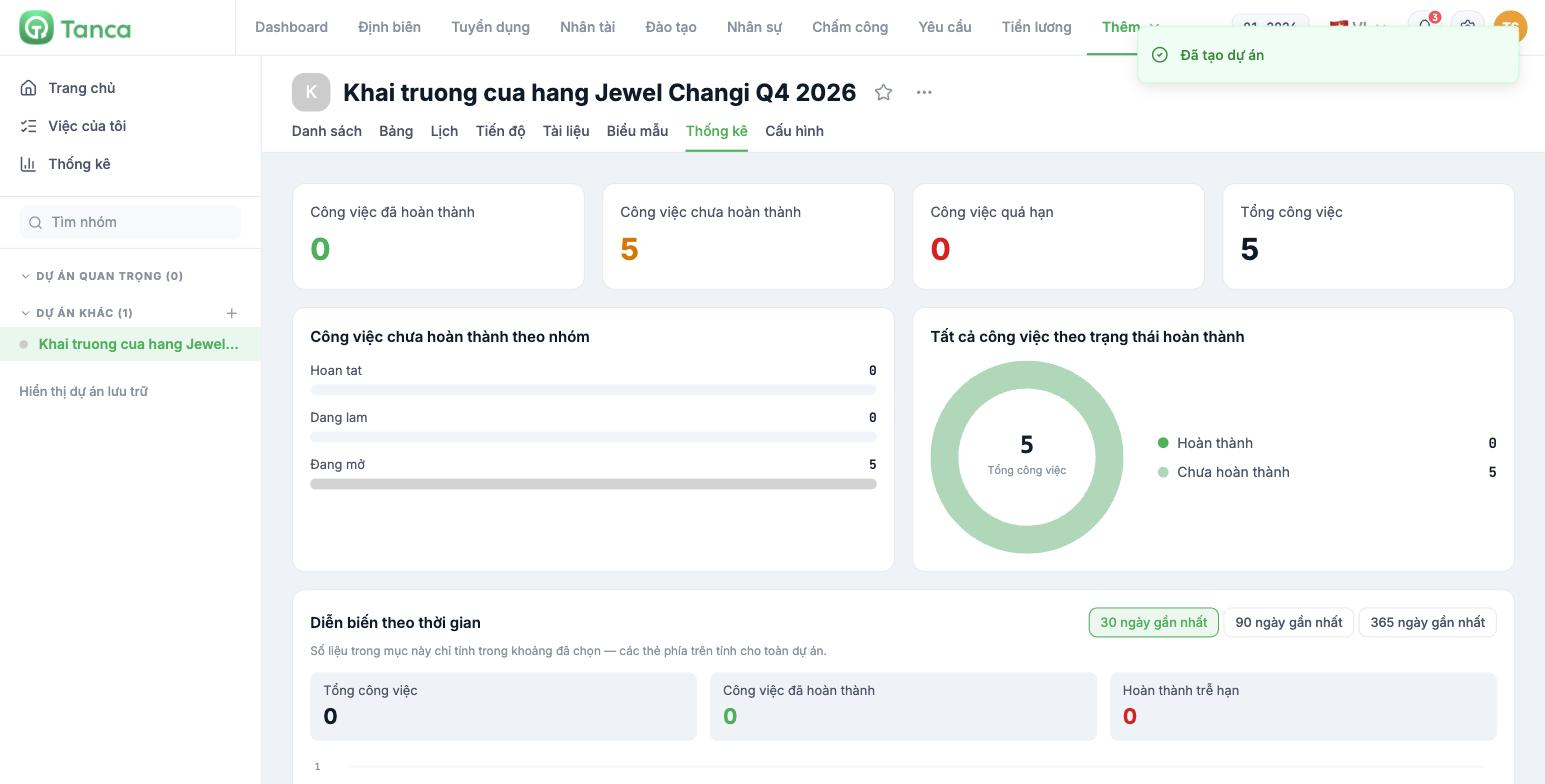
Open the project and go to the Statistics tab. The four cards at the top: Completed tasks · Incomplete tasks · Overdue tasks · Total tasks.
- Incomplete tasks by group — a horizontal bar for each step in the workflow. The step that swells up is the one that's bottlenecked.
- All tasks by completion status — a donut chart of Completed / Incomplete.
- Trend over time — choose Last 30 · 90 · 365 days and view three lines: Total tasks, Completed tasks, and Completed late.
A note on reading this: the four top cards cover the entire project, while the Trend over time block only covers the date range you select. It's normal for these two areas not to match; it's not an error.
Statistics across all projects
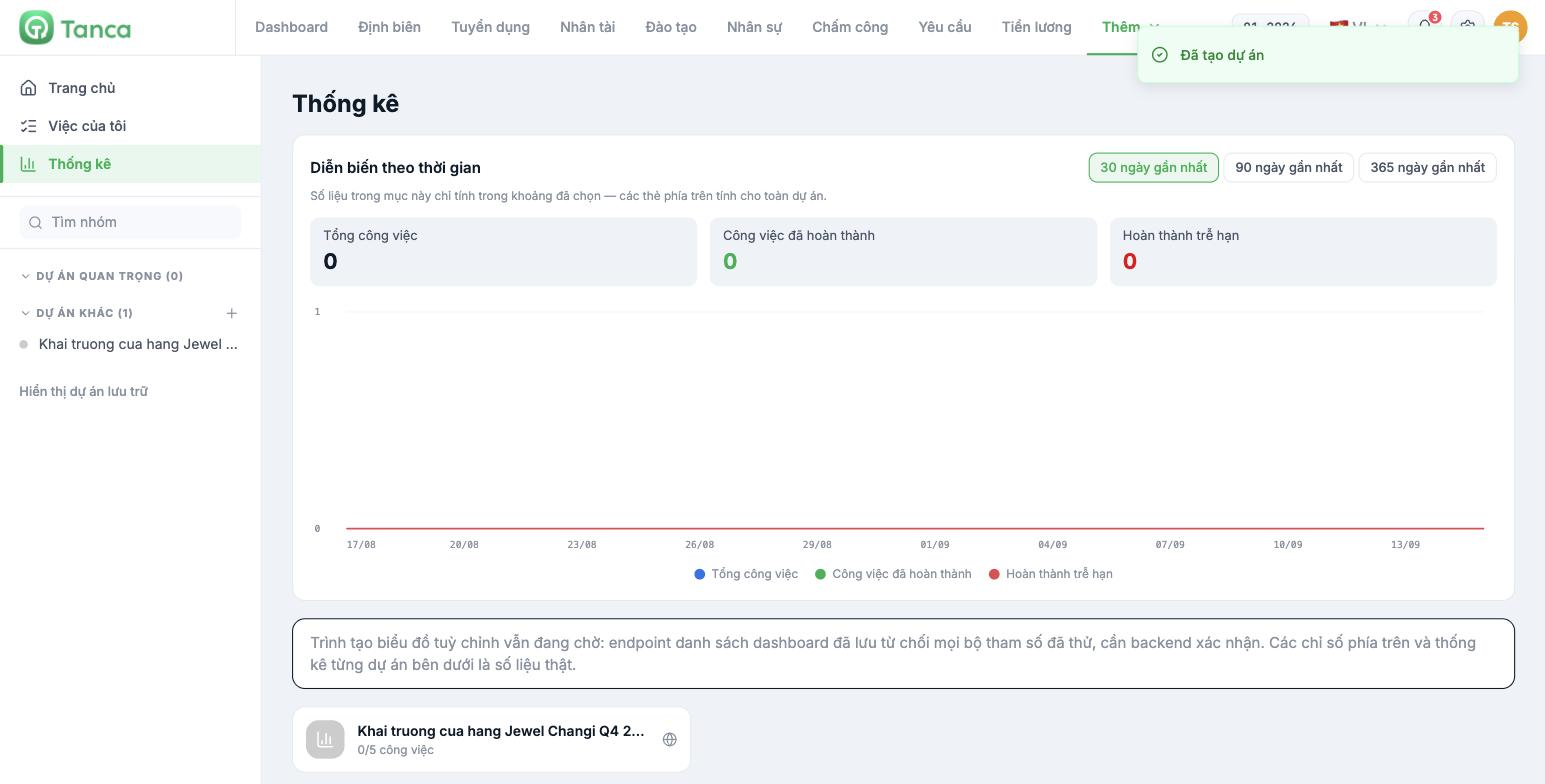
Click Statistics in the module's left column. This screen aggregates data from every project you participate in, with the same 30/90/365-day filter, and below it lists each project with a ratio in the form n/m tasks.
Current limitation: this screen states "The custom chart builder is still pending: the saved dashboard list endpoint rejected every parameter set tried; backend confirmation needed." This means you can't build your own charts yet. The message also makes clear that the built-in metrics are real data — use them as normal.
Three metrics worth tracking weekly
| Metric | Where to find it | Threshold for action |
|---|---|---|
| Overdue tasks | The third card in Project statistics | Over 10% of total tasks — hold a review meeting right away |
| The most swollen step | Incomplete by group | One step holds more than half of the open tasks |
| Completed late | The red line in Trend over time | An upward trend three weeks in a row |
Balance workload across team members
Tanca doesn't yet have a prebuilt per-person workload screen. Here's what you can do right now:
- Go to the project's List tab.
- In the Task group filter, change the grouping to assignee.
- Read the number of open tasks for each person in each group's heading.
- Combine this with the Time to complete entered on each task (article B10-05) to estimate hours, not just count tasks — ten small tasks are lighter than two large ones.
If your company needs per-person workload reports at scale, raise it with the Tanca product team. This is a known gap.

