Fingerprint and card readers are still the right choice for factories and places where employees don't use smartphones. This screen is where you register machines and monitor their connections.
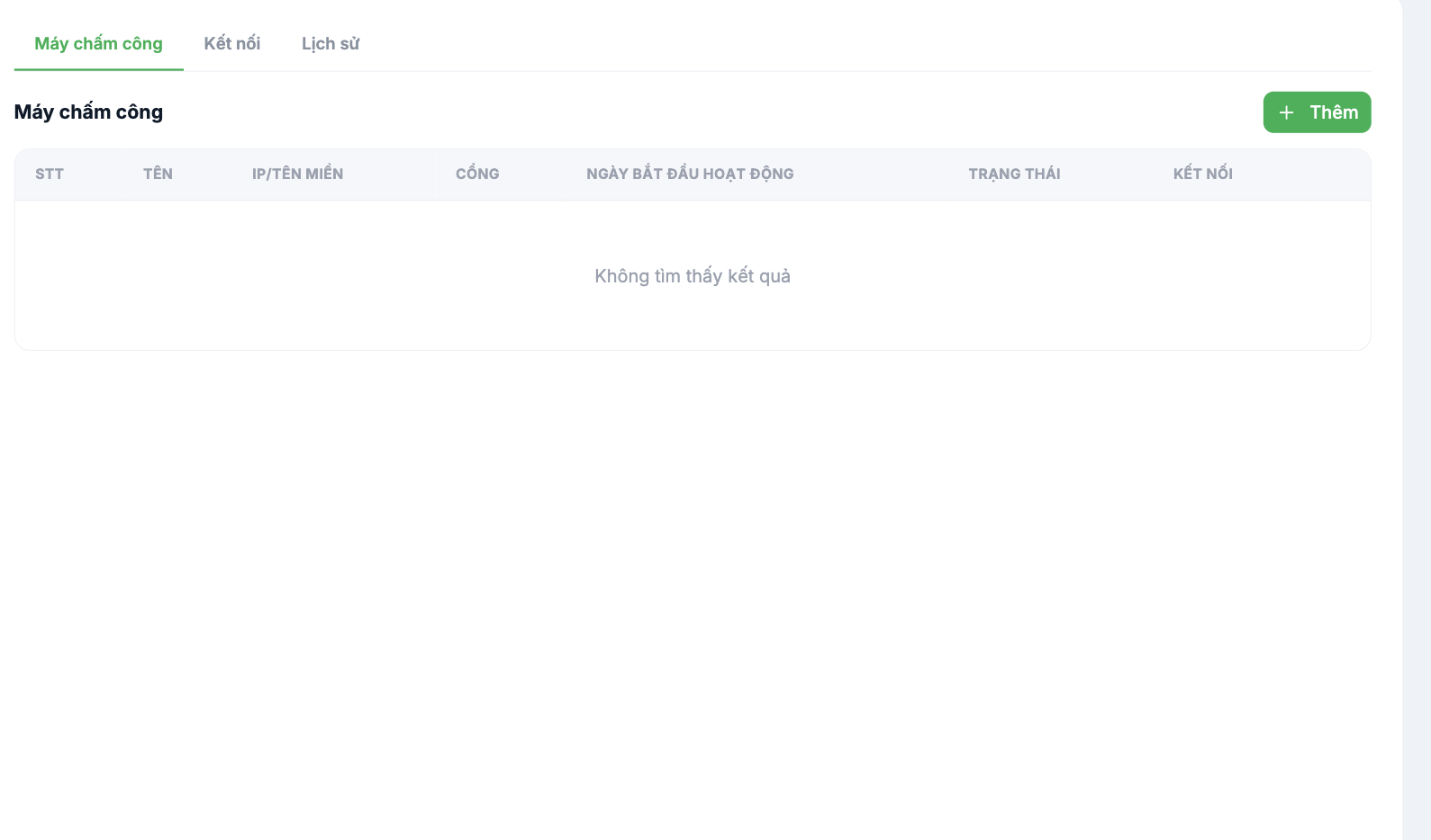
Three tabs
| Tab | Content |
|---|---|
| Attendance machines | List of registered machines: No. · Name · IP/Domain · Port · Start date · Status · Connection |
| Connection | Set up and test the connection to the machine |
| History | History of data syncs from the machine to the system |
Add a machine
- Go to Time & Attendance › Settings › Attendance Machines, Attendance machines tab.
- Click + Add.
- Fill in the Name, IP or domain, Port, and Start date.
- Save, then check the Status and Connection columns.
The IP and port come from your IT department or the machine supplier. The machine must be on a network the system can access — if the machine is only on an internal network, additional infrastructure configuration is required. This is the step that most often gets stuck during rollout, so work on it with IT from the start.
Two things to do in parallel
- Turn on the Attendance machine toggle in Settings › General (article B6-03); otherwise the system will not pull data from the machine.
- Set up the employee code on the machine for each person. This code is in the `Timekeeper Employee Codes` column of the import file (article B2-03), or can be edited in each person's profile.
If data isn't coming through
| Check | How |
|---|---|
| Is the Attendance machine toggle turned on? | Settings › General |
| The machine's connection status | The Status column in the Attendance machines tab |
| Does the employee code on the machine match? | Employee profile, attendance machine code field |
| The most recent sync | History tab |
| Network and port | Coordinate with IT — see the C3 article group |

