The heaviest day of the whole roadmap. This is also the step that determines the data quality of the entire system going forward, so don't rush. Set aside a full day and do a test run with 5 people before importing the whole list.
Before you start
- The previous three steps are done: company information, organizational structure, job titles.
- You have your employee list from the most recent month's payroll — this is the most reliable source, because everyone on it is actually working.
- You have the codes for Regions, Branches, Departments, and Job Titles finalized in steps 2 and 3.
Five different import types
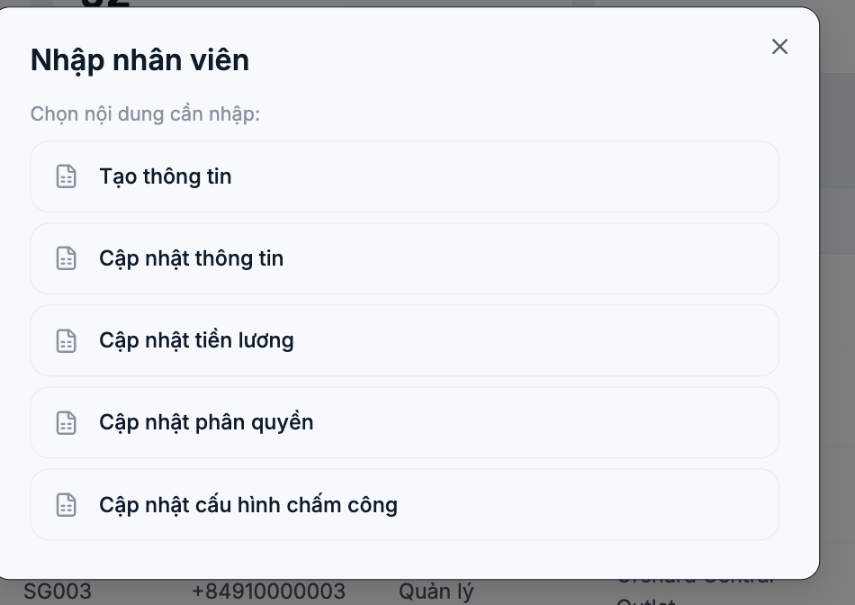
Tanca splits the file import function into five types. At go-live you only use the first type; the other four are for bulk updates later on.
| Type | When to use it |
|---|---|
| Create information | Import new employees. Use this at the go-live step. |
| Update information | Bulk-edit profiles already in the system |
| Update salaries | Bulk-import or adjust salary levels |
| Update permissions | Change access groups for many people at once |
| Update time & attendance settings | Bulk-assign time & attendance rules |
Steps
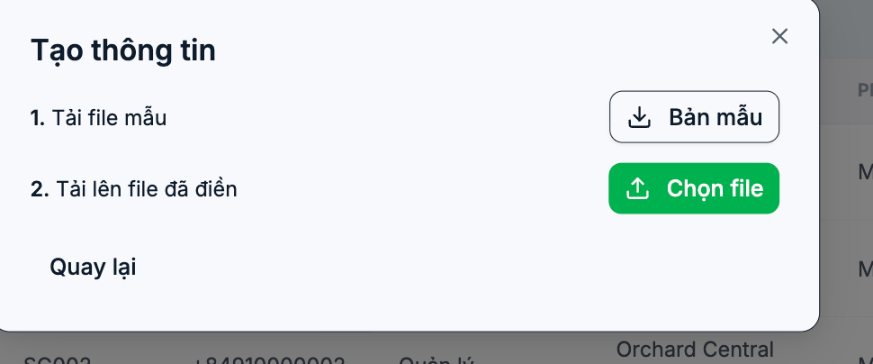
- Go to HR › Employees, click the arrow next to + Create New, and select Import File.
- Select Create information.
- Click Template to download the sample Excel file to your computer. The file is named `Import_Create_info.xlsx`.
- Open the template file and fill in the data. See the section below on column structure.
- Return to this window, click Choose File, and upload the completed file.
- Compare the number of employees in the system with last month's payroll. The two numbers must match.
Template file structure — what to know before opening it
The template file has 74 columns, with headers entirely in English, no sample data rows, and no columns marked as required. This is where first-time users often give up. Read the table below before opening the file.
| Column group | Main columns | Notes |
|---|---|---|
| Required in practice | Name · Phone · Email | Without these three columns, the account can't be used |
| Identification | Stt · Sort Index · Identification | `Identification` is the employee ID; if left blank, the system generates one automatically |
| Organizational structure | Region · Branch · Branch Plus · Department · Department Plus · Position · Position Plus · Group | Enter exactly the names or codes set up in steps 2 and 3. `Group` is the access group. |
| ID documents | Identify Card · Identify Date · Identify Issue In · Passport Card · Passport Date · Passport Expiry Date · Passport Issue In | Citizen ID card and passport |
| Bank | Bank Account Name · Bank Account · Bank Name · Bank Address | Needed for the salary payment step |
| Dates | Birthday · Working Date · Labour End Date · Expired Date · Quit Date | In the date format chosen in step 1 |
| Time & attendance | Timekeepers · Timekeeper Employee Codes | The code on the physical attendance machine |
| Emergency contact | Emergency Contact · Emergency Relate · Emergency Tel · Emergency Phone · Emergency Address | Can be added later |
| Extended profile | Tax Code · Union Code · Ethnic · Religion · Is Married · Seniority Month · Qualification Id · Specialized Id · Certificate Name · Height · Weight · Blood Id · Health Id … | Most can be added later; don't let these columns delay go-live |
The safe way to do it
- Import 5 people as a test first. Check that the results show the correct branch, department, and job title before importing the whole list.
- Only fill in the columns you really need. The three required columns plus organizational structure and start date are enough to go live.
- Don't rename columns in the template file, don't insert extra columns, and don't delete unused columns — just leave them blank.
- Keep the original file. Save a copy of each import so you can cross-check when figures don't match.
- Emails must be unique. Duplicate emails are the most common reason rows are rejected.
Next step
A2-06 Step 5: Configure Shifts and Time & Attendance Rules.

