Job titles are something many businesses set up carelessly and then have to redo. They aren't just a line of text on a profile: competency frameworks, KPIs, mandatory training courses, and headcount plans are all tied to job titles.
Steps
- Go to Settings › Organization › Company and select the Job Titles tab.
- Click + Add Job Title.
- Enter the Name, Code, required Experience, and Description.
- Save and repeat for each job title. Use the pencil icon to edit and the trash icon to delete.
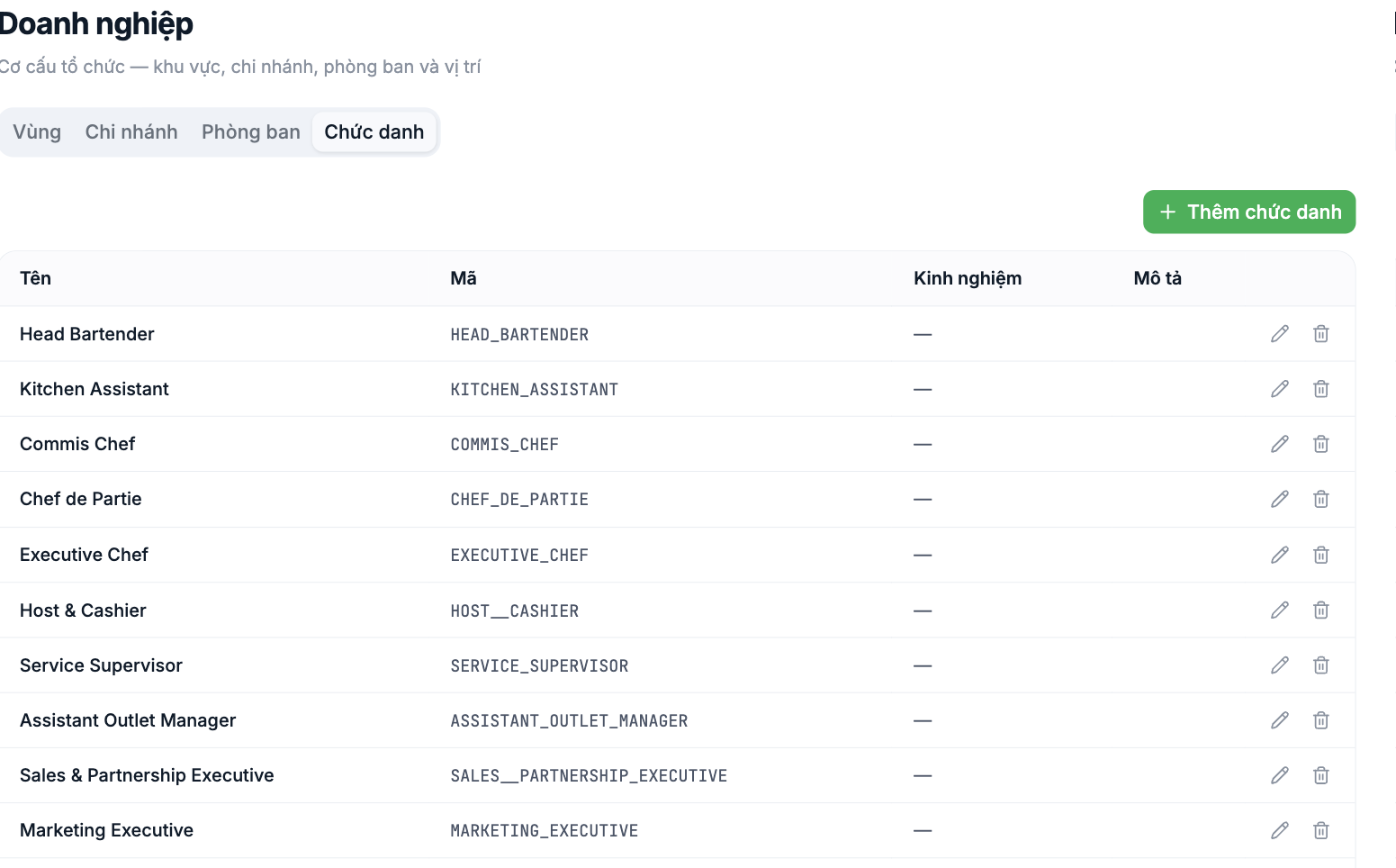
Naming conventions to agree on from the start
| Rule | Do | Don't |
|---|---|---|
| One language only | All Vietnamese, or all English | Mix "Bếp trưởng" with "Executive Chef" in the same list |
| Structure: [Level] + [Profession] | Senior Accountant, Kitchen Assistant | Accounting staff (skilled) |
| Singular, no department in the name | Marketing Executive | Marketing Department staff, branch 1 |
| Don't include people's names | Operations Manager | Operations Manager – Mr. Nam |
| Uppercase codes joined with underscores | `EXECUTIVE_CHEF` | `exec chef 01` |
Only set up job titles that are currently filled or planned to be hired within the next 12 months. A job title list that swells with dozens of dead rows is a very common problem, and it dilutes every report later on.
Notes
- The Experience field is used for recruitment and career paths; it can be left blank if not needed yet.
- Job titles are shared across the whole company and aren't tied to a specific branch. The same job title can appear in multiple branches.
- Don't delete a job title that someone currently holds. Move them to another job title first.
- Job title codes appear in the import file in step 4 — finalize the codes before you start importing employees.
Check before moving on to step 4
- Open the most recent month's payroll and compare each job title in it against the list you just set up. Not a single row should be missing.
- Each job title has exactly one spelling, with no duplicates spelled differently.
- The codes for Regions, Branches, Departments, and Job Titles are all finalized and recorded in one place for use when filling in the import file.
Next step
A2-05 Step 4: Import Your Employee List from an Excel File — the heaviest day of the whole roadmap.

