The organizational structure in Tanca has four levels: Regions contain Branches, Branches contain Departments, and Job Titles are shared across the whole company. Only after setting up these four levels can you import your employee list in step 4.
Understand the four levels before setting them up
| Level | What it is | When it's needed | Example |
|---|---|---|---|
| Region | The top level, grouping multiple branches | When you operate in multiple provinces/cities or countries. A single-location company should still create a default region. | Southern Vietnam, Singapore |
| Branch | A real work location, with an address and phone number | Always needed. It's the reference point for GPS and WiFi clock-in. | Orchard Central Outlet |
| Department | A functional unit, linked to one or more branches | Always needed. Used for permissions, filtering reports, and routing request approvals. | Kitchen, Human Resources |
| Job title | The name of a job position, shared across the whole company | Always needed. See article A2-04. | Executive Chef |
Open the organizational structure screen
- Click the gear icon in the top-right corner to open Settings.
- In the left column, under the Organization group, select Company.
- The screen has four tabs: Regions · Branches · Departments · Job Titles. Work through them in order from left to right.
Setting up Regions
- On the Regions tab, click + Add Region.
- Enter the Name, Code, and Description. Codes should be uppercase, without diacritics or spaces, for example `MIEN_NAM`.
- Save. The new region appears in the table, with a pencil icon to edit and a trash icon to delete.
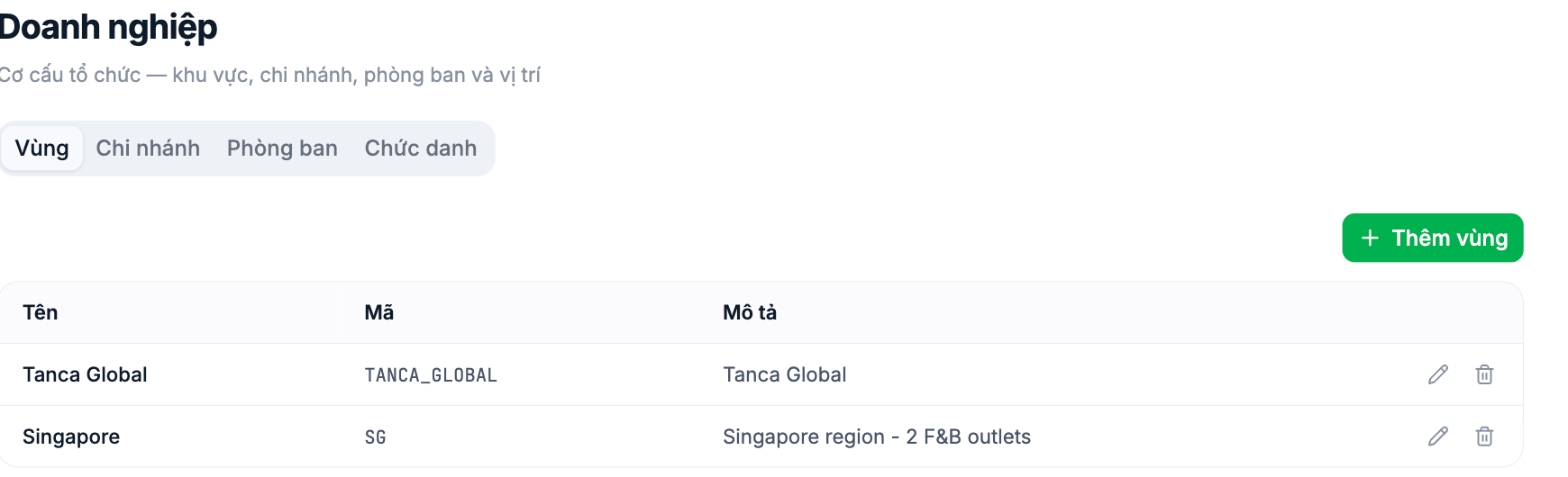
A business with only one location should still create a region, for example named Headquarters. Leaving this level empty means you'll have to reorganize everything when you open more branches later.
Setting up Branches
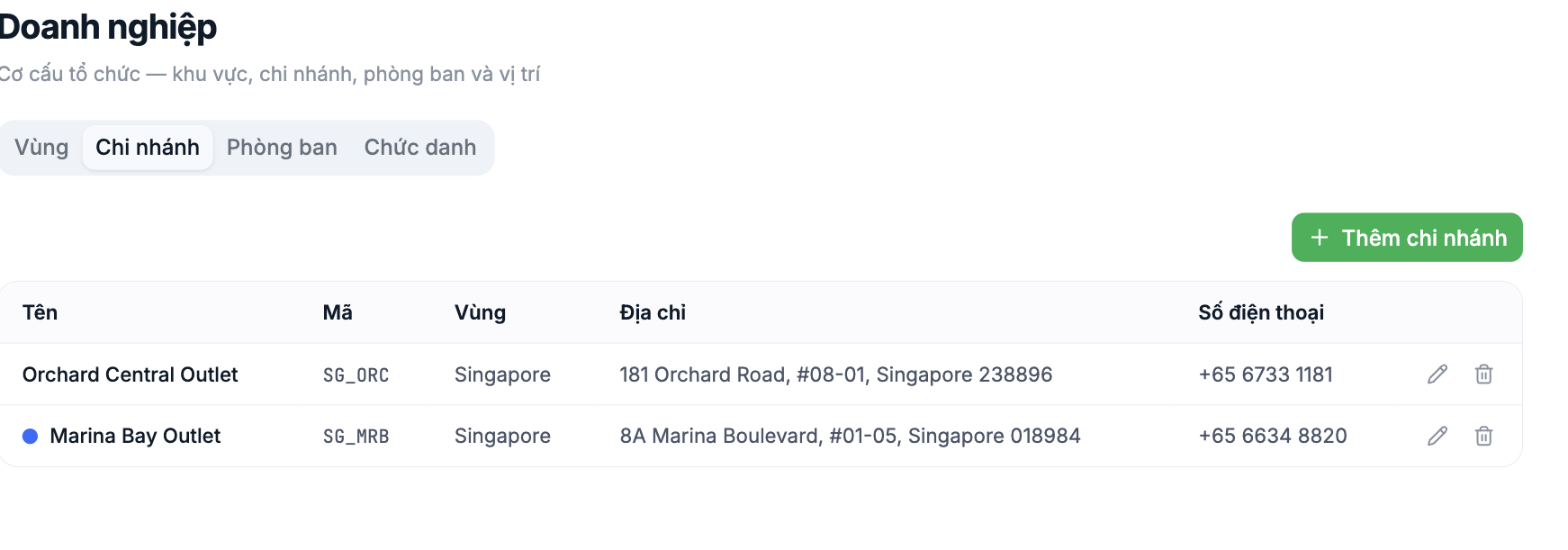
- Switch to the Branches tab and click + Add Branch.
- Enter the Name and Code, select the Region the branch belongs to, then enter the Address and Phone Number.
- The address must be a real, complete address — these are the coordinates GPS clock-in uses to determine whether an employee is standing in the right place.
Setting up Departments
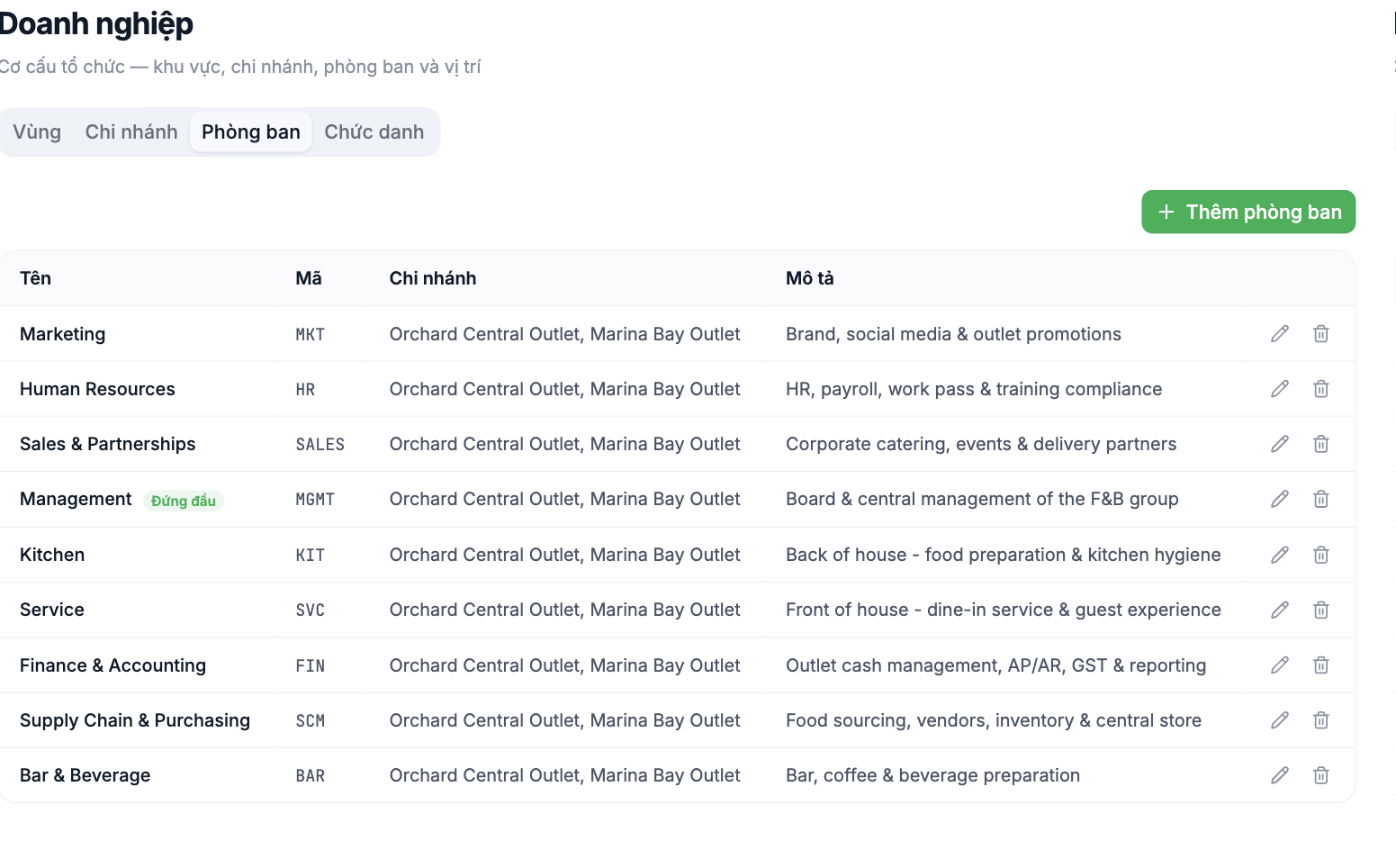
- Switch to the Departments tab and click + Add Department.
- Enter the Name and Code, select the Branches where this department exists, then enter a Description.
- A department can belong to multiple branches at once — for example, an HR department serving both stores.
- Mark the top-level department as Top Level. This department appears at the top of the org chart.
Notes
- Use a single code convention and stick with it. Codes appear in the employee import file in step 4 and in exported data. Changing codes after data exists will break old files.
- Set up your actual structure, not the one you'd like to have. If departments are currently combined in practice, set them up combined — you can still split them later.
- Don't delete a department that has people in it. Move all employees to another department first, then delete it.
- The Org Chart item in the HR module is currently labeled Coming soon — the tree-view chart isn't available yet.
Next step
A2-04 Step 3: Set Up Job Titles.

