Approving requests is a manager's daily task. Do it quickly and correctly and the whole team runs smoothly; let requests pile up and employees go back to private messages and everything moves outside the system.
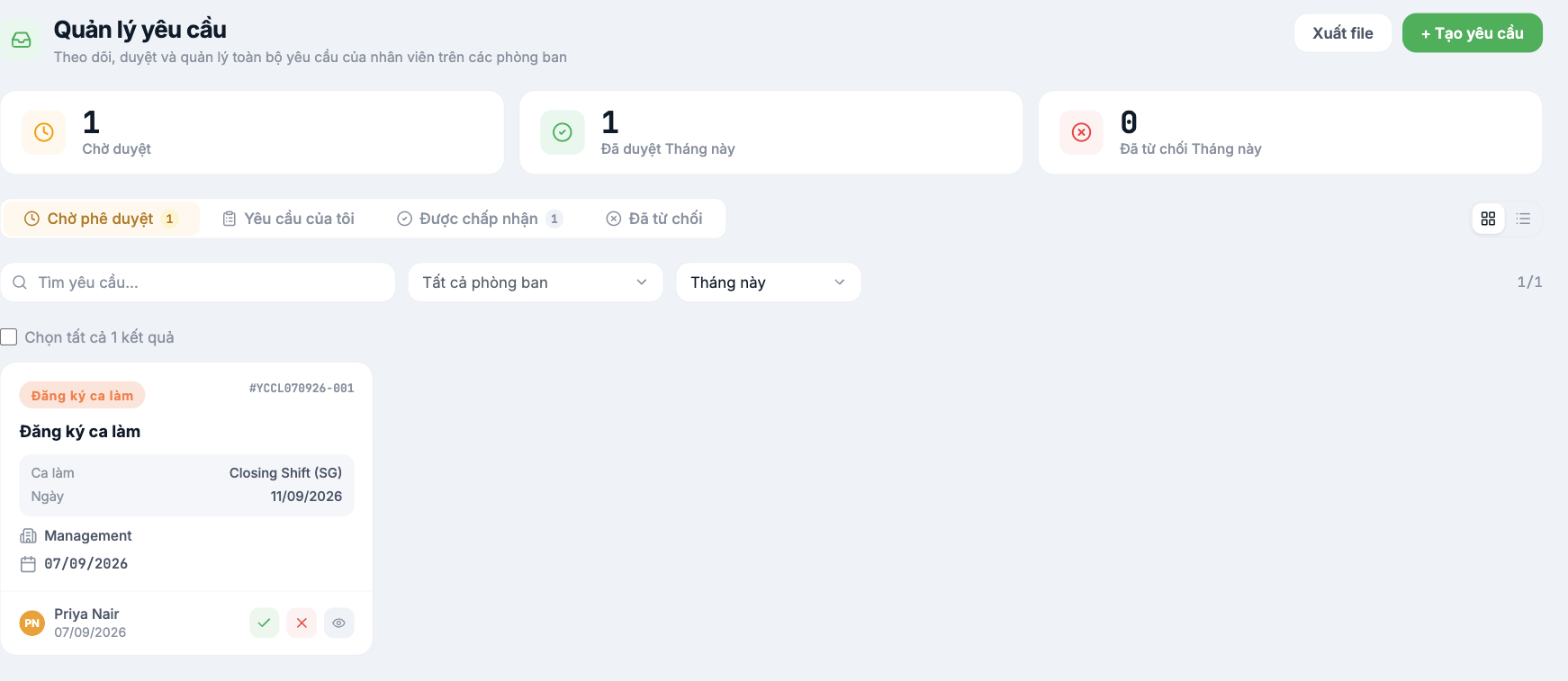
The three metrics at the top of the screen
| Metric | Meaning |
|---|---|
| Pending | Number of requests waiting for you to process — this number should get back to 0 every day |
| Approved This month | Number of requests you approved this month |
| Rejected This month | Number of requests you rejected this month |
Quick approval on cards
Each request is shown as a card, with the request type, request code, key details, department, submission date and submitter. Three buttons at the bottom of the card:
| Button | Action |
|---|---|
| Green check mark | Approve the request immediately |
| Red X | Reject the request — enter a reason |
| Eye icon | Open the request details before deciding |
One-click approval is very convenient, but for requests that affect money or the whole team's schedule, open the details first. The summary card does not show all the information.
Bulk approval
- Check the Select all box at the top of the list, or check individual cards.
- Choose the approve or reject action for the whole group.
Only use bulk approval for requests of the same type that you have already reviewed, for example ten meal registration requests. Don't bulk-approve leave requests — you will miss cases where the whole department is off on the same day.
What to check before approving
| Request type | What to check |
|---|---|
| Leave | Is there enough leave balance · Is anyone else in the department off that day · Has someone been assigned the handover |
| Overtime | Is it the correct overtime type · Is the overtime really necessary · Has it exceeded the overtime cap under regulations |
| Shift registration / swap | Does the person taking the shift have a schedule conflict · Does it exceed the maximum number of shifts per week (article B7-08) |
| Finance | Is the amount within the limit · Have supporting documents been attached |
Rejecting the right way
- Click the red X, or open the details and choose reject.
- Write a specific reason — "not approved" is a useless reason.
- If there is a way for the employee to make it right, write it down: "3 people are already off on 9/12; change it to 9/15 and I'll approve it right away."
The rejection reason is text the employee will read and may quote back. Write it as if you were talking to them in person.
Approving on the phone
The Tanca app has a Requests section with the same tabs. Approving on the phone suits simple requests and when you are on the move. For requests that require viewing the whole team's schedule or checking figures, wait until you are at a computer.
Good habits
- Process requests twice a day at fixed times instead of every time a notification arrives.
- Bring the Pending count to 0 before the end of the workday.
- Before going on a business trip, ask the administrator to add a substitute approver (article B8-06).

