A snapshot of what's happening right now: who is on shift, who hasn't clocked in yet, and where everyone is on the map. This screen is for shift managers and chain managers.
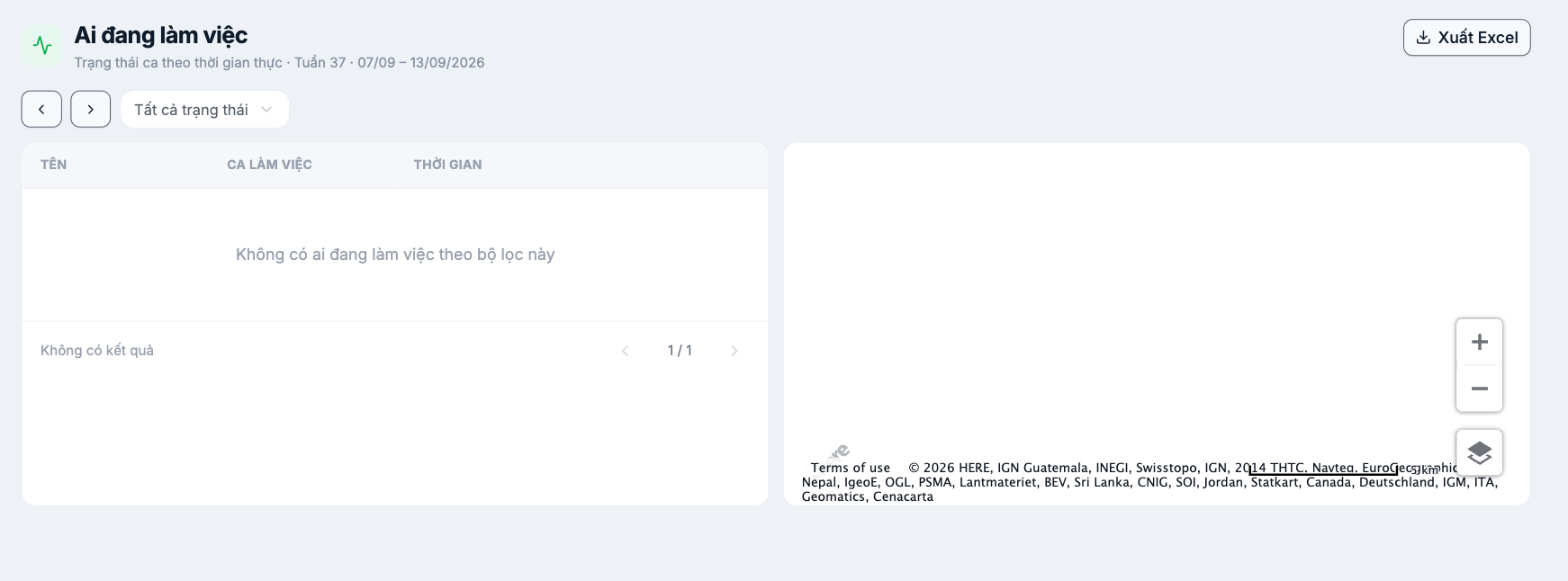
Layout
| Section | Content |
|---|---|
| Page header | Real-time shift status with the week number and date range |
| Navigation | Left and right arrows to switch weeks |
| Filter | All statuses — filter by shift status |
| Left-hand list | Name · Shift · Time |
| Right-hand map | Employees' clock-in locations, with zoom in/out buttons and a map layer switcher |
| Export to Excel button | Exports the current list |
When to use it
- At the start of a shift: see who hasn't started their shift yet so you can call to remind them before it affects operations.
- During peak hours: check whether each location is fully staffed.
- Chain managers: get a quick view of many stores at once on the map.
- Field staff: confirm they clocked in at the correct customer location.
The map shows clock-in locations, not employees' continuous location. Real-time location tracking is a separate option, enabled per person on the Time & Attendance tab of the employee profile — see B6-11. If you enable it, inform employees clearly.
If the list is empty
- Check the All statuses filter.
- Check that you are viewing the correct week.
- If no one has been scheduled for shifts, the screen has nothing to display — see article group B7.

