After sending an announcement that requires acknowledgment, the next question is always “who hasn't read it?”. This article shows where to look, how to read the numbers correctly, and how to make up for what the screen doesn't show yet.
Open the announcement details page
- Go to Communication › Announcements.
- Open the `…` menu at the end of the row and select View.
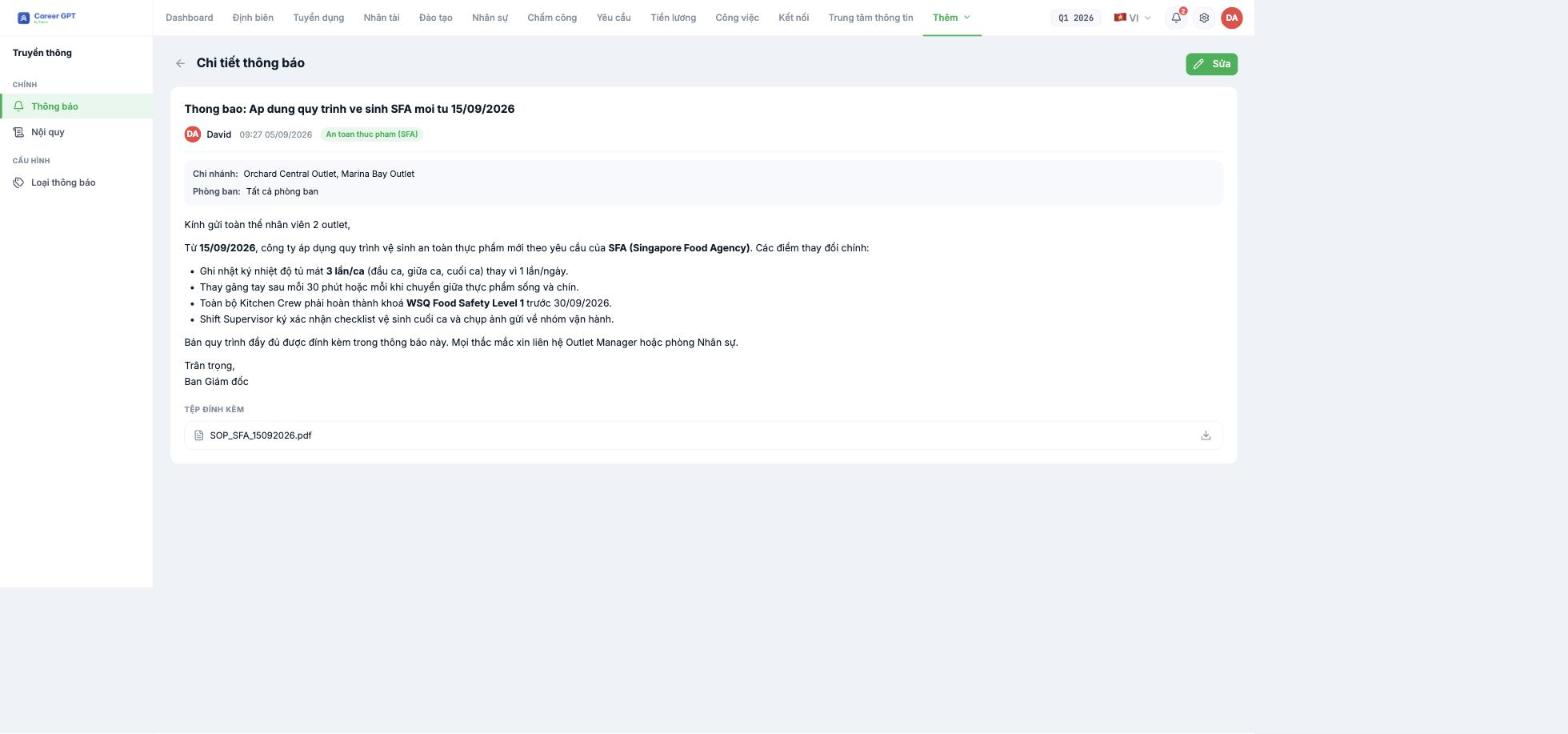
The details page gives you: the title, the creator with their avatar, the time, the announcement type label, the Branch / Department block that received it, the full content, and Attachments with a download button.
For announcements with Require read acknowledgment enabled, the page also has an Employees who acknowledged section listing each person with their avatar.
The Employees who acknowledged section only appears when the announcement has required acknowledgment enabled. Regular announcements record nothing — no open count, no list of who has viewed them. If you need to know who has read it, you must decide that at creation time; it cannot be enabled retroactively for people who have already received it.
Read the numbers correctly
| Number | What it really means |
|---|---|
| Number of people in the list | Number of people who clicked acknowledge |
| People not in the list | They may have read it but not clicked, or not opened the announcement yet — these cannot be distinguished |
| Total number of recipients | Not shown on this screen. Cross-check it yourself against the Branch / Department block |
Because the screen does not show the denominator, the practical approach is: open HR, filter by the exact branches and departments the announcement was sent to in order to get the total, then compare it with the number of rows in the acknowledgment list.
Process for reminding people who haven't acknowledged
- When the deadline you stated in the content arrives, open the details page and take a screenshot of the acknowledgment list.
- Cross-check it against the employee list of the departments it was sent to, to produce a list of who is still missing.
- Remind them through each department's line manager — more effective than a group reminder.
- If people are still missing after two reminders, send a new announcement only to the departments still missing instead of resending it to the whole company.
The system currently does not send automatic reminders and cannot export the acknowledgment list to a file. Both have been logged as feature requests. If your business needs periodic compliance records, take dated screenshots of the list to keep.
What this list does not tell you
- No acknowledgment time for each person in the interface — only their name and avatar.
- No history: if you edit the announcement content after people have acknowledged, the list does not record which version they acknowledged.
- No filtering by department in the acknowledgment list.
Because of the second point, the safe rule is: do not edit the content of an announcement that requires acknowledgment. If you need to change it, send a new version and state clearly “replaces the announcement dated …”.

