KPI Sheet is a monthly scoring spreadsheet. Each month you generate a sheet from a template, scorers fill in the numbers, and the system adds up the final score. It is currently Tanca's most stable tool for high-volume scoring.
Generating a results sheet for a month
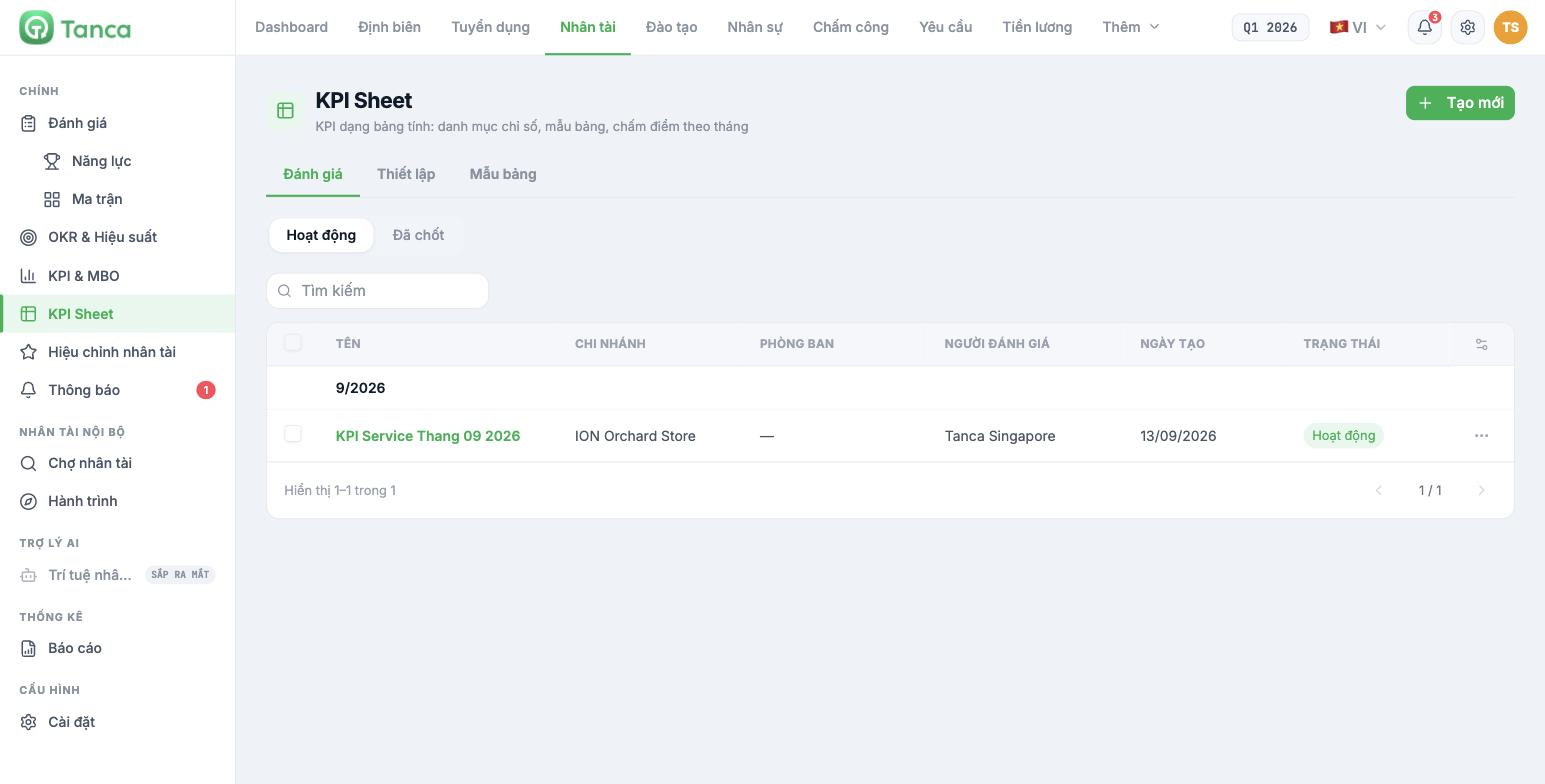
- Go to Talent › KPI Sheet › Reviews and click + Create new.
- Choose the sheet template built in article B11-04.
- Give the sheet a name that includes the month and year, e.g. Service KPI 09/2026.
- Choose the applicable month.
- Save. The sheet appears under the corresponding month group with the status Active.
The list has two filters at the top: Active (being scored) and Finalized (locked). Each row shows the Branch, Department, Reviewer, Created date and Status.
The scoring sheet
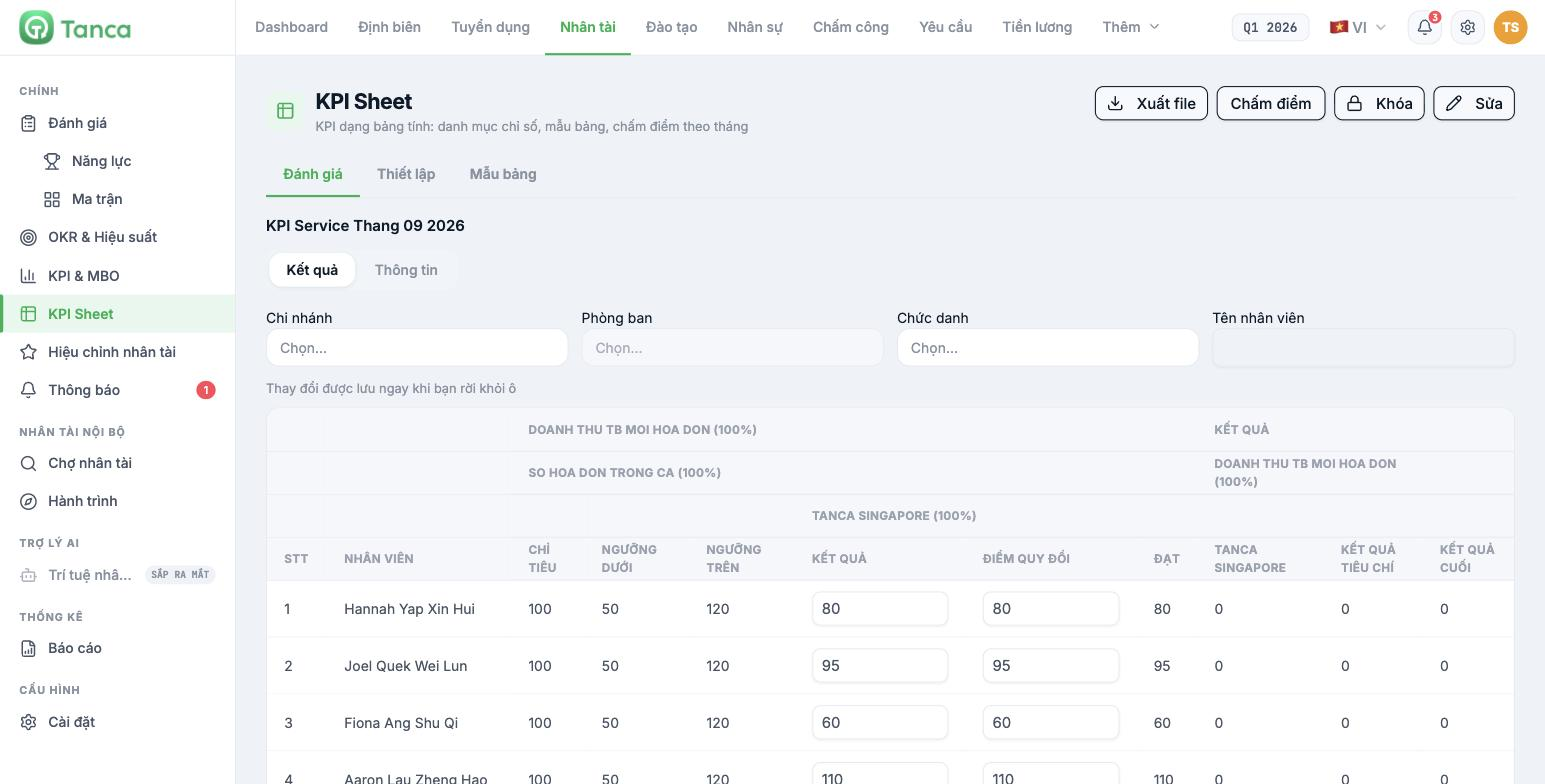
Click the sheet name to open it. At the top of the screen there are four buttons: Export file · Score · Lock · Edit. Below are two tabs, Results and Information, along with Branch / Department / Job title / Employee name filters to narrow the list when the sheet is long.
| Column | Source | Who fills it in |
|---|---|---|
| TARGET, LOWER THRESHOLD, UPPER THRESHOLD | Taken from the sheet template | System — editable only if the template has Editable enabled |
| RESULT | The actual figure achieved | Entered by the scorer |
| CONVERTED SCORE | The score converted to the scoring scale | The scorer enters it by hand — see the warning below |
| ACHIEVED | The score recorded for the criterion | System |
| CRITERIA RESULT / FINAL RESULT | Summed by weight | System |
The note "Changes are saved as soon as you leave the cell" at the top of the sheet is accurate: there is no Save button. Once you finish typing and press Tab or click outside the cell, the number is in the system.
Current limitation: the CONVERTED SCORE column is not calculated automatically from the RESULT and thresholds. Even if you set Target 100, Lower threshold 50, Upper threshold 120 and enter RESULT = 80, the CONVERTED SCORE stays 0 until the scorer types it in by hand. Agree on a written conversion rule and share it with scorers, otherwise each person will convert scores differently.
Exporting a file for reconciliation
The Export file button downloads the entire sheet to Excel, keeping all columns and figures intact. Use this file to reconcile against sales reports or timesheets before finalizing, and to keep evidence for the bonus review period.
Monthly operating sequence
- Start of the month: generate the sheet from the template.
- During the month: scorers gradually enter RESULTS as figures become available.
- End of the month: enter the CONVERTED SCORES and review the FINAL RESULT column.
- Export and save the file, then click Lock to finalize (article B11-09).

