Set up your business's leave types and the rules for allocating balances. This is the data source for the number of leave days employees see in the app.
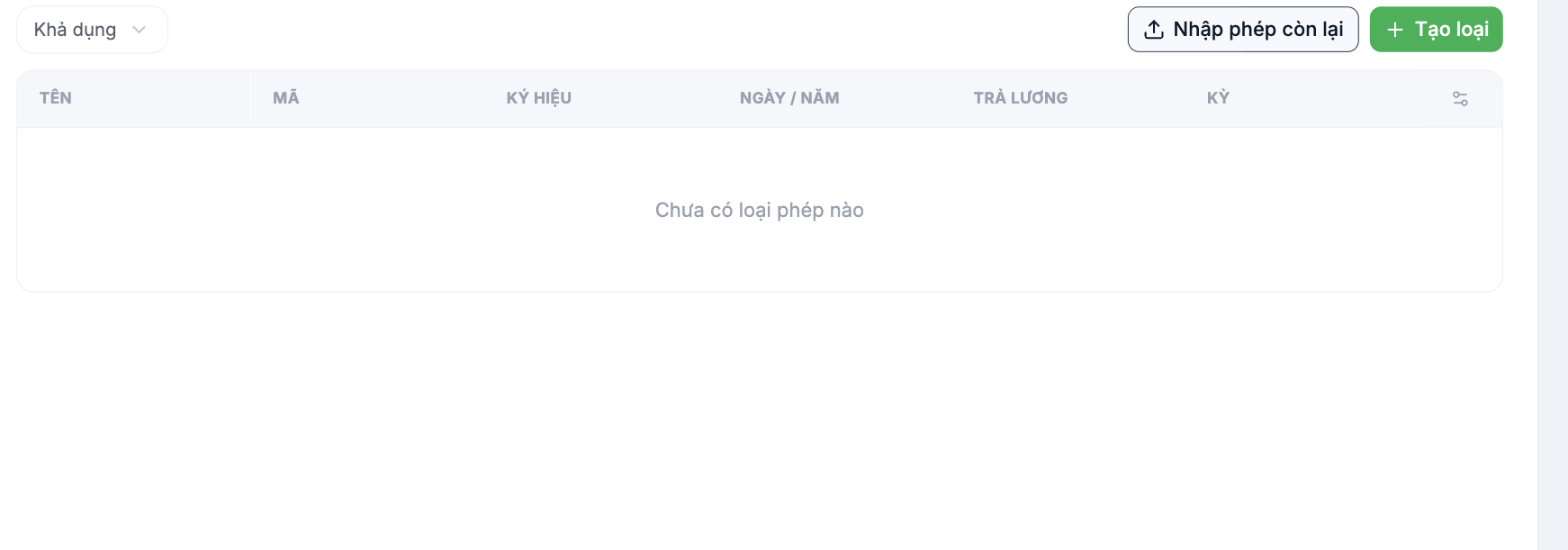
Columns
| Column | Meaning |
|---|---|
| Name | The leave type name, for example Annual leave, Sick leave, Maternity leave |
| Code | The internal code of the leave type |
| Symbol | The symbol displayed on the timesheet |
| Days / Year | The number of days granted each year |
| Paid | Whether this leave type is paid |
| Period | The cycle for replenishing the balance, for example yearly |
Two buttons
- + Create type — add a new leave type.
- Import remaining leave — bulk import the number of remaining leave days for all employees. Use this when moving from an old system or paper records to Tanca.
Import remaining leave is a mandatory step when rolling out mid-year. If you skip it, every employee will start with a full year's leave balance, even though in reality they have already taken some — this discrepancy is spotted immediately because employees can see their remaining days in the app.
The Available filter
The dropdown at the top of the list filters by status. If the list is empty but employees still have leave balances in their profiles, change this filter before concluding that nothing has been set up.
IMPORTANT — there are two places related to leave types. On the QA build, this screen shows "No leave types yet" while employees still have Annual Leave and Annual Leave SG balances. The reason: those leave types were set up in Requests › Settings › Leave › + Add (as sub-forms of the Leave request type), not on this screen. If you need to add or edit leave types, do it on the Requests side — see article B8-08.
Set up leave types correctly
- Set up all types according to your workplace rules: annual leave, sick leave, paid personal leave, unpaid leave, maternity leave.
- Mark the Paid column correctly — this column determines whether payroll deducts pay or not.
- The number of days per year must match company policy and must not be lower than the legal minimum.
- Employees with long seniority are often granted extra leave days — check how the system handles this before go-live.
After setup
- Use Import remaining leave if rolling out mid-year.
- Open the profiles of any five employees, go to the Leave tab, and cross-check the number of days with your old records (article B2-11).
- Ask an employee to submit a test leave request and check that the balance is deducted correctly.

