Tanca comes with more than 50 built-in request types. This article explains how to enable, disable and set rules for each type — a step you must complete before designing approval flows.
Reading the list
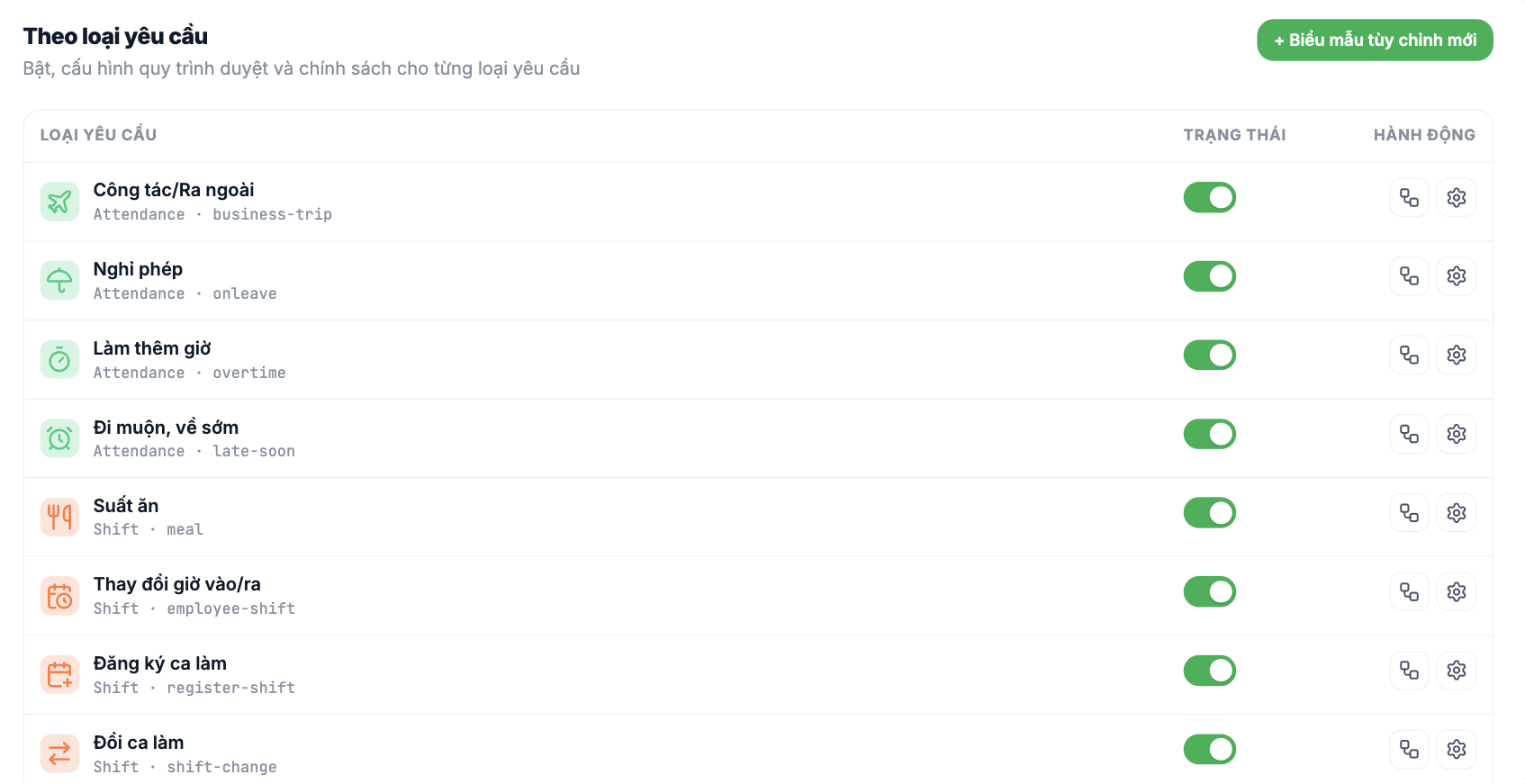
- The request type name line comes with a sub-line in the form `Group · technical code`, for example `Attendance · onleave`. The technical code is used for API integrations.
- The Status column — a toggle to enable/disable the request type for the whole company.
- The Actions column — the diagram icon opens the Approval workflow, the gear icon opens Configuration.
- The search box at the top of the page filters by request type name.
Configure a request type
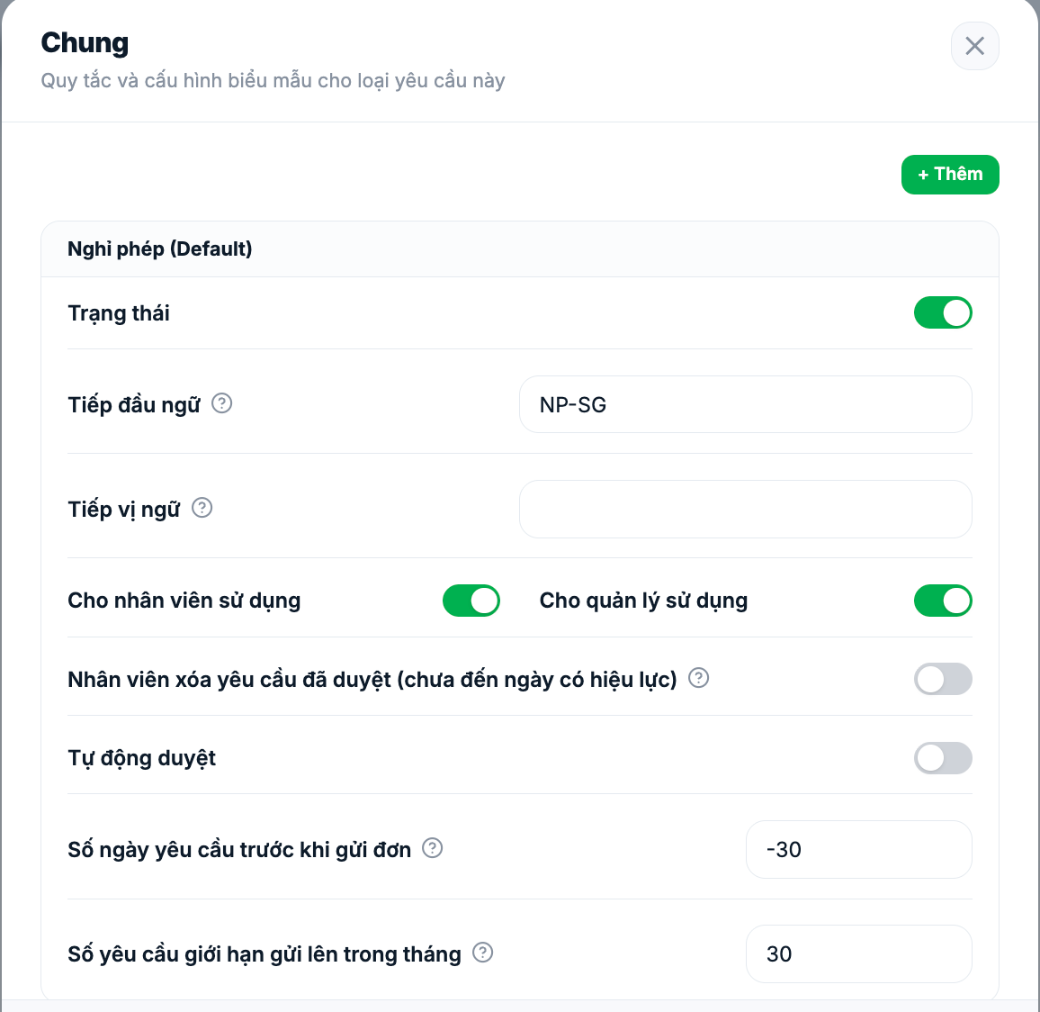
| Field | Meaning |
|---|---|
| Status | Enable or disable this request type |
| Prefix | The request code prefix, for example `NP-SG`. Keep it short and meaningful |
| Suffix | The request code suffix. Usually left blank |
| Available to employees | Whether employees see this request type when submitting |
| Available to managers | Whether managers can submit on behalf of employees |
| Employees can delete approved requests (before the effective date) | Lets employees cancel an approved request themselves if the effective date hasn't arrived yet |
| Auto-approve | Requests are approved immediately, without going through anyone |
| Days of notice required before submitting | The time window in which a request may be submitted relative to the effective date |
| Monthly submission limit | Blocks submitting more than this number of requests per month |
Enabling Auto-approve is very convenient for request types that are purely record-keeping (remote-work notices, meal registration). But never enable it for leave, salary advances or any request that affects money or working days — you lose the control layer entirely.
On the QA build, the Days of notice required before submitting field is set to a negative value (`-30`) with no explanation in the interface of what the minus sign means. Before announcing the rule to employees, submit a test request to confirm which direction the system interprets this number.
Multiple sub-forms in one request type
The + Add button in the configuration dialog creates an additional sub-form for the same request type. This is how you configure multiple leave types: Leave (Default), Annual Leave (SG), Sick leave, Unpaid leave… Each sub-form has its own toggle, prefix and rules, and its own approval flow.
This is exactly where your company's leave types are configured — not in Time & Attendance › Settings › Leave. If the Time & Attendance screen shows "No leave types yet" while employees still have leave balances, the reason is that the data lives here.
Four types to enable first
- Leave — the most frequently used request type, and the one tied to leave balances.
- Overtime — needs approval before the work is done, otherwise there will be disputes at payroll time.
- Business trip/Off-site — so field employees aren't marked absent.
- Salary advance — the most common financial request type.
Clean up before go-live
- Disable request types the company doesn't use, so the list is short and clear when employees submit requests.
- Delete forms created by the implementation team for testing.
- Set consistent request code prefixes for all enabled types.

