The leave balance is the number employees ask about most and also the number most likely to be wrong. This article shows where to configure leave types, where to enter the number of days, and how those two places connect.
Where leave types are configured
Leave types are sub-forms of the Leave request type, configured in Requests › Settings › By request type › Leave › gear icon › + Add.
This is a common point of confusion: the Time & Attendance › Settings › Leave screen is a different place and may show "No leave types yet" even though employees still have leave balances. If you need to add or edit leave types, do it on the Requests side.
What to configure for each leave type
| Field | What to enter |
|---|---|
| Sub-form name | The leave type name employees see: Annual leave, Sick leave, Unpaid leave, Annual Leave (SG) |
| Status | Turn on so employees can select it |
| Prefix | A request code prefix specific to this leave type |
| Available to employees | Some leave types can only be created by HR on an employee's behalf — turn this off for those types |
| Days of notice required before submitting | The notice period. Annual leave usually requires early notice; sick leave does not |
| Monthly submission limit | Prevents abuse of short leave types |
Each leave type has its own approval flow. A half-day of sick leave and two weeks of annual leave should not go through the same three-level flow.
Each person's leave days
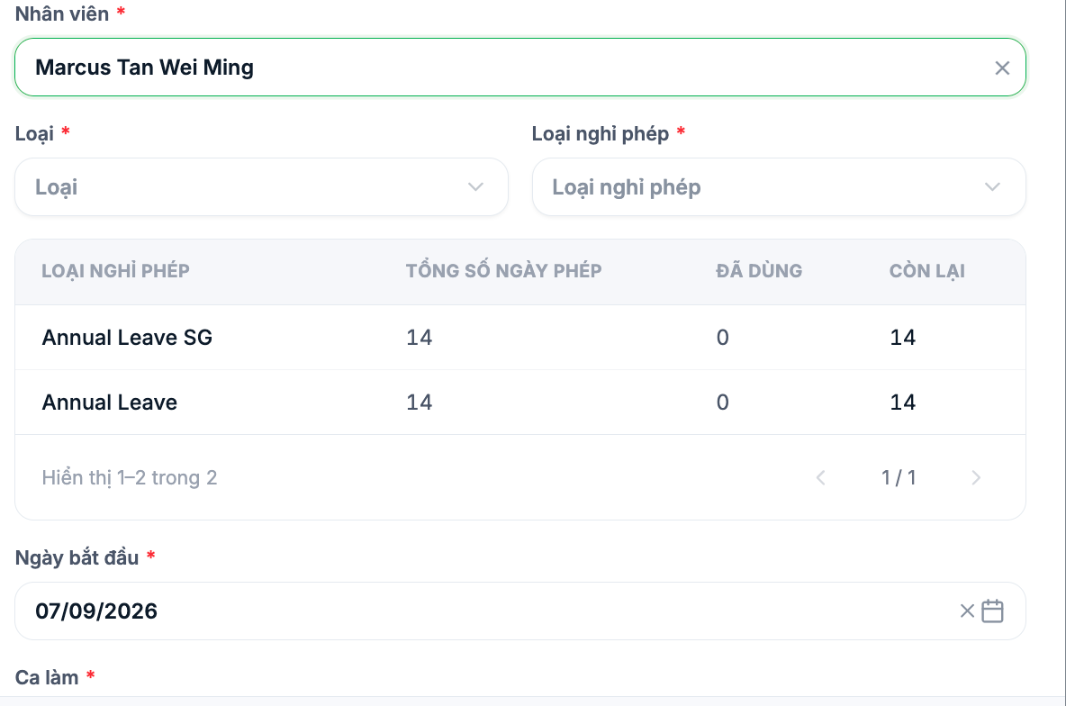
The number of leave days is entered in each employee's profile, on the Leave tab (article B2-11). The leave balance table has three columns:
| Column | Meaning |
|---|---|
| Total leave days | The balance granted for the current period |
| Used | Number of days taken and approved |
| Remaining | Total minus used — the number employees care about |
This table appears right in the leave request form after selecting the employee, so both the submitter and the approver can see the balance before deciding.
Granting leave balances in bulk
- Prepare an Excel file with columns for employee code and number of leave days.
- Use the Import file › Update information function in the HR module (article B2-04).
- Spot-check a few profiles after importing.
Grant leave balances before opening the requests module to employees. If you open it before balances exist, everyone will see 0 and believe the company has wiped out their leave — a kind of misunderstanding that is very hard to put out.
Pre-go-live checklist
- Every leave type the company uses has been configured and is enabled.
- Each leave type has an approval flow.
- Every active employee has a non-zero balance in the main leave type.
- A test leave request has been submitted, and the Used column was confirmed to increase correctly after approval.
- Leave balances have been cross-checked against HR's old tracking sheet.

