Finalizing results is the moment a KPI sheet turns from a working document into evidence used for pay and bonuses. This article describes the sequence for running a cycle and what must be done before locking.
The life cycle of a results sheet
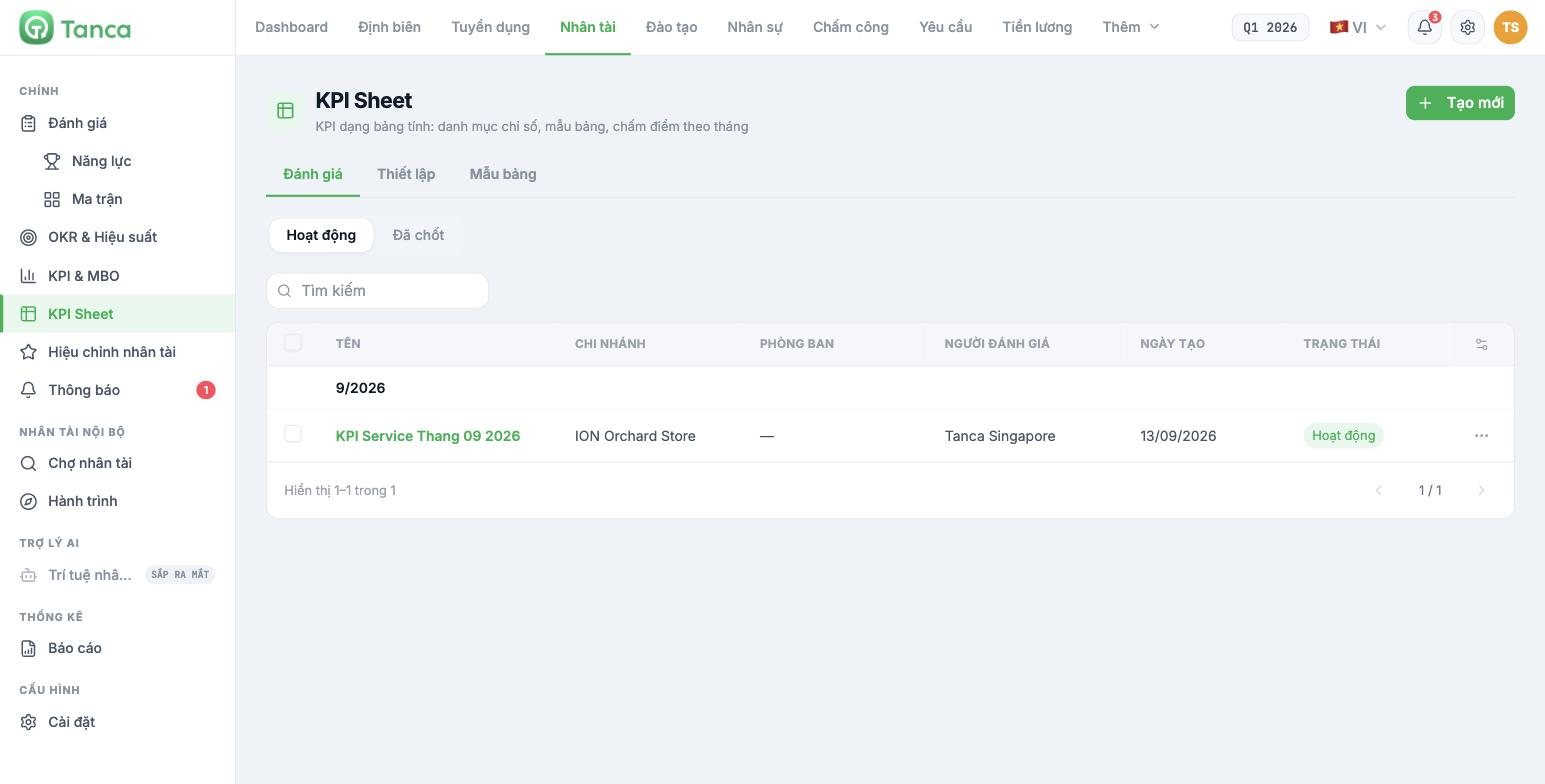
| Stage | Status | Who does it |
|---|---|---|
| Generate the sheet from a template | Active | Administrator / HR |
| Enter RESULTS during the cycle | Active | Scorers declared in the template |
| Enter CONVERTED SCORES at the end of the cycle | Active | Scorers |
| Review and export file | Active | HR |
| Lock the sheet | Finalized | Administrator |
Checklist before locking
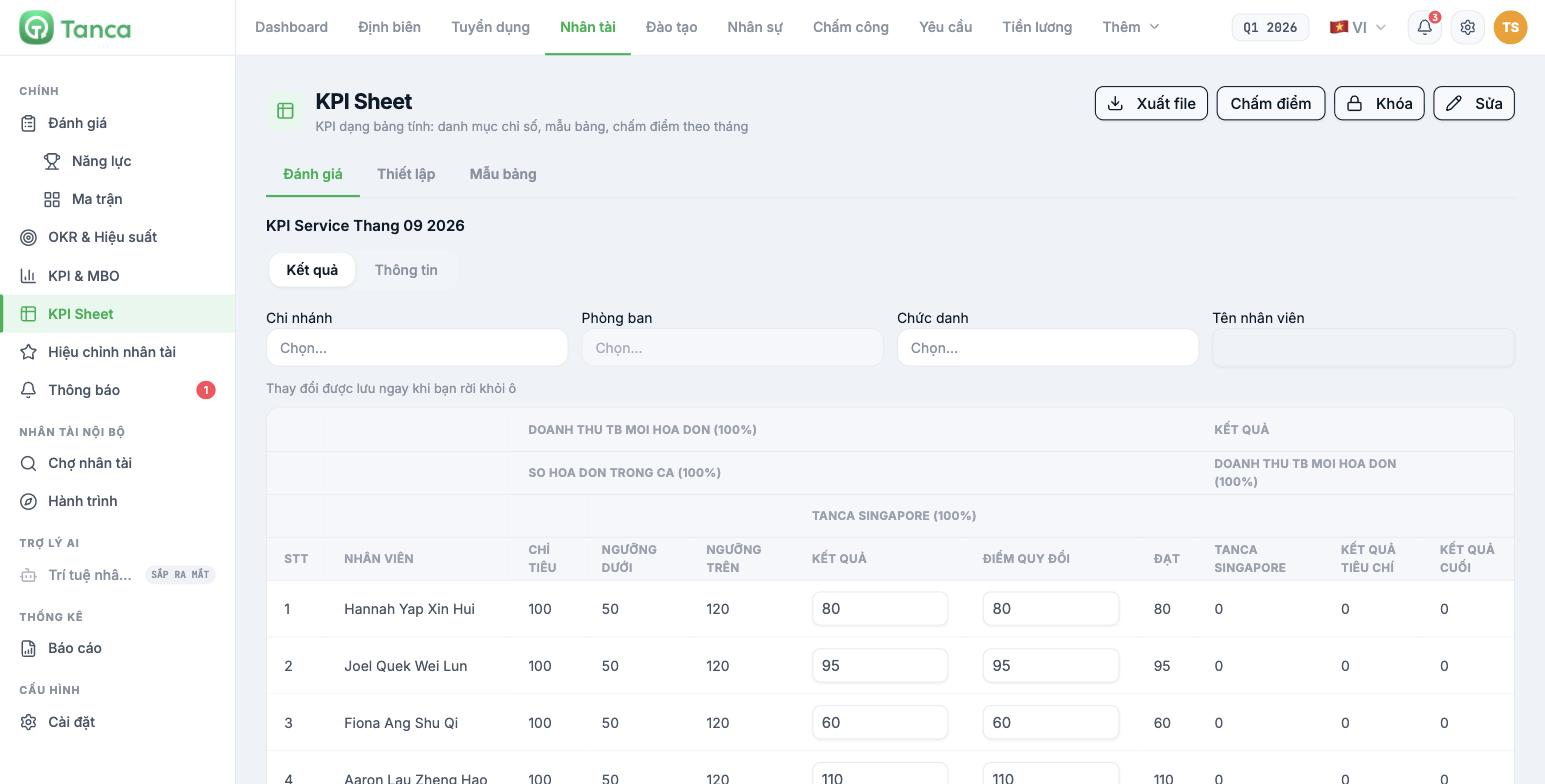
- No RESULT cells are left blank. Employees who haven't been scored will receive 0 points, not "exempt from review".
- The FINAL RESULT column shows numbers, not 0. If it is 0 across the board, the overall KPI formula is calling a keyword that isn't among the sheet's criteria (article B11-03).
- Check a few rows against the source — sales reports, timesheets, record forms. Pick 3 people at random, not just high scorers.
- Click Export file and save the Excel copy in the cycle's records folder. This is your evidence if there are complaints later.
- Notify the people being scored and give them time to respond before locking — usually 2 to 3 working days.
Locking the sheet
Open the sheet and click Lock at the top of the screen. The sheet moves to the Finalized filter and can no longer be edited. To view it again, choose the Finalized filter in the list.
TO BE CONFIRMED BY THE COMPANY before publishing: whether an administrator can unlock a finalized sheet, and who has permission to do so. Until there is an answer, treat the Lock action as one-way and only click it after completing the checklist above.
How OKR cycles are finalized
OKR has no lock button. An OKR cycle ends once its End date has passed, and you switch to the new cycle in the selector at the top of the page. To save the results of the old cycle:
- Go to the Individual (or Department) tab and click Export file to download the list of objectives and progress.
- Go to Alignment Map and click Export file to download the alignment picture for the whole cycle.
- Create a new cycle in OKR Settings › OKR Cycles (article B11-02). Don't edit the old cycle's dates to keep using it — you will lose your point of comparison.
Do not delete old OKR cycles. Objective and key result data will be lost with them, and you will no longer have any basis to say "how much we achieved last quarter".

