A recruitment workflow is the set of steps a candidate goes through. Each step becomes a column on the board, so building a workflow also builds the way your recruitment team sees its daily work.
Workflow list
Go to Settings › Recruitment Workflows. Each row is one workflow, along with its number of steps and creation date. Click Create Workflow to add a new one; click the three dots at the end of a row to Edit or Delete.
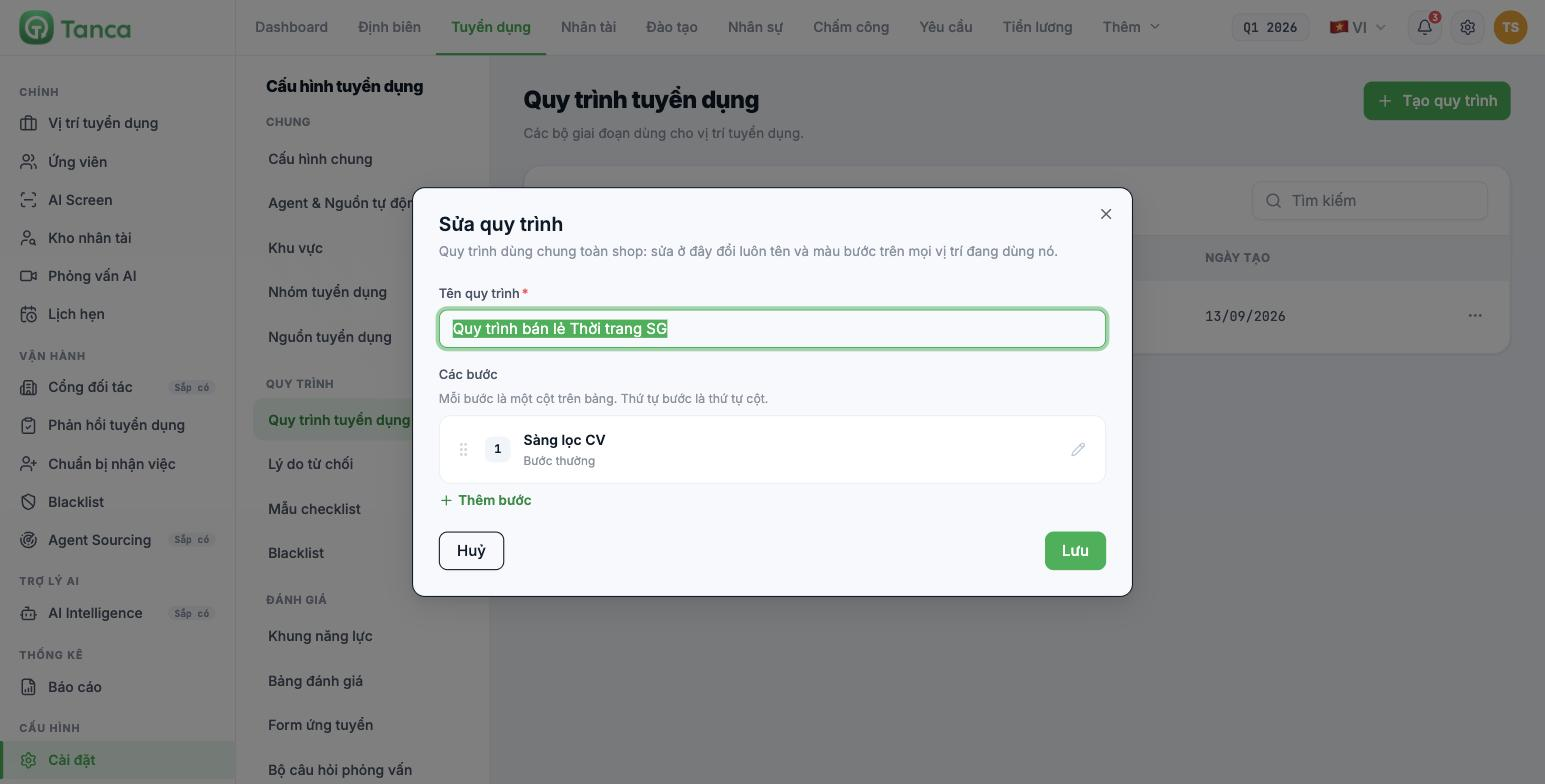
Workflows are shared across the whole company. The system states clearly: editing here also changes the step names and colors on every position using it. If only one position needs something different, create a separate workflow for that position instead of editing the shared one.
Adding and ordering steps
- In the workflow dialog, click + Add Step.
- Enter a Step Name.
- Choose a Step Color — this is the column color on the board.
- Turn on special roles if needed (table below).
- Click Save.
- Drag the six-dot icon at the start of a row to reorder the steps.
The system reminds you: each step is a column on the board, and the step order is the column order. Arrange steps from left to right following the actual flow of candidates.
Five special roles of a step
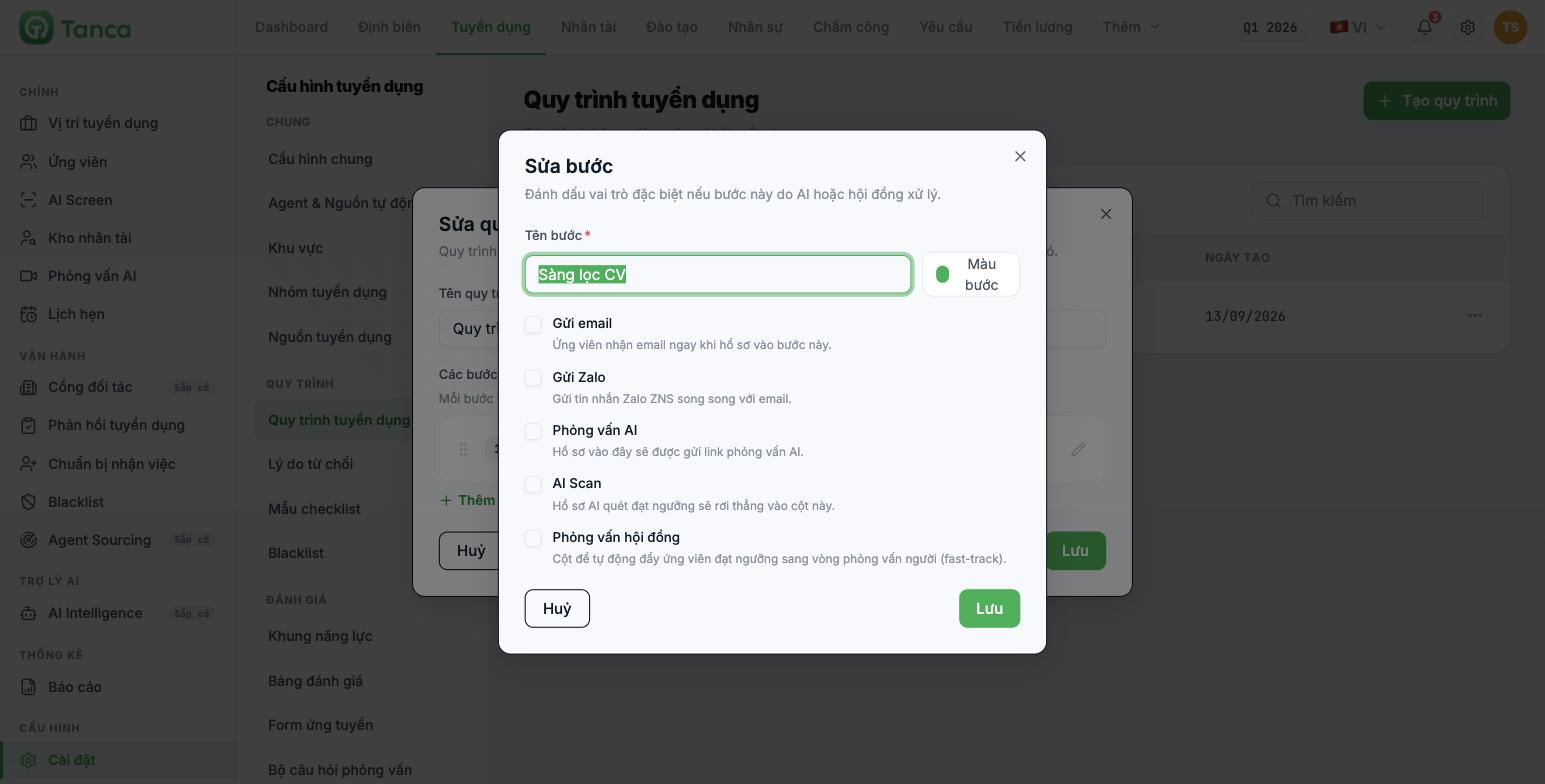
| Role | What the system does |
|---|---|
| Send email | The candidate receives an email as soon as the application enters this step |
| Send Zalo | Sends a Zalo ZNS message alongside the email |
| AI Interview | Applications entering this step are sent an AI interview link |
| AI Scan | Applications that meet the AI scan threshold drop straight into this column |
| Panel interview | The column used to automatically move candidates who meet the threshold to the in-person interview round |
The first four roles only work once the corresponding area has been configured: Send email needs an email template (B15-08), Send Zalo currently cannot send because the Zalo integration isn't finished, and AI Interview needs a question set and AI Interview configuration (B15-06, B15-07).
Recommended step sets
| Recruitment type | Suggested steps |
|---|---|
| Operations, retail, F&B — fast, high-volume hiring | CV screening → Phone screening → In-store interview → Job offer |
| Office, professional roles | CV screening → HR interview → Assessment → Technical interview → Job offer |
| Management level | CV screening → HR interview → Panel interview → Reference check → Job offer |
Keep the workflow to four to six steps. With fewer, the board can't reflect progress; with more, candidates sit waiting in intermediate columns and no one knows where an application really is.
Three columns that are always there
In addition to the steps you build yourself, each position's candidate board always has two extra fixed columns:
| Column | Meaning |
|---|---|
| Unassigned | New applications automatically land here |
| Rejected | Rejected applications, with a reason selected from the Rejection Reasons list |
Three items that go with workflows
| Item | Used for |
|---|---|
| Rejection reasons | The list of reasons selected when rejecting a candidate. Reports are only readable if the list is complete and has no duplicates |
| Checklist templates | Sets of onboarding procedures applied to each group of positions — used at the pre-onboarding step |
| Blacklist | A list of candidates who will not be accepted |
Write rejection reasons as objective causes, not personal remarks: "Insufficient retail experience" works for reporting; "Not a fit" doesn't. Rejection reasons are data that will be analyzed, and in many cases they are something the company has to justify.

