This is the framework the AI uses to score candidate CVs. This article starts with the single most commonly confused point in the entire module, so read the opening carefully before doing anything.
Tanca has two separate competency frameworks that do not share data. The framework in Talent › Settings is used to assess the competencies of current employees. The framework in Recruitment › Settings — the subject of this article — is used by the AI to score candidate CVs. Building a framework in Talent does not enable recruitment to score CVs: in step 4 of the position creation screen, the Competency Framework field only lists frameworks built here.
How they differ
| Talent › Settings | Recruitment › Settings | |
|---|---|---|
| Skills come from | Skill library — selected from a list | Free-form typing |
| Weighting | One level, totaling 100% per group | Two levels: framework % for the group × skill weight |
| Linked to job titles | Yes | No |
| Five behavioral levels | Yes | No |
| Status | None | Draft / Active |
| Used for | Assessing employee competencies | AI scoring of candidate CVs |
Creating a framework
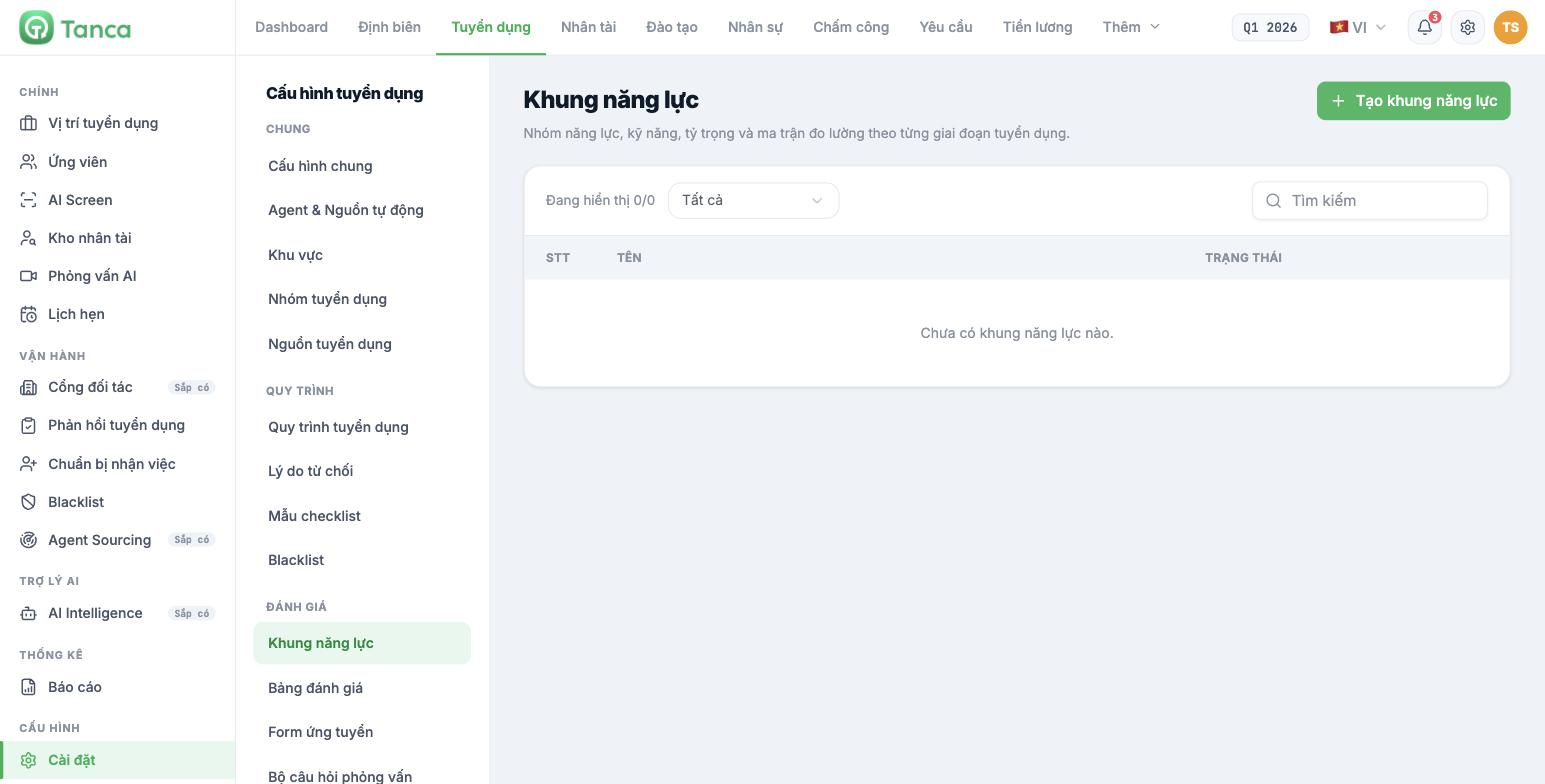
- Go to Settings › Competency Framework and click Create Competency Framework.
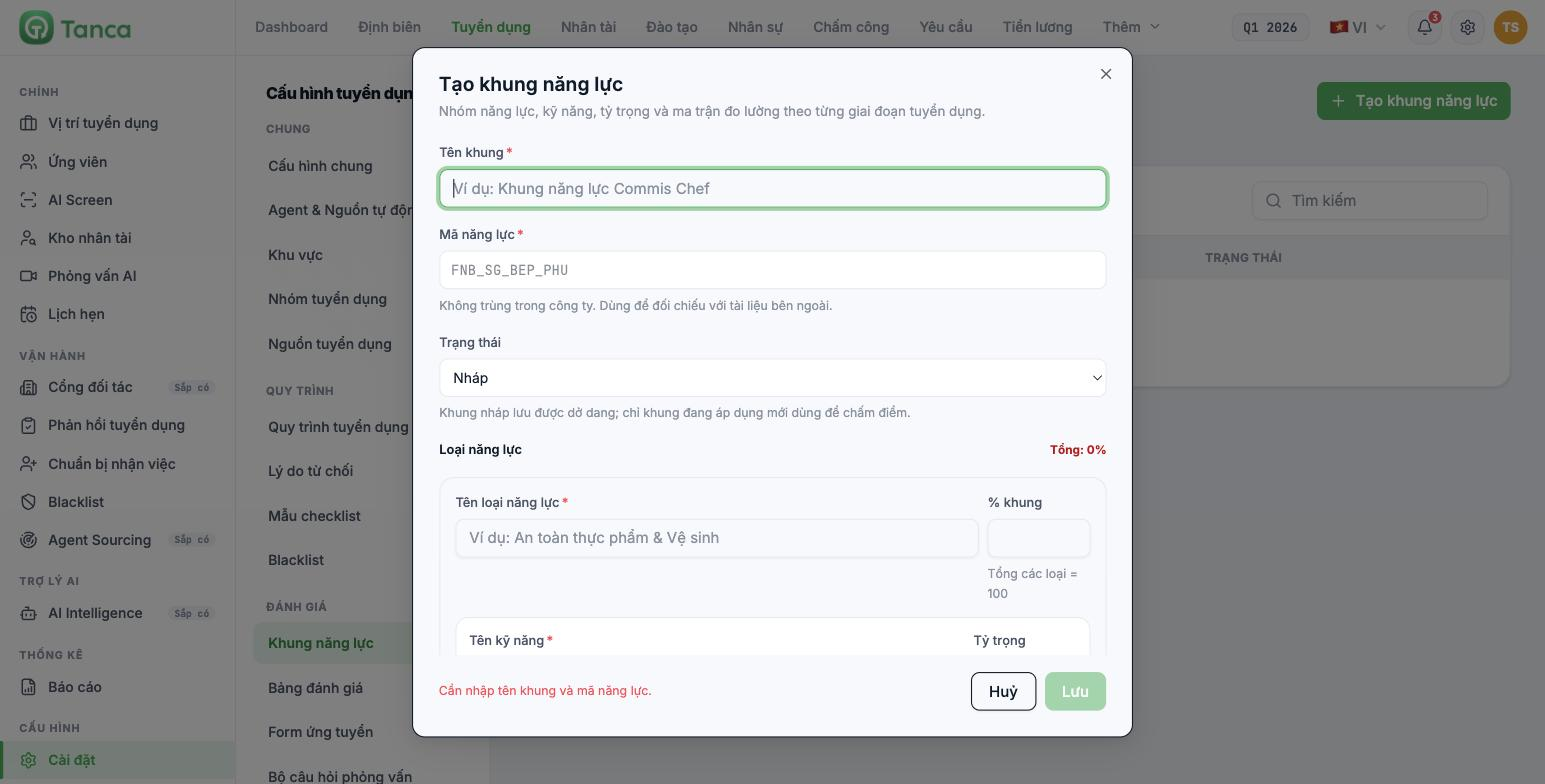
- Enter the Framework Name — required.
- Enter the Competency Code — required, and must be unique within the company. It is used to cross-reference external documents, for example `FNB_SG_BEP_PHU`.
- Select the Status.
- Define the Competency Types and the skills within them.
- Click Save.
Two statuses
| Status | Meaning |
|---|---|
| Draft | Can be saved while incomplete. Can be saved even if the weights don't add up to 100 |
| Active | The framework is used for scoring. Can only be selected when the weights add up to 100 |
Only frameworks with Active status are used for scoring. A framework left in Draft cannot be attached to a job position — this is the most common reason the Competency Framework field in step 4 shows "No options available".
Two-level weighting
| Field | Meaning |
|---|---|
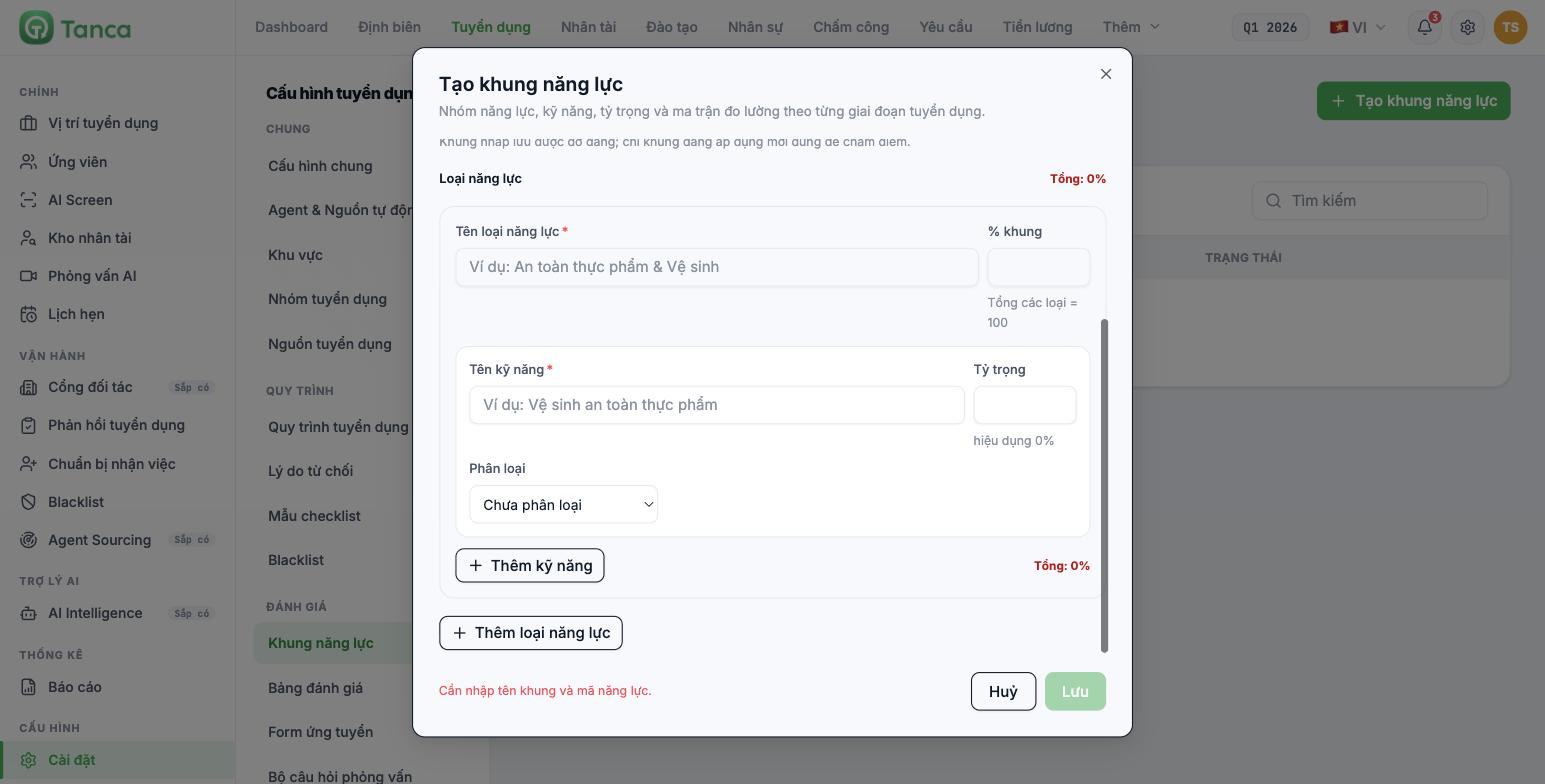
| Framework % (on the competency type row) | What percentage of the whole framework this group accounts for. Total across all types = 100 |
| Weight (on the skill row) | How much this skill accounts for within its group |
| effective | The skill's actual weight across the whole framework — calculated automatically by the system as framework % × weight |
Example: if the Store operations group has framework % = 40, and within that group the POS shift closing skill has weight = 50, then this skill's effective weight is 20% of the whole framework.
Always read the effective column, not the weight. A skill with a weight of 80 in a group that accounts for only 10% of the framework actually carries just 8% — the number 80 can easily mislead whoever set it up into thinking it's very important.
Three Skill Classification options
| Classification | Used for |
|---|---|
| Unclassified | Default |
| CERTIFIED | Skills proven by degrees, certificates, or licenses — the AI can find these in the CV |
| BEHAVIORAL SKILLS | Skills shown through how someone works — CVs usually don't state these clearly |
Classifying correctly helps the AI know what to look for in the CV. Behavioral skills can hardly be read from a CV — don't give this group a high weight if you want the AI score to be meaningful. Leave behavioral skills for the interview round (article B15-06).
How to set up a framework so CV scoring is meaningful
- Use the position's job description as the basis, not your internal competency framework.
- Include only what a CV can tell you: years of experience, industry, tools, certificates, work permit, languages.
- Set a high framework % for the groups that decide whether an application is rejected — usually industry experience and legal requirements.
- Lower the weight of the behavioral group or remove it entirely.
- Switch the status to Active once the total reaches 100.
Attaching the framework to a position
A framework doesn't apply to any position automatically. Go to Recruitment › position › Edit job posting › step 4 Team & AI, under AI Competency Configuration, select the framework in the Competency Framework field, then turn on Automatic CV scoring. Details are in article B15-09.
A single framework can be reused for multiple positions of the same nature. There's no need to create a separate framework for each job posting — only create a separate one when the criteria are genuinely different.

