Eight toggles determine how the whole company can clock in. This is the first screen to open when setting up time and attendance, and the first place to check when the whole company can't clock in.
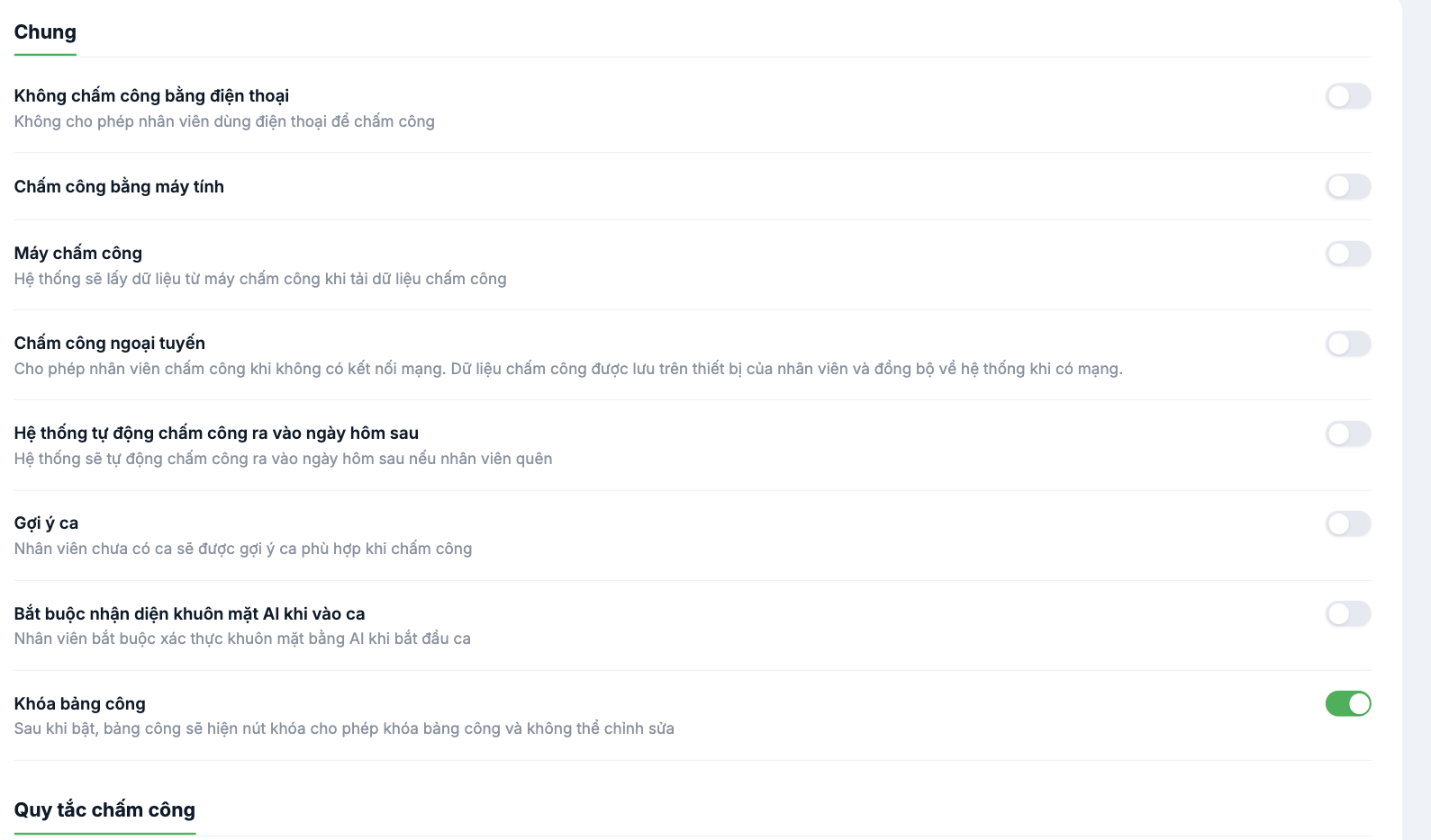
| Toggle | Turning it on means | When to turn it on |
|---|---|---|
| No clock-in by phone | Blocks clocking in via the mobile app | Factories that only use attendance machines. This is a negative statement — read carefully. |
| Clock in on computer | Allows clocking in directly in the browser | Office employees who sit at a computer all day |
| Attendance machine | The system pulls data from attendance machines when loading data | You have fingerprint or card readers |
| Offline clock-in | Clocking in works when the network is down; data syncs when the connection returns | Warehouses, construction sites, areas with weak signal |
| System automatically clocks out the next day | Automatically clocks out if the employee forgets | Night shifts that span two days |
| Shift suggestions | Employees without a shift will be suggested a suitable shift when clocking in | Places with flexible shift scheduling, where ad-hoc shifts often come up |
| Require AI face recognition when starting a shift | Face verification is required to clock in | Places at risk of buddy punching |
| Lock timesheet | The timesheet shows a lock button; once locked, it cannot be edited | Recommended — needed for the end-of-period finalization process |
"No clock-in by phone" is the most commonly misunderstood toggle in the entire system. Turning it on blocks the app; it does not allow it. There have been cases where it was turned on by someone who thought it meant "allow", and the next morning the whole company couldn't clock in. If you receive widespread reports that "the app can't clock in", this is the first place to check.
Below is the Attendance rules section
Scrolling further down below the eight toggles is the Attendance rules section — where you set up rules for late arrival, early departure, and rounding working hours. See article B6-08.
Steps
- Go to the Time & Attendance module and select Settings at the bottom of the left column.
- In the second column, under the TIME & ATTENDANCE group, select General.
- Turn the toggles on or off as needed.
- Scroll down to check the Attendance rules section.
After changing the settings
- Test immediately on a real account before announcing it to the whole company.
- Changing attendance settings mid-period will cause the first and second halves of the month's timesheet to be calculated by two different rules. Change them at the start of the period.
- If a small group needs an exception, use individual settings for each person (B6-11) instead of changing the general settings.

