This screen has only one option, but it affects every email sent to candidates: whether messages are sent from Tanca's address or from your company's address.
Two options
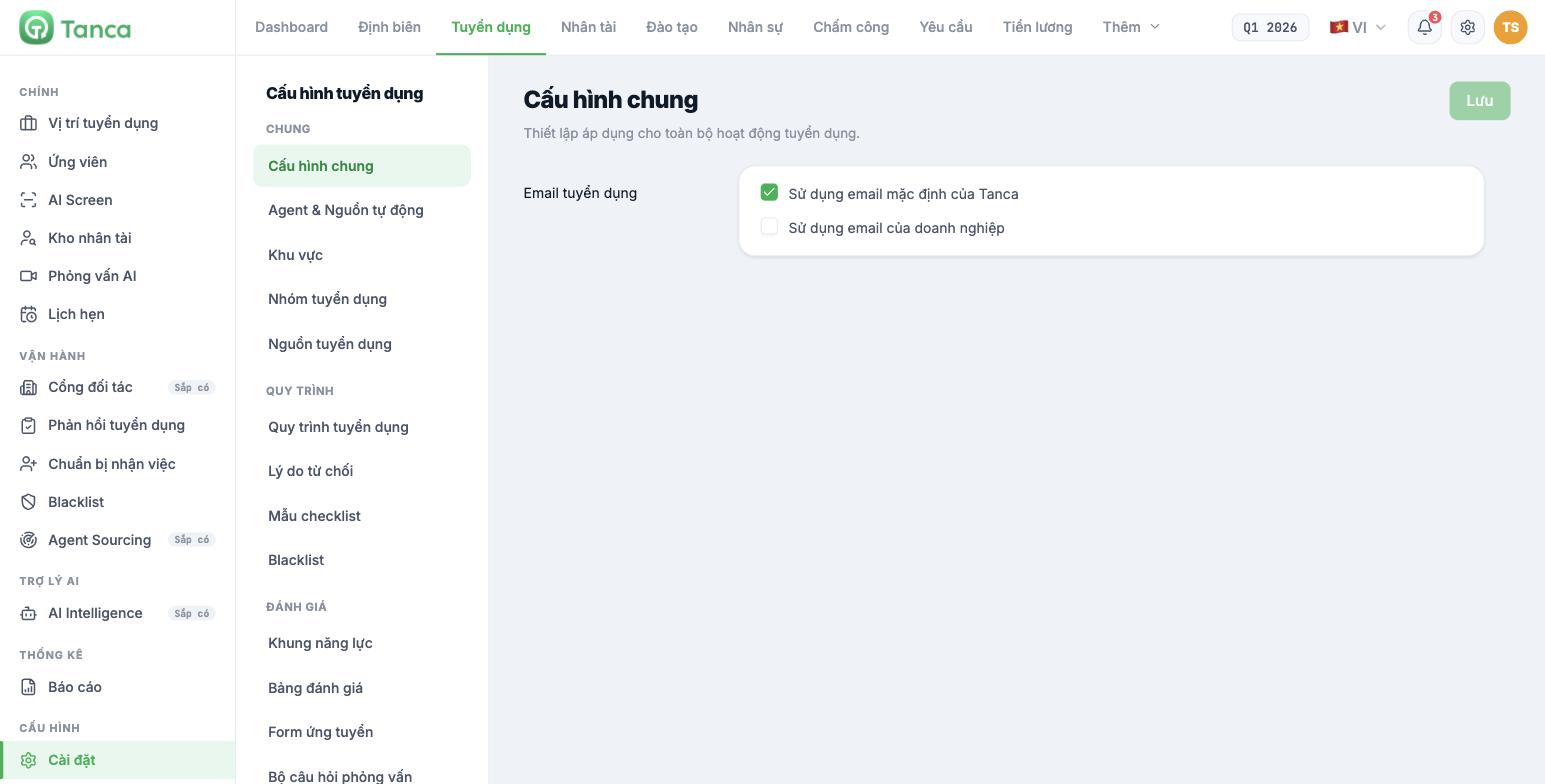
| Option | What it means |
|---|---|
| Use Tanca's default email | Emails to candidates are sent from the Tanca system. This is the default option and works right away with no configuration |
| Use company email | Emails are sent from your company's domain |
After choosing, click Save in the top-right corner.
Which one to choose
| Situation | Recommended choice |
|---|---|
| Just getting started and want to go live right away | Tanca's default email |
| Hiring for senior positions where candidates pay attention to the brand | Company email |
| High-volume hiring, sending hundreds of emails per batch | Company email — avoids being filtered into spam from bulk sending on a shared domain |
| The company doesn't have its own email domain yet | Tanca's default email |
Using company email usually requires your IT team to add domain authentication records so messages aren't flagged as spoofed. Ask Tanca for specific configuration instructions before switching — don't switch first and check later, because any email sent before authentication is complete risks landing in candidates' spam folders.
Testing after switching
- Create a test job position.
- Add a candidate using your own personal email address.
- Move the application through a step with Send email turned on.
- Check your mailbox — both the inbox and the spam folder.
- Confirm the sender address is what you expect.
Email content isn't configured here. The six candidate email templates are in Settings › Email Templates (article B15-08), and which steps send emails automatically is set in Settings › Recruitment Workflows (article B15-04).

