The approval flow determines whose hands a request passes through and in what order. This is the part that makes the requests module either run smoothly or become a bottleneck for the whole company.
The approval flow determines whose hands a request passes through and in what order. This is the part that makes the requests module either run smoothly or become a bottleneck for the whole company.
Open the flow designer
Go to Requests › Settings › By request type.
Click the diagram icon in the Actions column of the request type you want to configure.
If the request type has multiple sub-forms, select the corresponding tab — each sub-form has its own flow.
Click + New approval workflow, or Edit on an existing workflow.
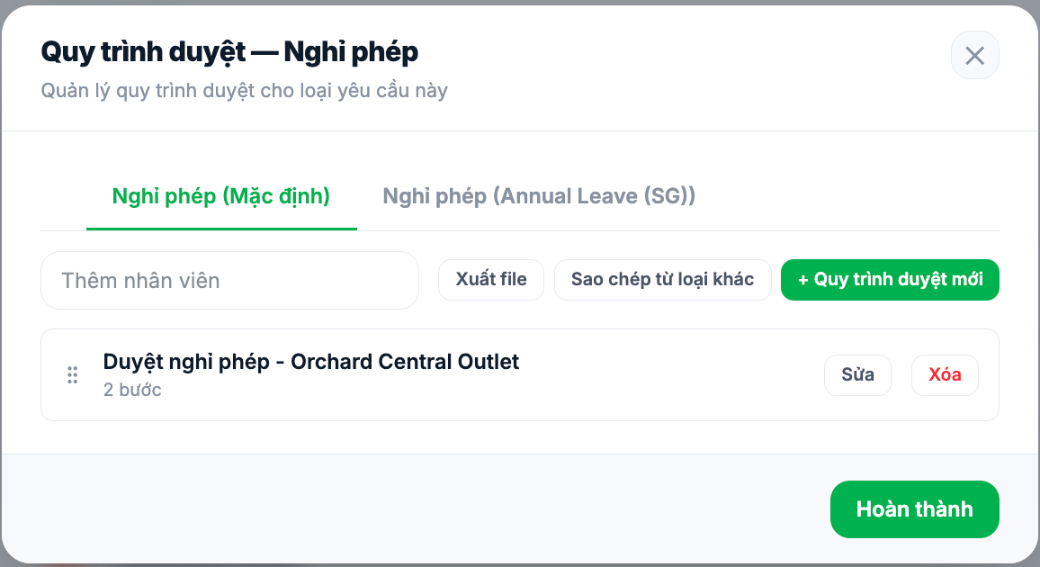
List of approval workflows for the Leave request type
Button
Used to
+ New approval workflow
Create a new flow for this request type
Copy from another type
Duplicate a flow already configured for another request type — saves a great deal of time
Add employee
Quickly find which flow a specific employee follows
Export file
Export the flow to a file for review or record-keeping
Reorder workflows
Change the order when there are multiple flows — the first matching flow will be used
Structure of a flow
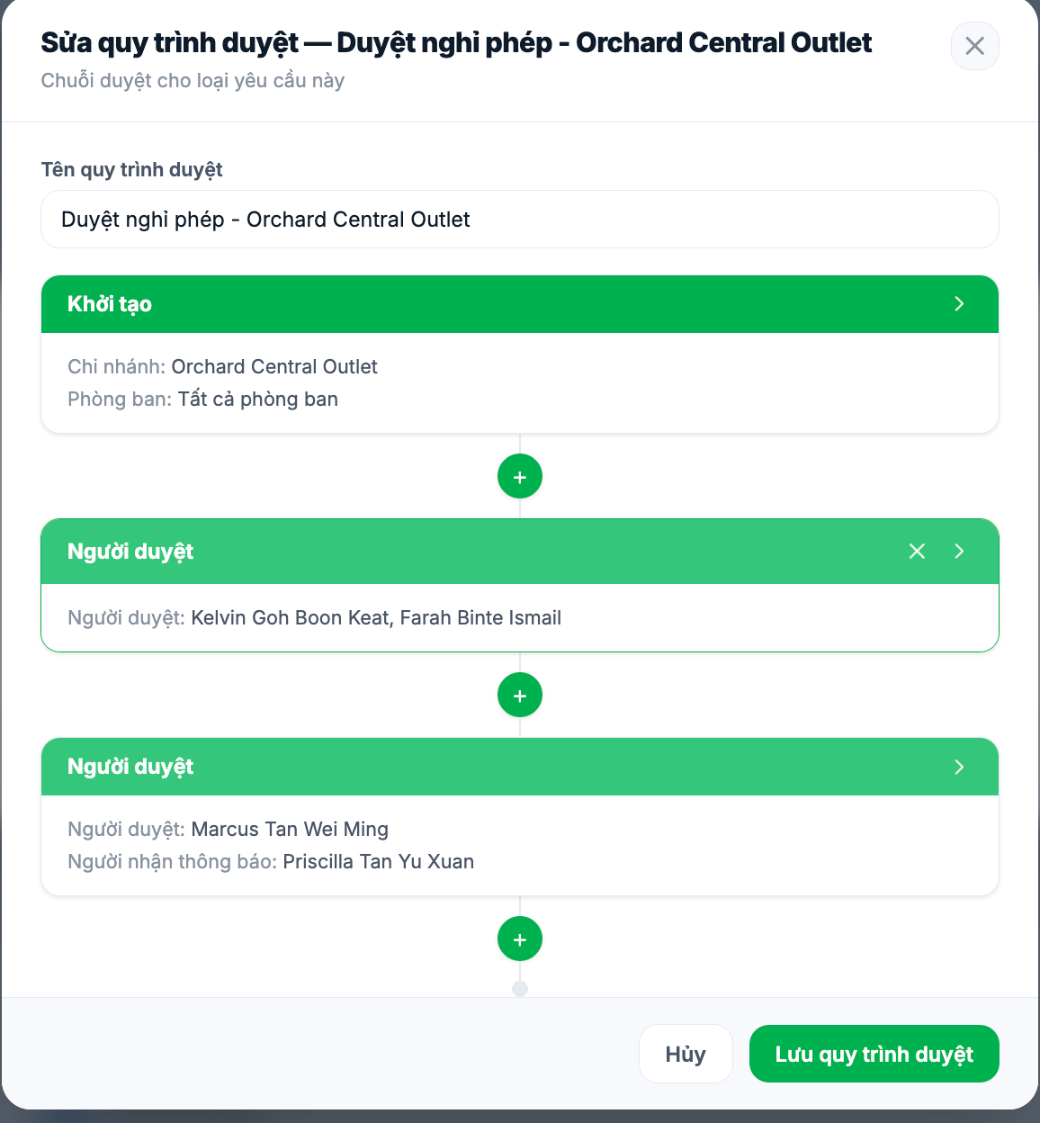
Flow designer: the Initiation block and two Approver steps
Initiation block — who can submit this request: select Branch and Department / Employee. This is the condition for the flow to apply.
Approver blocks — each block is one approval level, running sequentially from top to bottom.
Plus button between blocks to insert an additional approval step in between.
Configure an approval step
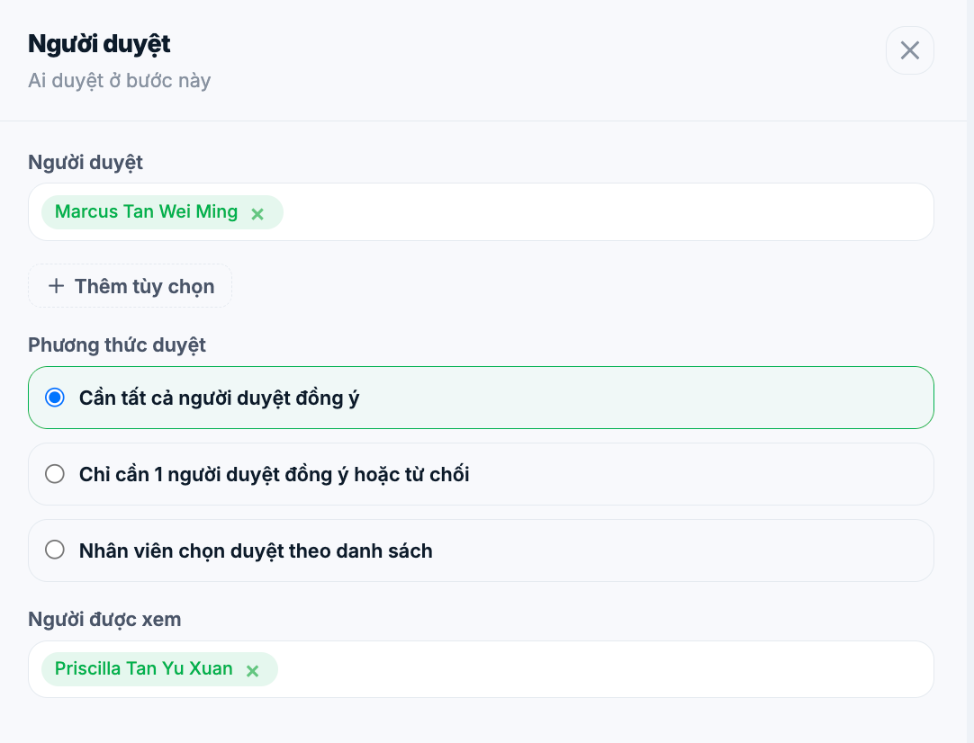
Configuration table for an Approver step
Field
Meaning
Approver
Select specific people. You can select multiple people in the same step
+ Add option
Add approvers by role instead of by name: Job title or Line manager
Approval method
The rule when a step has multiple approvers — see the table below
Viewers
People who receive notifications and can view the request but do not have approval rights
Method
Meaning
All approvers must approve
The request only passes the step when everyone in the step approves. Use for large financial requests
Only 1 approver needs to approve or reject
Whoever handles it first decides. Use for routine requests that need fast processing
Employee selects approver from a list
The submitter chooses one person from the list to send it to
Prefer assigning approvers by Line manager or Job title rather than by name. If you assign by name, every time someone leaves or changes position you have to edit all the flows again — and you usually only find out once requests have been stuck for several days.
Four flow design principles
As few levels as possible. Each approval level adds another day of waiting. A half-day leave request doesn't need three levels.
Each step has at least two approvers with the method only 1 person needs to approve — so requests don't get stuck when someone is away.
Use Viewers for parties who only need to be informed, such as HR or accounting, instead of adding them as an approval level.
Name flows clearly, including the branch or department, for example Leave approval - Orchard Central Outlet.
Troubleshooting
Symptom
Cause
Submitted requests don't reach anyone
The request type has no approval workflow yet, or the Initiation block doesn't include the submitter's branch
A request is stuck at one step for several days
The approver for that step is away; see article B8-06
Multiple flows match
The flow higher up in the list is used. Reorder with the Reorder workflows button
Employees at a new branch can't submit requests
That branch hasn't been added to the Initiation block