Applications that come in with no one to pick them up are the fastest way to lose candidates. Each position's Configuration tab determines which applications go to whom, and the Permissions tab determines who is responsible for each step.
The six tabs of a position
| Tab | Used to |
|---|---|
| Board | Drag-and-drop board of candidates by step — the day-to-day work screen |
| List | The same data, presented as a table |
| Calendar | Interview and contact schedule for this position |
| Statistics | Position-specific figures |
| Configuration | CV distribution, position information, closing the position |
| Permissions | Owners for each step |
CV distribution configuration
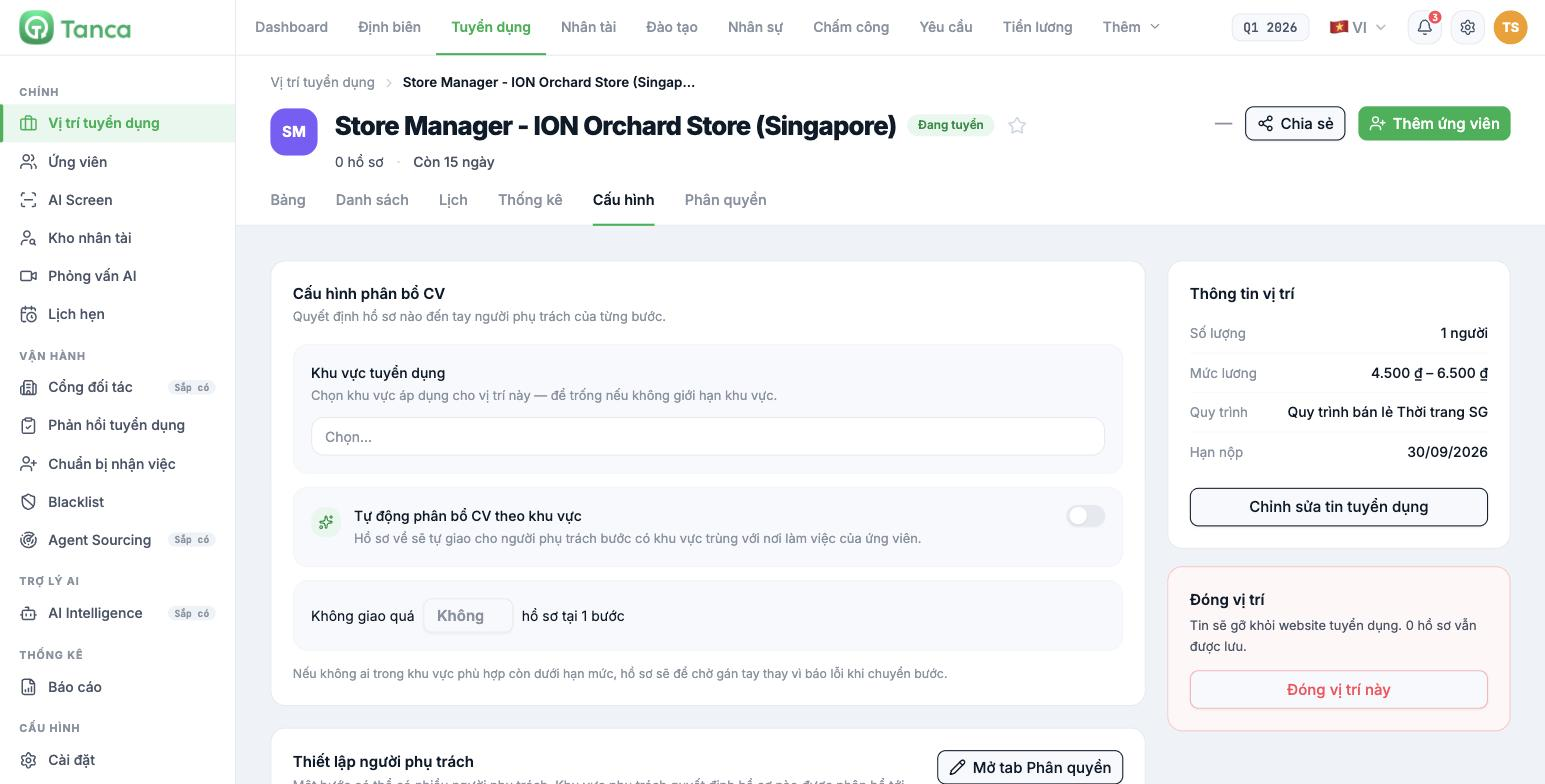
| Setting | Effect |
|---|---|
| Recruitment region | The region that applies to this position. Leave blank for no restriction |
| Automatically distribute CVs by region | Incoming applications are automatically assigned to the step owner whose region matches the candidate's work location |
| Assign no more than … applications at 1 step | The application quota per person at one step |
The system explains clearly what happens when the quota is reached: if no one in the matching region is still under their quota, the application will wait to be assigned manually instead of throwing an error when changing steps. This means applications are not lost, but someone has to notice and assign them.
Set the quota based on the owner's real processing capacity, not just for the sake of it. One person can screen about 20 to 30 applications per day if it's their main job; far fewer if they also do other work.
Owners for each step
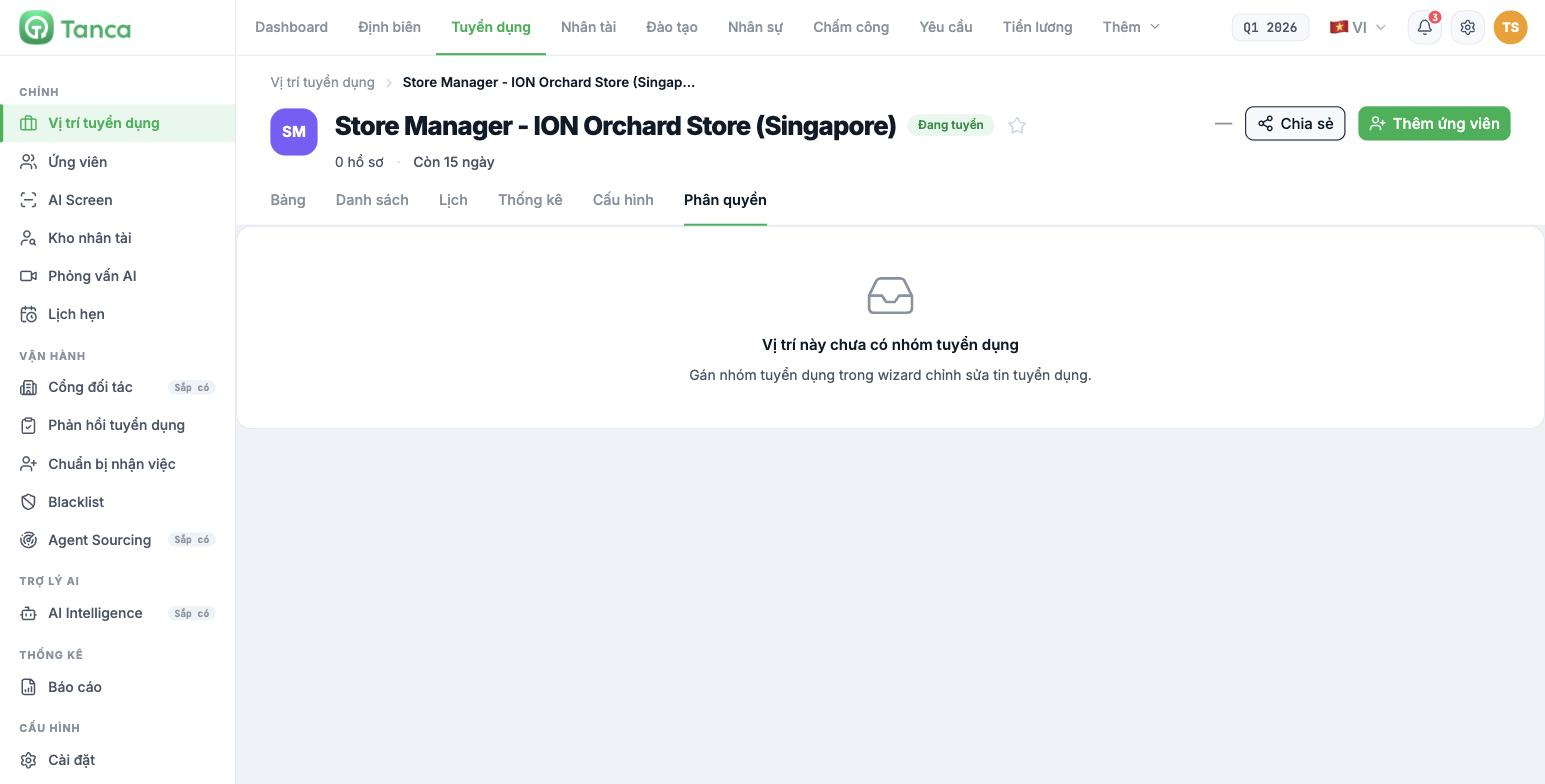
Go to the position's Permissions tab. A step can have multiple owners, and their assigned regions determine which applications are distributed to them.
This tab shows "This position doesn't have a recruitment team yet" if you haven't assigned a team. Assign the team first in step 4 of the posting edit wizard (article B15-09), then come back here to assign each step.
The correct order for applications to flow automatically
- Set up Regions in General Settings (article B15-03).
- Create a Recruitment Team and add members (article B15-03).
- Assign the team to the position in step 4 of the wizard (article B15-09).
- Go to the position's Permissions tab and assign an owner to each step, along with the regions they cover.
- Go to the Configuration tab, turn on Automatically distribute CVs by region, and set the quota.
Skipping step 4 is the most common mistake: automatic distribution is turned on but nobody owns any step, so every application ends up waiting for manual assignment. Columns without an owner will show "No owner assigned" right on the board.
Position information and closing a position
The right column of the Configuration tab summarizes the position: number of hires, salary, pipeline in use, application deadline. Below it are two buttons:
| Button | Effect |
|---|---|
| Edit job posting | Reopens the five-step wizard |
| Close this position | Removes the posting from the career website. Applications are still kept |
Closing a position does not delete applications. Close the posting as soon as the position is filled rather than leaving it running — candidates applying to a position that has already been filled is a bad experience and skews the funnel report figures.

