Tanca Surveys is a full-featured form builder, with 12 question types and a one-question-at-a-time response flow. This article walks through step 1 — the part that decides who receives it, when it closes, and whether the survey is anonymous.
The Surveys list
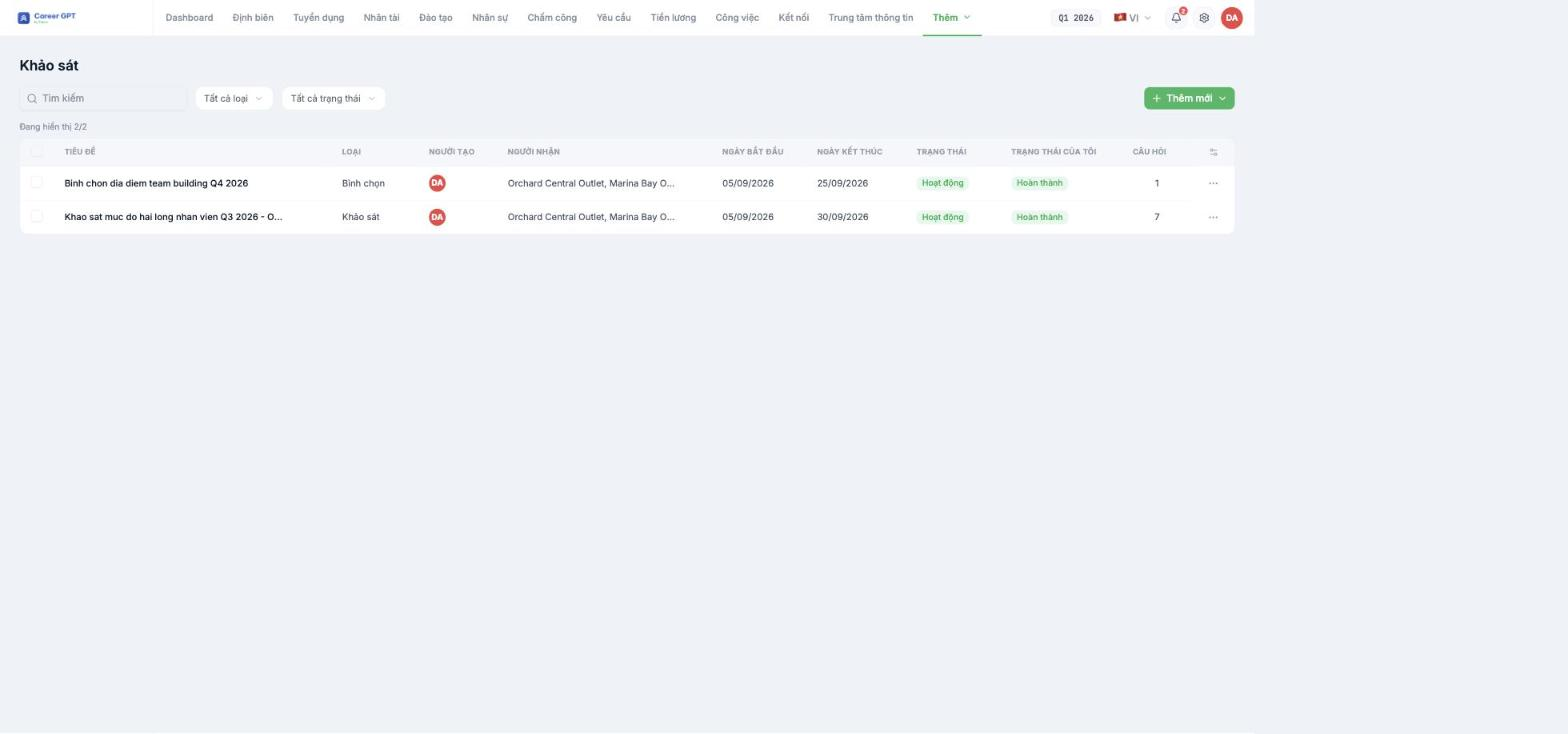
Surveys and Polls share one list, distinguished by the Type column. The other columns are: Created by, Recipients, Start Date, End Date, Status (of the survey), My Status (whether you've responded), and Questions (number of questions).
At the top there's a Search box and two filters, All types / All statuses. The Add New button offers two choices: Survey or Poll.
The search box is currently sensitive to Vietnamese diacritics: typing `muc do` returns results, but typing `mức độ` doesn't. When searching, type without diacritics.
Step 1 — General settings
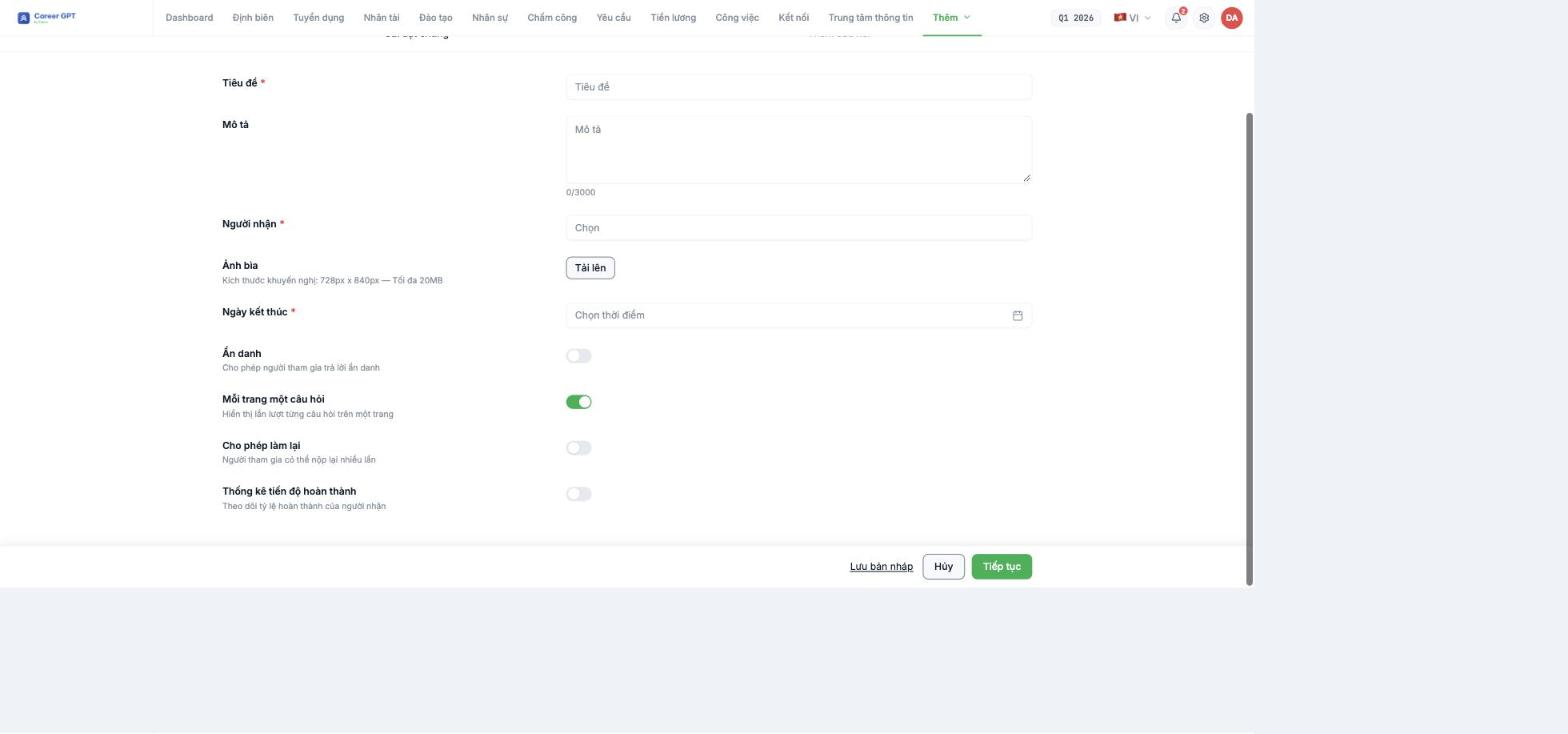
| Field | Required | Notes |
|---|---|---|
| Title | Yes | The first thing employees see in the notification |
| Description | No | Up to 3,000 characters. State the purpose, the response deadline, and what the results will be used for |
| Recipients | Yes | Select by Branch (required) and Department |
| Cover image | No | Recommended 728 × 840 px, up to 20 MB |
| End Date | Yes | The calendar blocks past dates |
The four toggles below determine the response experience:
| Toggle | Default | Effect |
|---|---|---|
| Anonymous | Off | Allows participants to respond anonymously — read B19-03 carefully before turning it on |
| One question per page | On | Shows questions one at a time, one per page |
| Allow resubmission | Off | Participants can submit multiple times |
| Completion progress tracking | Off | Tracks the completion rate of recipients |
Choosing recipients
Click Select in the Recipients field, and the Assign dialog opens with Branch (required) and Department. The Quick select link lets you paste a list of employee names directly — the system automatically matches them into tags and highlights in red any names that don't exist. This is very handy when sending to a group you already have a list for.
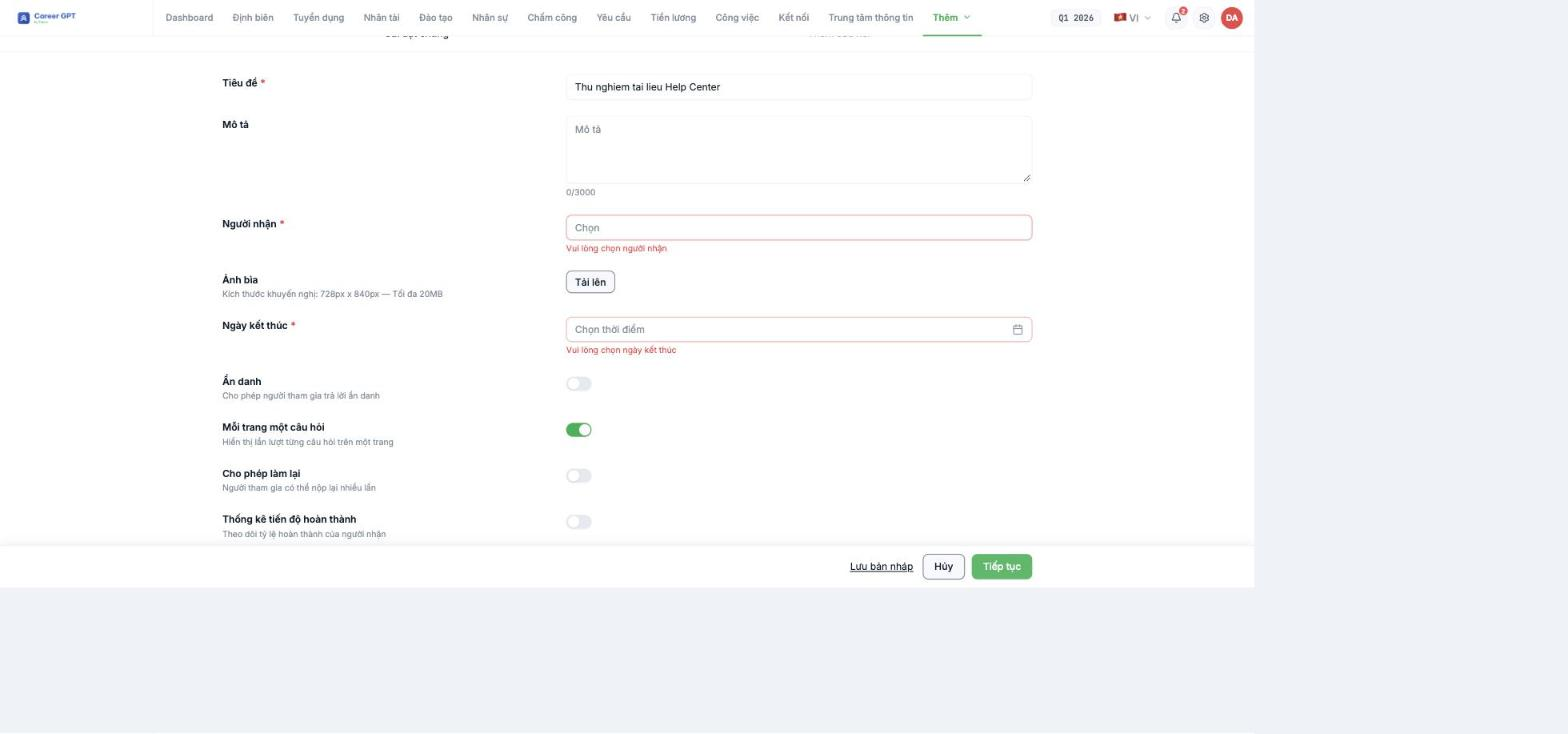
If you leave Recipients or End Date blank and click Continue, the system shows an error directly under that field.
Saving a draft still requires both Recipients and End Date. You can't save a new draft that only has a title. In addition, after saving, the list returns to the Active filter, so the draft doesn't appear — change the filter to All statuses or Draft to find it again. Drafts also don't yet have a direct Publish button: you have to go to Edit, move to step 2, and then click Create.
Two things to know before publishing
- There is no Start Date field. The survey opens as soon as it's published; the Start Date column in the list is actually the creation date. If you want it to open next Monday, you have to publish it on that day.
- The system doesn't check for empty questions. A survey with a question missing its text can still be published to all recipients, and respondents will see an input field with no question. Review step 2 once before clicking Create — see B19-02.
The Cover image upload feature is currently broken (the server rejects the file), so all surveys share one default cover image. The issue has been passed to the development team. TO BE CONFIRMED BY THE COMPANY before publishing (recheck before publishing, as it may have been fixed).

