If this week's schedule is nearly the same as last week's, don't build it again from scratch. Tanca offers three ways to duplicate a schedule, from fully automatic to selective copying.
Three ways to duplicate a schedule
| Method | Where to set it up | When to use it |
|---|---|---|
| Shift assignment rules | Settings › Scheduling › Shift Assignment Rules | Fixed schedules by day of the week, repeating indefinitely |
| Auto shift scheduling | Settings › Scheduling › General | Schedules that differ every week, but next week is usually similar to the previous one |
| Copy Shifts | The arrow button next to Create Shift on the Scheduling screen | Copy a specific week to another specific week, with a selectable scope |
Turning on automatic copying
There are two toggles that do the same thing, located in two different places:
- Settings › Scheduling › General › Auto Shift Scheduling — Automatically schedule shifts from the previous week into the new week.
- Shift Templates › Shift Configuration › Automatically copy shifts to the new week — Copy the previous week's shift assignments when a new week begins.
Even with automatic copying turned on, you still need to review the schedule every week. Resigned employees, employees on extended leave, and holidays are not handled automatically — the system simply copies the old schedule as is.
Copying shifts manually
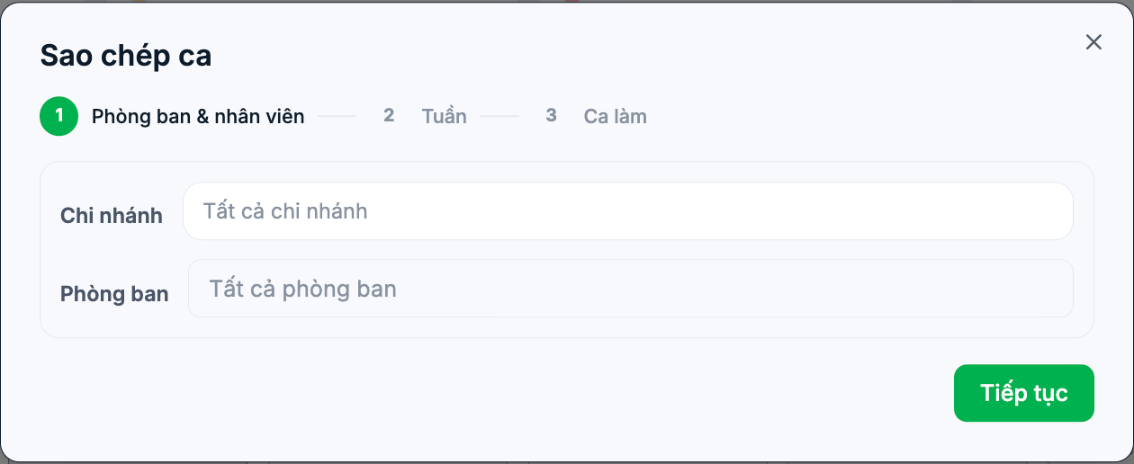
- On the Scheduling screen, click the arrow to the right of the Create Shift button and select Copy Shifts.
- Step 1 — Departments & employees: select a Branch (required, even though the field shows All branches) and a Department. Click Continue.
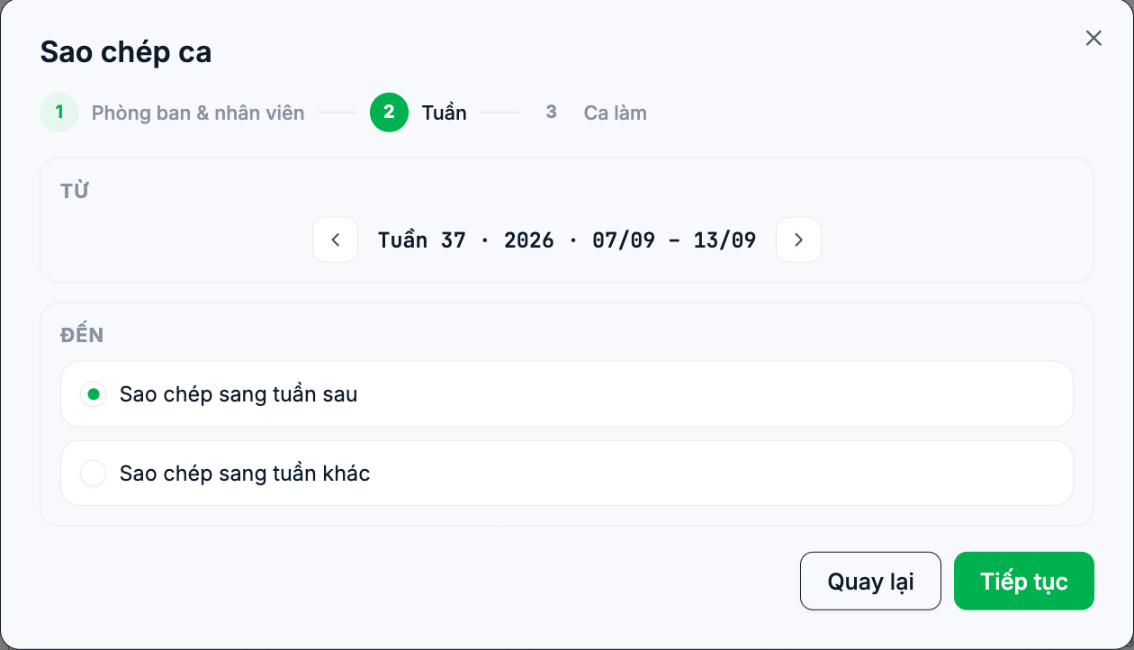
- Step 2 — Week: select the source week in the FROM section, then select Copy to next week or Copy to another week in the TO section. Click Continue.
- Step 3 — Shifts: select the shifts you want to copy, then confirm.
The Branch field in step 1 shows All branches but is actually required — clicking Continue while it is empty displays "Please select at least 1 branch!". This has been reported to the engineering team.
The Copy Shifts function only copies flexible shifts — shifts scheduled specifically for that week. Shifts generated from shift assignment rules don't need to be copied because they already exist in every week. If step 3 shows "No flexible shifts", it means the source week has no manually scheduled shifts.
Before and after copying
| When | What to do |
|---|---|
| Before | Check that the source week is correct — copying a wrong schedule doubles the mistake |
| After | Remove shifts of employees who have resigned |
| After | Remove shifts of employees with leave requests in the destination week |
| After | Handle holidays that fall in the destination week |
| After | Filter By overlapping shifts to check for schedule conflicts (article B7-08) |

