The four items in the Branding group determine what candidates see and which emails they receive. This is the part outside audiences see, so it deserves more care than internal configuration.
Career page templates
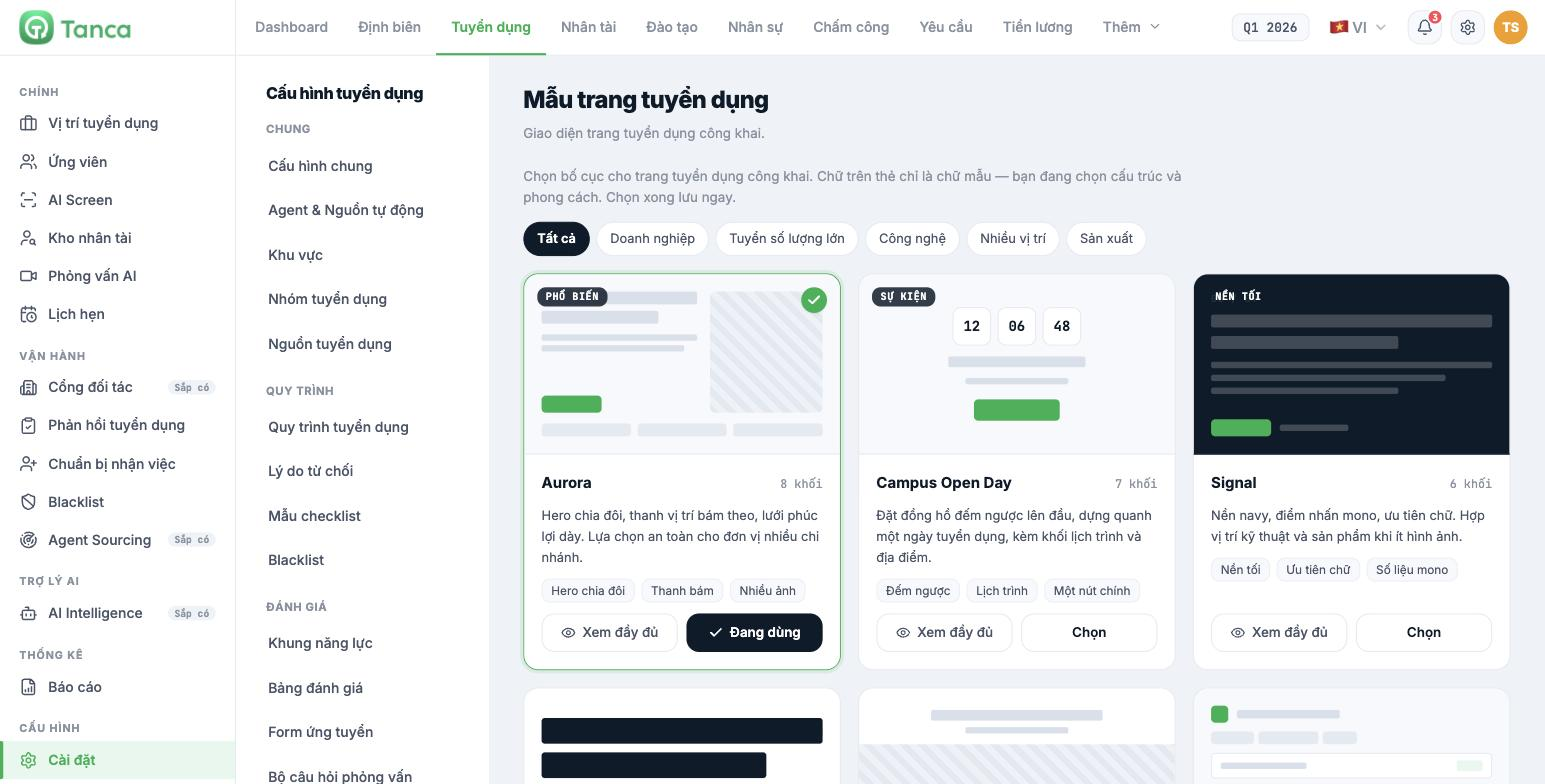
Go to Settings › Career Page Templates. This is the look of your public career page. The system reminds you: the text on the cards is just placeholder text — you're choosing the structure and style. Save as soon as you've chosen.
There are nine templates, filterable by six categories: All · Enterprise · High-volume hiring · Technology · Multiple positions · Manufacturing.
| Template | Blocks | Best for |
|---|---|---|
| Aurora | 8 | A safe choice for organizations with many branches. Split hero, sticky positions bar |
| Campus Open Day | 7 | A single recruitment day — with a countdown timer, agenda, and venue |
| Signal | 6 | Engineering and product positions when you have few images. Dark background, text-first |
| Frontline | 8 | High-volume hiring in retail and F&B. Short page, mobile-first, apply button always in view |
| Atelier | 8 | Magazine style, lots of white space, full-bleed images |
| Career Hub | 7 | An employer brand page with a filterable list of all open positions |
| Ledger | 8 | When salary ranges and levels are the selling point. Table-based layout |
| Beacon | 9 | A long single scrolling page with a floating table of contents and a video block |
| Assembly | 5 | Factories and warehouses — shifts, plant map, and shuttle information up front |
Click View full to preview a template, and Select to apply it. The template in use shows an In use label.
Choose a template based on the type of candidate, not on the chooser's taste. Retail and F&B candidates almost always open postings on their phones in the middle of a shift — Frontline serves them better than Atelier, even though Atelier looks nicer on a desktop screen.
Email templates
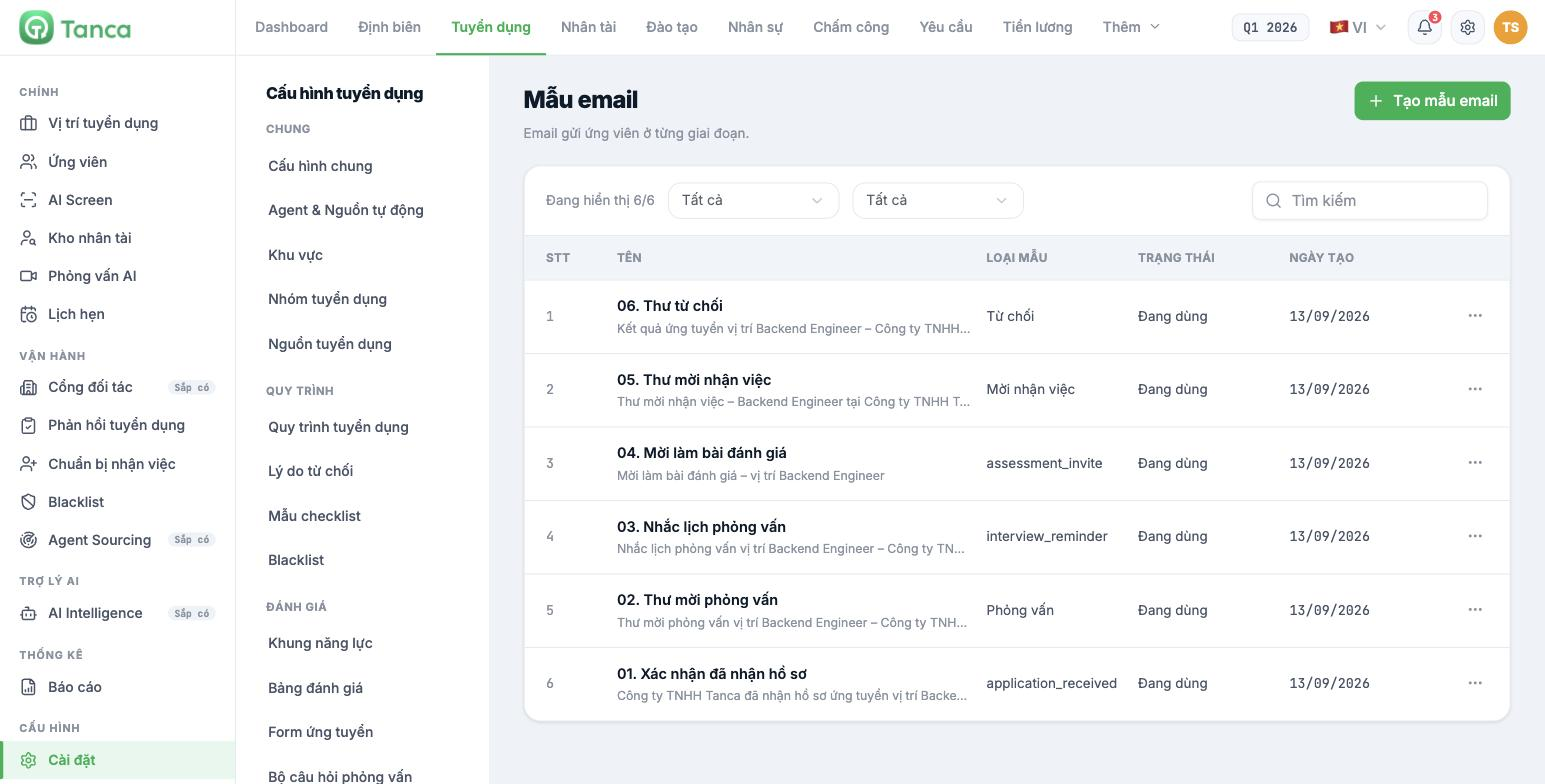
Go to Settings › Email Templates. These are the emails sent to candidates at each stage. The system comes with six templates:
| Template | Type | Sent when |
|---|---|---|
| 01. Application received confirmation | `application_received` | Right after the candidate applies |
| 02. Interview invitation | Phỏng vấn (Interview) | When an interview is scheduled |
| 03. Interview reminder | `interview_reminder` | Before the interview |
| 04. Assessment invitation | `assessment_invite` | When sending a test or assessment form |
| 05. Job offer letter | Mời nhận việc (Job offer) | When making an offer |
| 06. Rejection letter | Từ chối (Rejection) | When rejecting a candidate |
The six default templates are written for a sample position (Backend Engineer, Tanca Co., Ltd.). You must update the company name, position name, and tone throughout before publishing your first posting; otherwise candidates will receive emails mentioning an unrelated company and position.
Display bug: the Template type column is inconsistent — three templates show Vietnamese names (Từ chối, Mời nhận việc, Phỏng vấn) while the other three show English codes (`application_received`, `interview_reminder`, `assessment_invite`). This is only a text issue in the interface and doesn't affect email sending. It has been logged for the product team to fix.
Click Create email template to add your own template. Which step automatically sends which email is turned on in Settings › Recruitment Pipelines, in the Send email role of each step (article B15-04).
Zalo messages and Zalo integration
| Item | Current status |
|---|---|
| Zalo messages | You can compose and save ZNS message templates. The page states clearly: this release only manages templates — the Zalo OA connection and message sending are not yet available |
| Zalo integration | Zalo integration coming soon. The Zalo OA/ZNS connection is in development |
Currently, sending and approving Zalo message templates is done manually on the Zalo portal, not in Tanca. As a result, the Send Zalo role of a pipeline step has no effect yet. Prepare your message templates here so they're ready to use as soon as the integration opens, but don't build Zalo into your operating process until then.
What to do before publishing your first posting
- Select a Career Page Template suited to your type of candidate.
- Open each of the six email templates in turn and update the company name, position name, and tone.
- Check the setting in General Configuration — which address emails are sent from (article B15-02).
- Send a test email to your own personal inbox to see how it actually looks.

