Connect has an approval queue dedicated to Company News. This article explains what that queue accepts and what it doesn't, and what other tools you have when a post needs to be dealt with.
The Post Approval queue
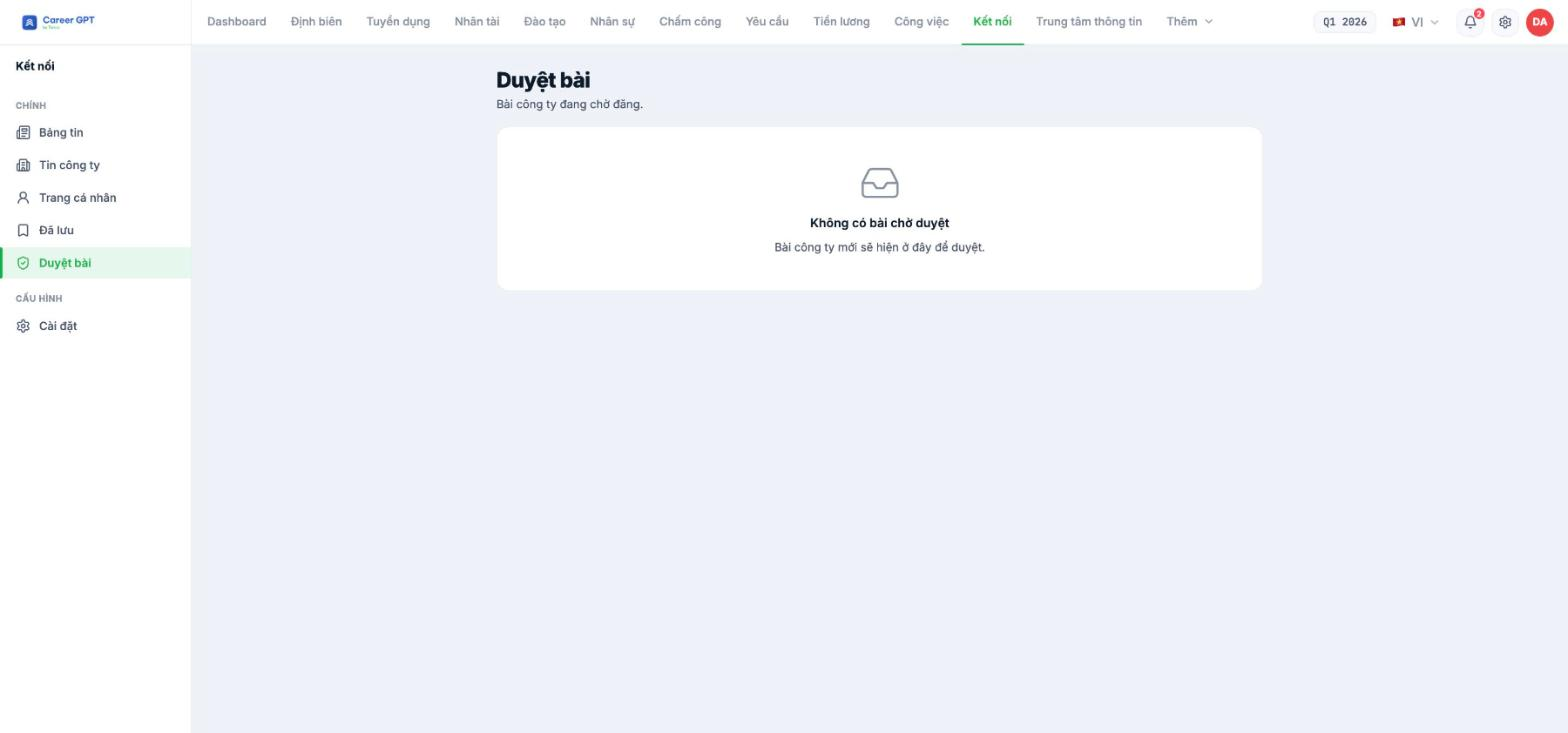
The Post Approval screen has a very clear subtitle: “Company posts awaiting publication.” This means the queue only accepts Company News. Employees' personal posts never go through here — they are published to the Newsfeed immediately.
When there are pending posts, each row lets you read the full content before deciding. When the queue is empty, the screen shows “No posts awaiting approval”.
For administrator accounts, Company News posts are published publicly right away even though the on-screen message may say “Post submitted for approval.” If you are an administrator and don't see your post in the queue, check the Newsfeed before posting again — the post has very likely already gone up. This message discrepancy was logged on 09/05/2026 and is awaiting a fix. TO BE CONFIRMED BY THE COMPANY before publishing (needs a developer to confirm which roles are auto-approved).
Three tools for handling a post
| Tool | Where | What it does |
|---|---|---|
| Post Approval | `/connect/approval` | Blocks a post before it goes up — applies only to Company News |
| Delete post | The `…` menu on the post card | Deletes the post and all its comments, for everyone |
| Profile page privacy | Connect › Settings | Each person limits who can view their own page |
Delete an inappropriate post
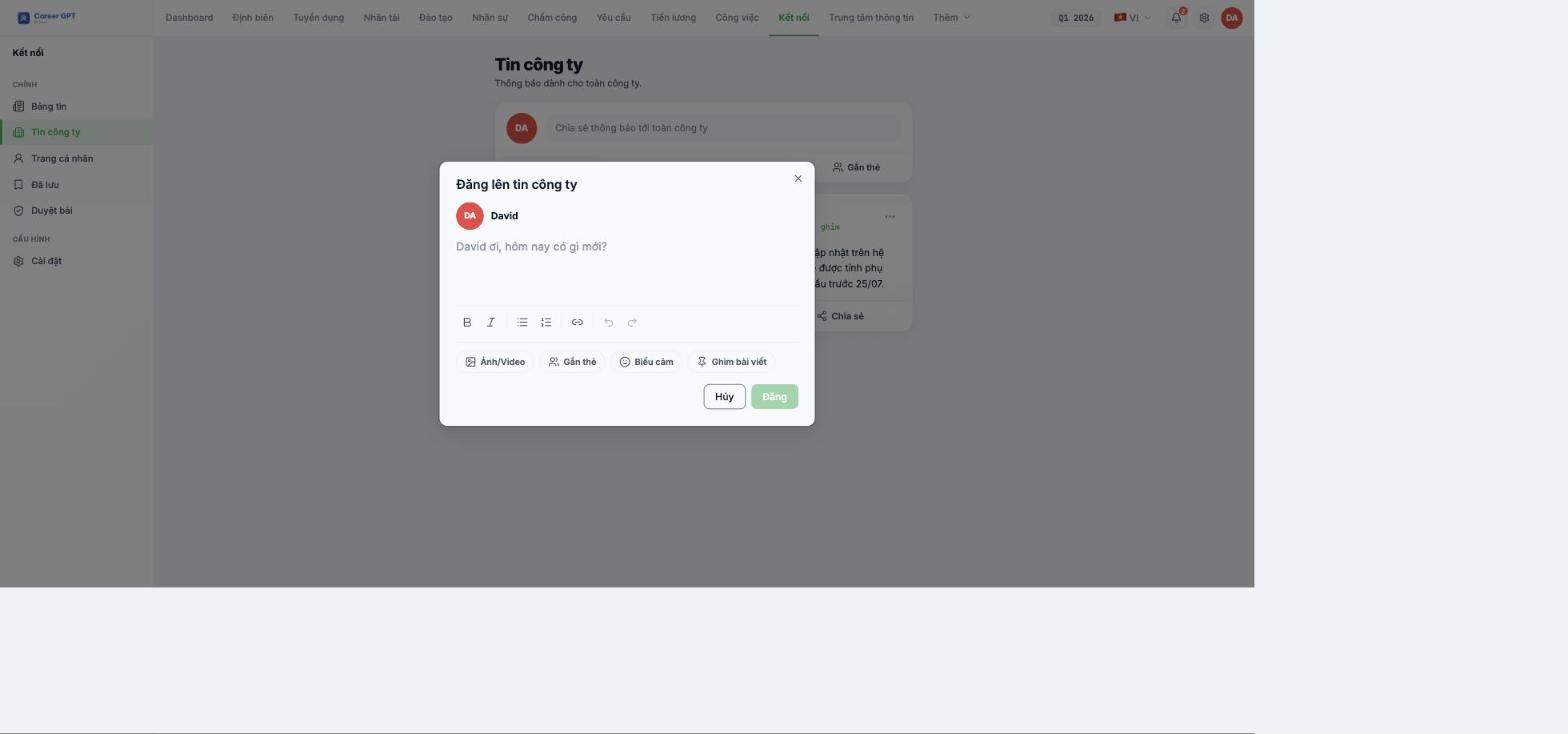
- Open the `…` menu in the top right corner of the post card.
- Select Delete post.
- Read the confirmation dialog: “The post and all its comments will be deleted for everyone.”
- Confirm.
What Connect doesn't have yet — and how to compensate
- No button for reporting violating posts. Employees who spot inappropriate content have to report it to HR through another channel. Announce that channel clearly in the company regulations.
- Published posts cannot be edited. The only way is to delete and repost, and the new post loses all likes, comments and shares.
- Approvers cannot be configured. There is no place yet to specify who approves Company News.
- No dedicated moderation log. Post deletions are traced through the system's general activity log (C1-07).
For content with legal risk or mandatory-reading content, don't rely on the Newsfeed. Use Communications › Announcements (B18) — there posts can be edited, and there is a list of who has confirmed reading them.

