Leave requests are the type of request you submit most often. Submit them correctly and they get approved the same day; leave out information and they get sent back, costing you another round.
Steps
- Open Requests, click + Create request.
- Select the Time & Attendance group, then select Leave.
- Fill in the form (see the table below).
- Click Submit request.
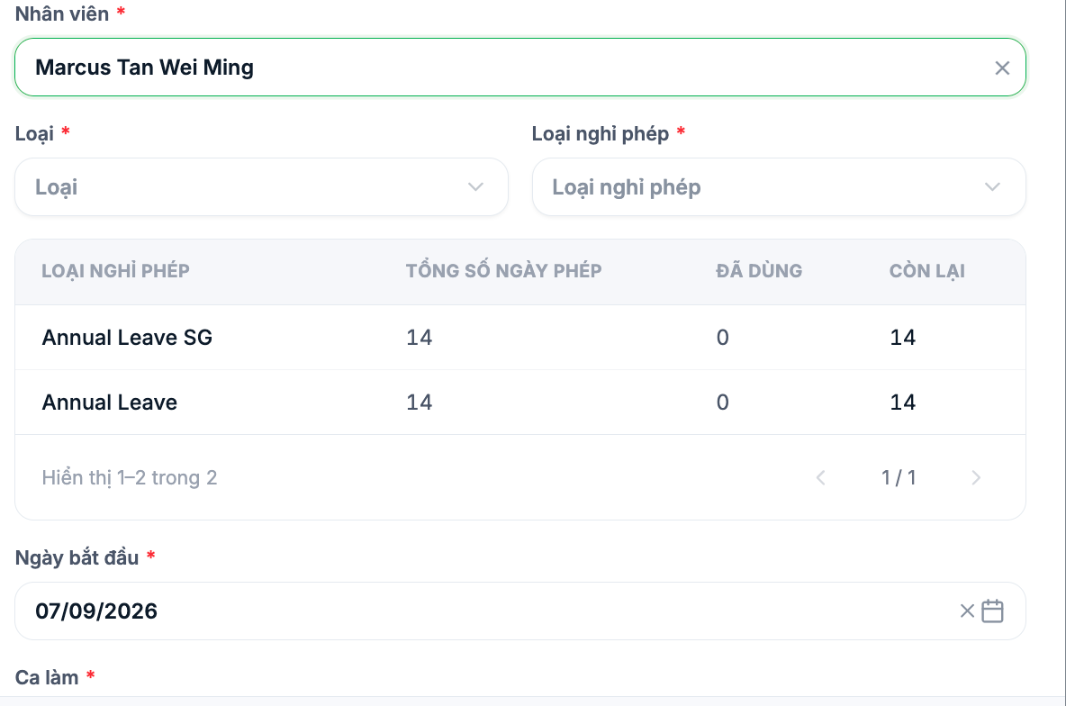
Fields to fill in
| Field | What to enter |
|---|---|
| Employee | Your name. If a manager submits on your behalf, they select the employee's name |
| Type | Length of the leave — see the table below |
| Leave type | Select the leave balance to deduct from: annual leave, sick leave, unpaid leave… |
| Start date | The first day of leave |
| Shift | The shift on the leave day — the system takes it from your work schedule |
| Handover recipient | The person who takes over your work while you are away |
| Phone number | Contact number in case you are needed during your leave |
Six leave length options
| Option | When to use |
|---|---|
| 1/4 day | Off for about two hours |
| 1/2 day | Off for half a day |
| 3/4 day | Off for almost a full day |
| Single day | Off for one full day |
| Multiple days | Off for several consecutive days — also fill in the end date |
| By hour | Off for a specific range of hours |
Check your leave balance before submitting
After you select your name, the form immediately shows the leave balance table with three columns: Total leave days, Used, Remaining. Check the Remaining column before choosing the number of days off.
The Used column only counts requests that have been approved. Requests you just submitted that are pending approval are not included in this number — subtract them yourself when calculating.
Three mistakes that get requests sent back
- Submitting too close to the leave date. Each request type has a notice period; annual leave usually requires early notice.
- No handover recipient. For positions that cannot be left unattended, the approver will send the request back.
- Choosing the wrong leave type. Choosing annual leave when it is actually sick leave deducts from the wrong balance.
After submitting, tell your line manager in person, especially for urgent requests. The system does send notifications, but a short message helps the request get processed much faster.
After submitting
- The request has its own code, for example `NP-SG070926-001` — use this code when asking about the request.
- Track its status in the My requests tab (article B8-13).
- Receive a notification when the request is approved or rejected.
- Once the request is approved, the leave days automatically appear on the timesheet, with no further action needed.

