A payroll template is a set of formulas reused for every period. Build it correctly once, and in the following months all you need to do is create the period and reconcile.
Create a new template
- Go to Payroll › Payroll Templates and click + Create new.
- Fill in the Payroll Information tab (table below).
- Switch to the Column Configuration tab to build the columns and formulas.
- Click Update, then click View to review before using it.
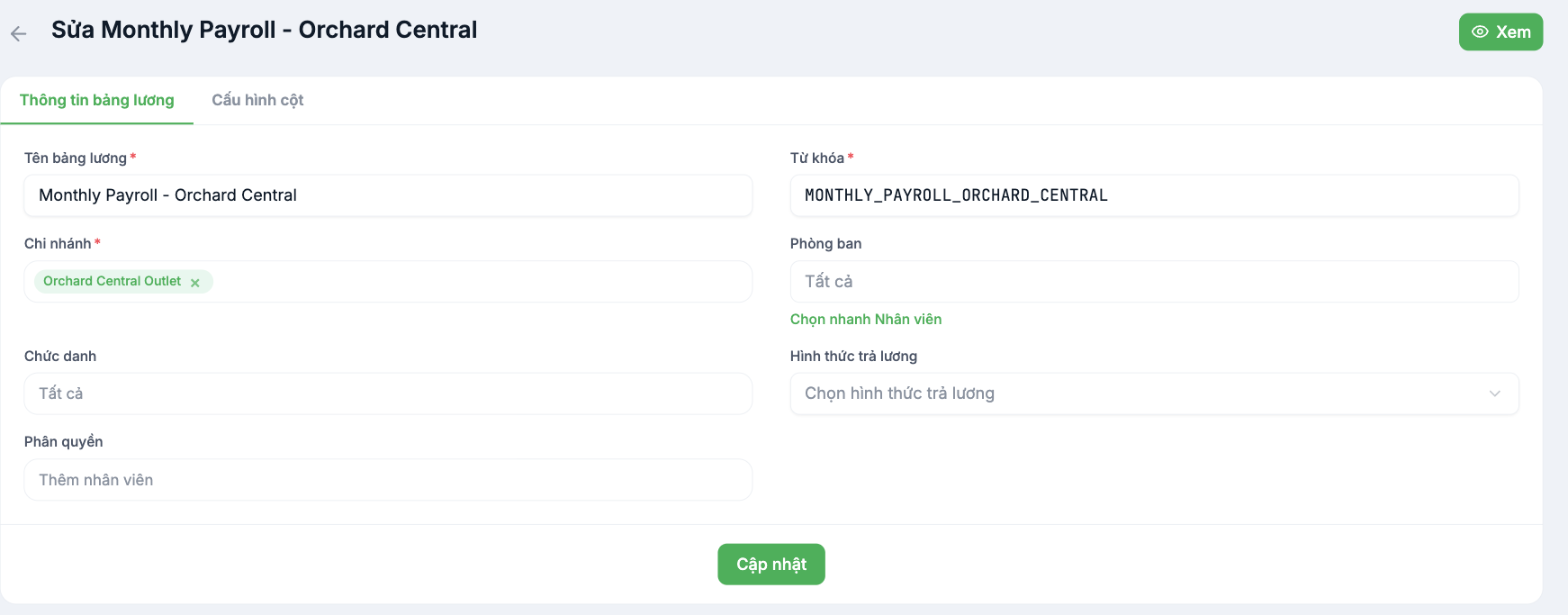
| Field | Meaning |
|---|---|
| Payroll name | Display name. Include the branch and cycle, for example Monthly Payroll - Orchard Central |
| Keyword | The template's technical code, in uppercase letters and underscores |
| Branch | Required. The template applies only to the selected branches |
| Department | Leave blank for all departments of that branch |
| Job Title | Further filter by job title |
| Pay type | Select the group of base pay items this template uses |
| Permissions | The list of people allowed to view and edit this template — see article B9-15 |
The Permissions field is the module's most important security layer. Leaving it blank means the system's default permissions apply. For companies with multiple branches, specify clearly who can view which payroll.
Column configuration — a spreadsheet with variable names

Each row is one column of the payroll, made up of four parts:
| Part | Meaning |
|---|---|
| Letter (A, B, C…) | The column label, like in Excel. Used to locate columns during review |
| Title | The column name shown on the payroll and payslip |
| Keyword | The variable name other columns use to reference it |
| Formula | Leave blank if the column pulls data directly; enter a formula if the column is calculated |
Drag the six-dot icon on the left to reorder columns. The three-dot menu on the right of each row contains actions for that column.
Recommended column structure
- Identification group — No., Employee name, Employee ID.
- Source data group — monthly salary, actual working days. These are columns the system fills in automatically.
- Additions group — each type of allowance, then a total column.
- Deductions group — salary advances, deductions, insurance, tax.
- Result column — net pay.
Keep the order identification → source → additions → deductions → result. Every payroll is read following this logic, and reviewers will check it much faster than a disorganized table.
Duplicating a template for another branch
- In the Payroll Templates list, click the three-dot menu on the template's row.
- Select Copy.
- Edit the copy's name, keyword, and branch.
- Adjust any columns that differ.
Copying and editing is faster and safer than rebuilding from scratch — but you must change the keyword of the copy; otherwise the two templates will have the same code.

