Connect is Tanca's internal social network: where employees post, comment and read company news. This article gives you a map of the module's six screens and — more importantly — tells you where configuration exists and where it doesn't, so you don't waste time looking for something that doesn't exist yet.
The six screens of Connect
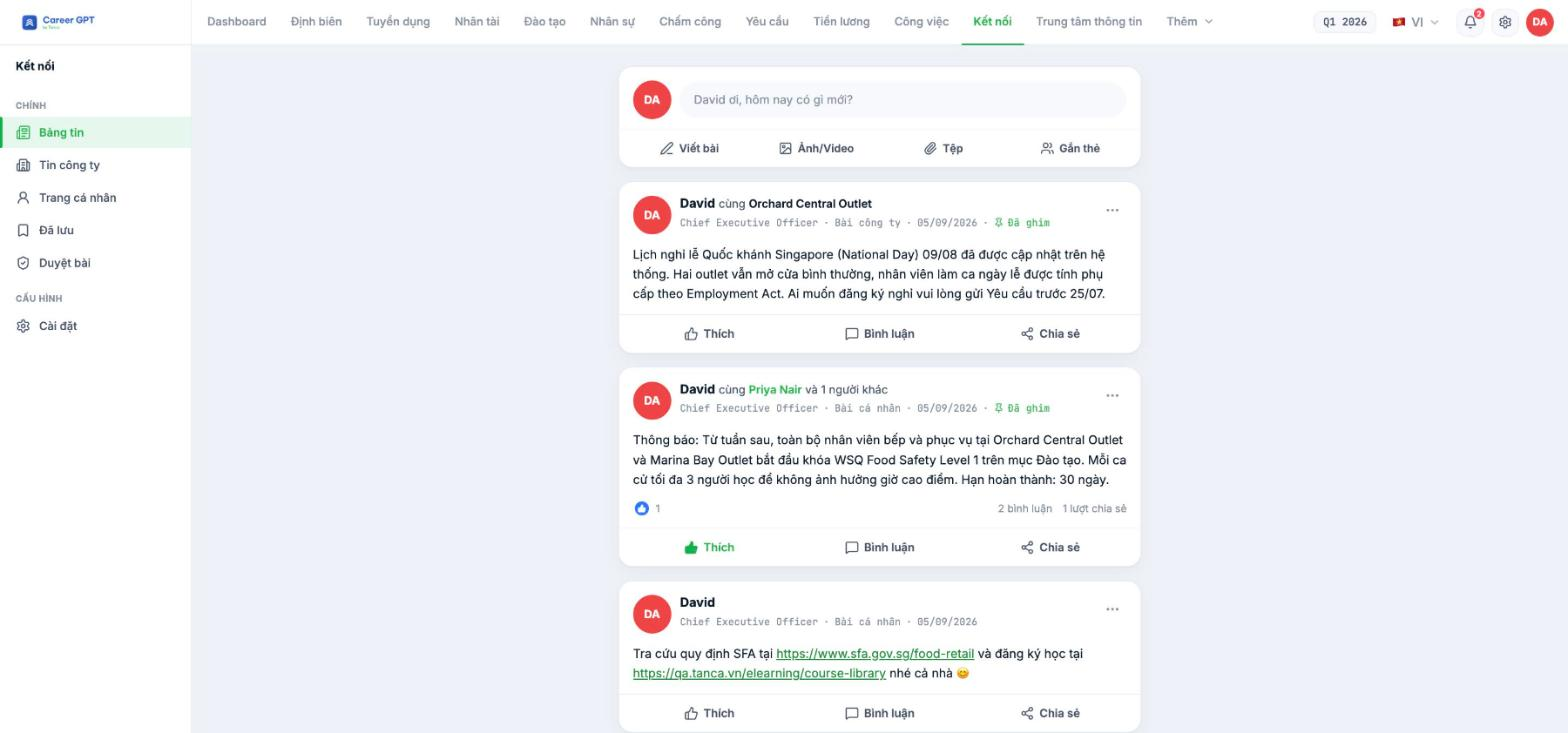
| Screen | Path | Used for |
|---|---|---|
| Newsfeed | `/connect` | The shared timeline: personal posts and Company News mixed together |
| Company News | `/connect/company` | Only announcements for the whole company |
| Profile page | `/connect/profile` | Your own posts |
| Saved | `/connect/saved` | Posts you marked to view later |
| Post Approval | `/connect/approval` | The queue of Company News awaiting publication |
| Settings | `/connect/settings` | Privacy of your profile page |
Two kinds of posts, distinguishable right on the post card
Each post carries a label right below the author's name: Personal post or Company post. Pinned posts also carry a Pinned label. This is the fastest way to tell whether content is an official announcement or internal chatter.
Company posts go through the Post Approval queue; personal posts are published immediately. See B17-02 and B17-03 for each flow.
Connect's Settings are personal settings, not company configuration
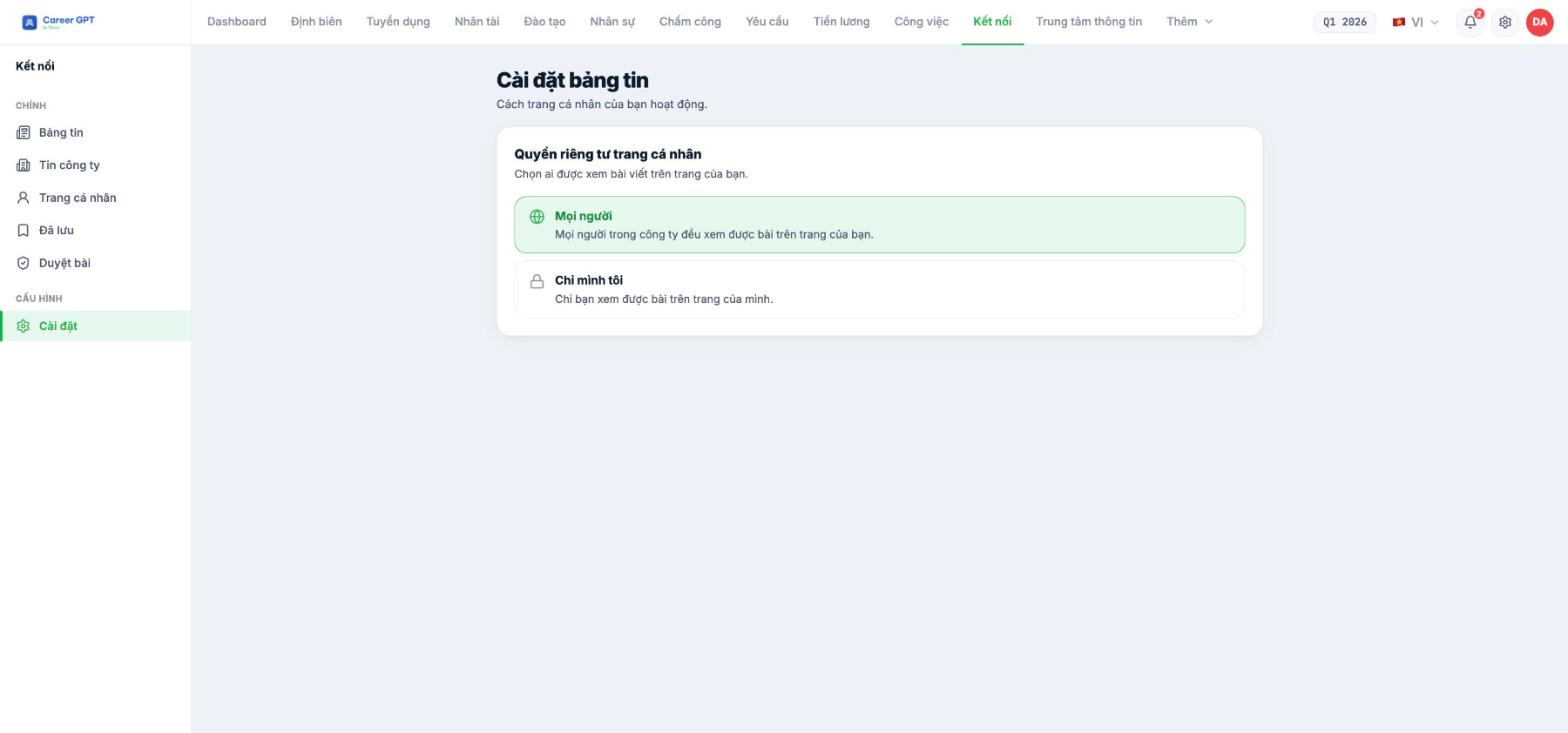
This is the point most likely to waste your time. The Settings section in Connect has only one item, Profile page privacy, with two options Everyone / Only me — and it applies to the profile page of the logged-in user, not to the whole company.
Connect currently has no configuration page for administrators. There is no place to configure who can post Company News, who the approver is, whether post approval is enabled, post categories, or a limit on the number of pinned posts. If your business needs these rules, for now they must be agreed through internal policy and controlled through the system's general permissions (see C1-02). The product team has logged the request to add this configuration screen.
Three things to do in the first week after enabling Connect
- Publish an opening Company News post and pin it, so employees who visit for the first time immediately see official content rather than an empty Newsfeed.
- Agree in writing on who can post Company News, since the system can't restrict this yet.
- Make it clear to employees that published posts cannot be edited (see B17-05) — so everyone reads their post again before clicking Post.

