Announcements are Tanca's official channel: send to the right recipients, attach files, and know who has acknowledged reading. This article walks through the whole process, from setting up announcement types to clicking Create.
The Announcements list
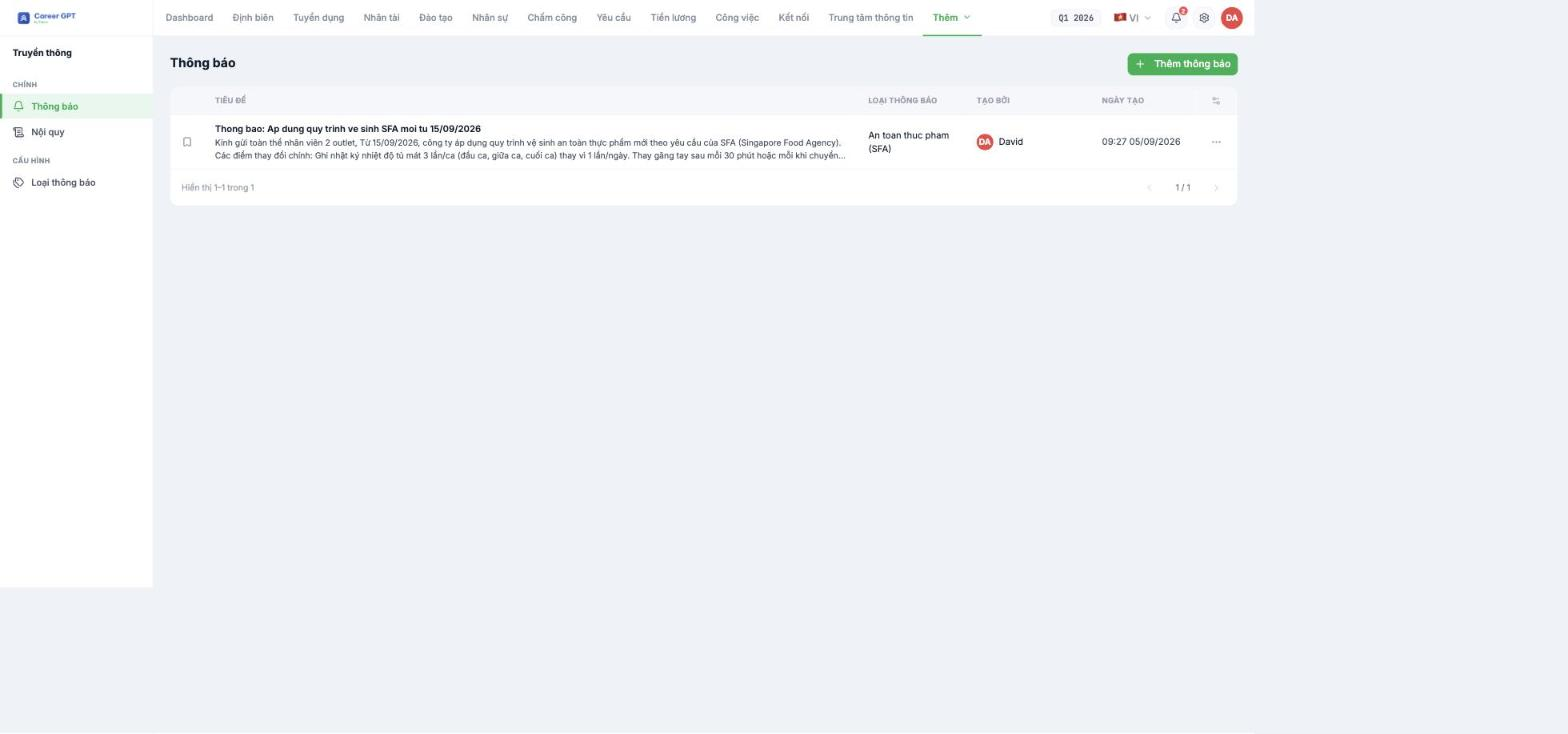
The list shows the Title, Announcement type, Created by, and Created date, paginated at 15 rows per page. Pinned announcements have a solid blue bookmark, distinguishing them from the outlined bookmark of regular announcements.
This list currently has no search box and no filters, and does not yet show recipients or the acknowledgment rate. If you send many announcements each week, title them using a convention with the date first — for example `2026-09-15 · SFA · New hygiene procedure` — so they are easy to scan chronologically. The product team has logged the request to add search and filters.
Step 1 — Set up announcement types in advance
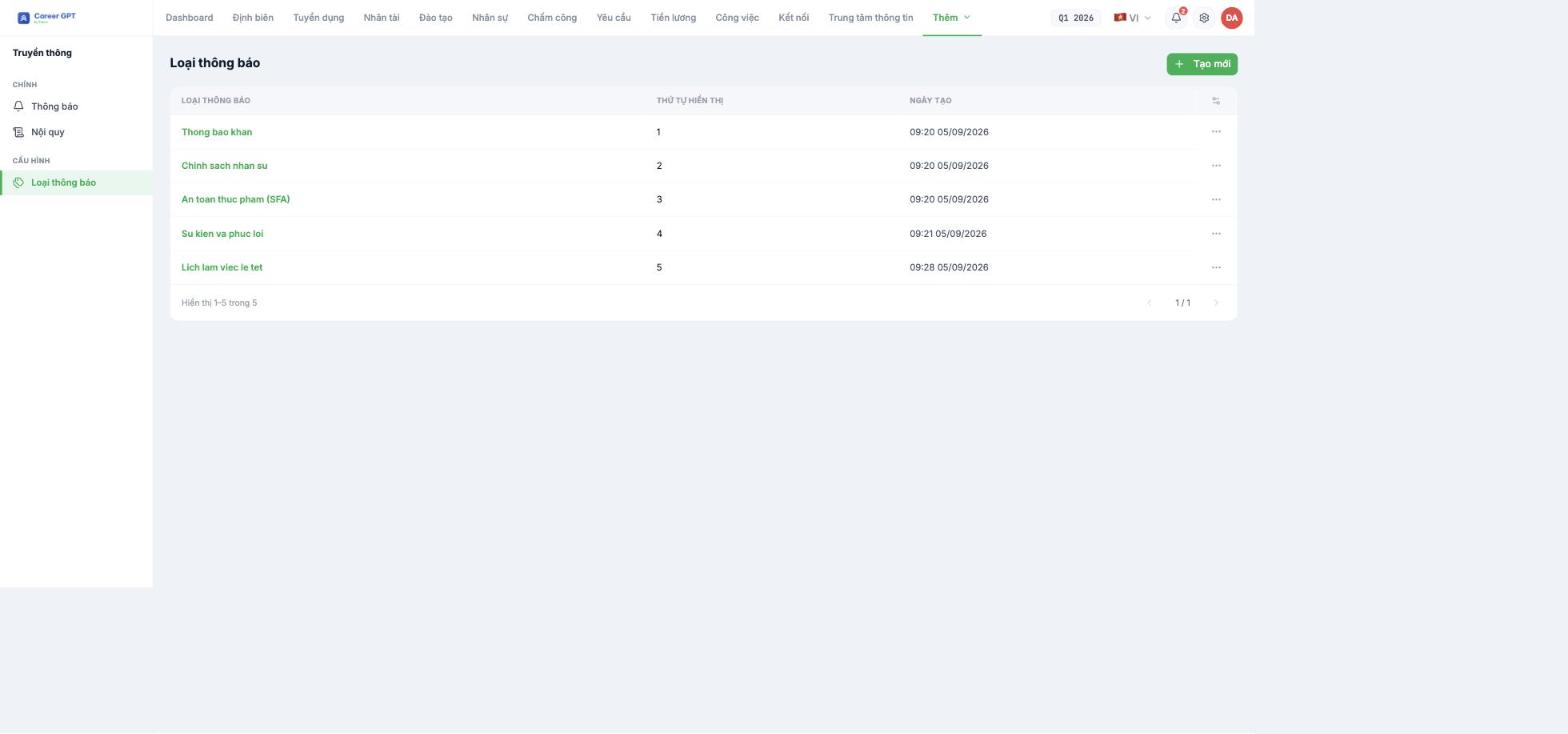
Every announcement must belong to a type. Set them up in advance in Communication › Announcement types so that later, employees can tell the level of importance from the label.
- Go to Announcement types and click Create.
- Enter the type name and Display order (smaller numbers appear first).
- Save. You can edit and delete them later; the delete dialog clearly states the name of the type about to be deleted.
A set of announcement types that works well for a mid-sized business: Urgent notice · HR policy · Safety — compliance · Events and benefits · Holiday work schedule.
The system allows creating two types with the same name without warning, and the Display order field also accepts negative numbers. In that case, the type selector when composing an announcement will show two identical items. Use integers from 1 upward and check the list before adding a new type.
Step 2 — Compose the announcement
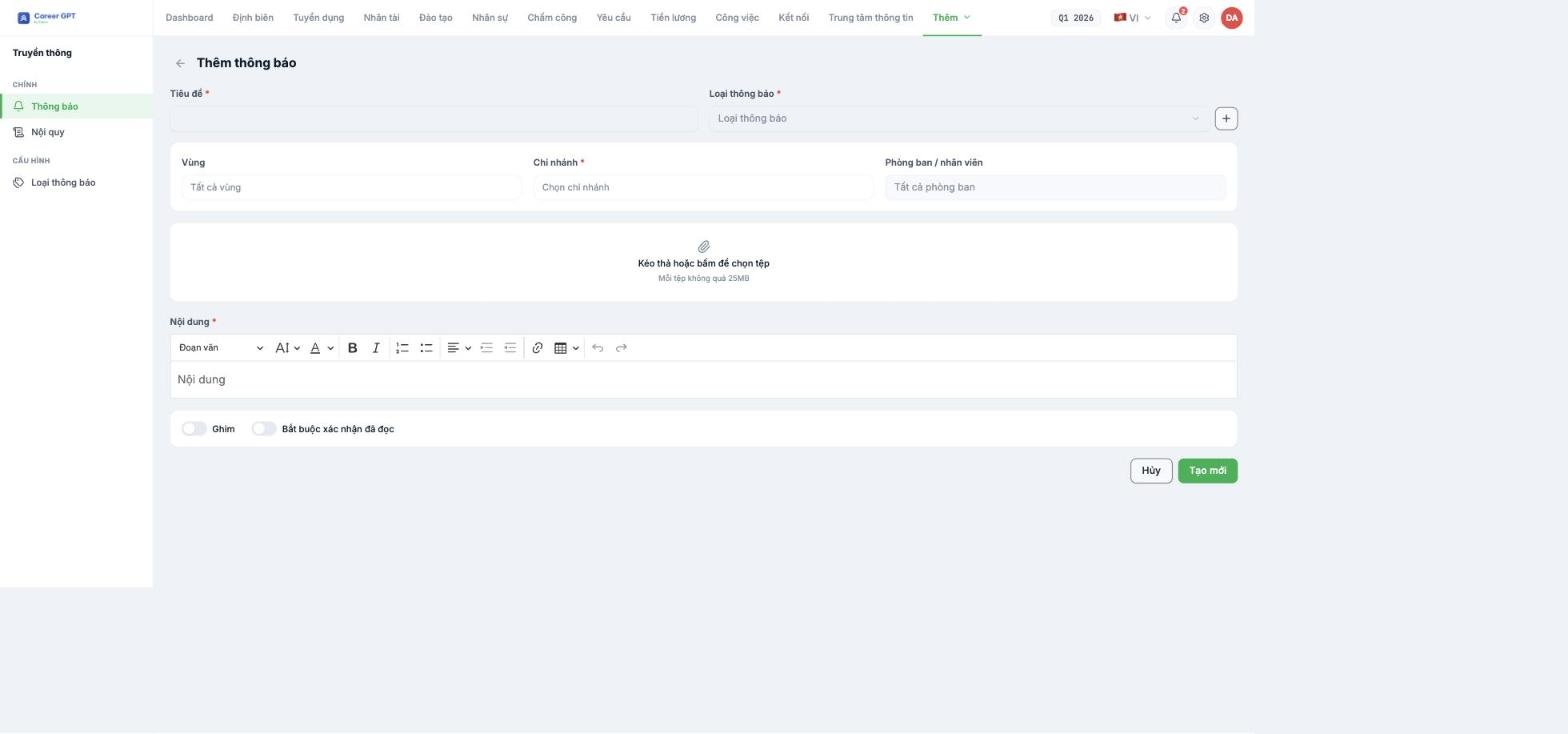
- Click Add announcement.
- Title (required) — write it as a sentence readers understand immediately, without needing to open the post.
- Announcement type (required) — choose from the list, or click the + button to quickly create a new type right in the form.
- Select recipients: Region, Branch (required), Department / employee. See details in B18-02.
- Drag and drop attachments if needed — each file must not exceed 25 MB.
- Content (required) — the editor supports font size, font color, bold, italic, lists, alignment, indentation, links, and tables.
- Turn on Pin if the announcement needs to stay at the top, and Require read acknowledgment if you need evidence that employees have read it (B18-04).
- Click Create.
After creation, each row in the list has a `…` menu with View, Edit, and Delete. Unlike the Connect newsfeed, announcements can be edited after sending — this is why you should use Announcements for important content.
The “+” button for quickly creating announcement types: a small note
Clicking + next to the Announcement type field lets you create a new type without leaving the page. But once it is created, the Announcement type field remains empty — you must open the list and select the newly created type yourself. Don't click Create right away, or the post will be blocked because the type is missing.

