The OKR Overview dashboard is where you get a quick read on the whole company's situation on a single screen. This article explains each metric tile and shows how to get the data when you need more in-depth reporting.
The four headline metrics
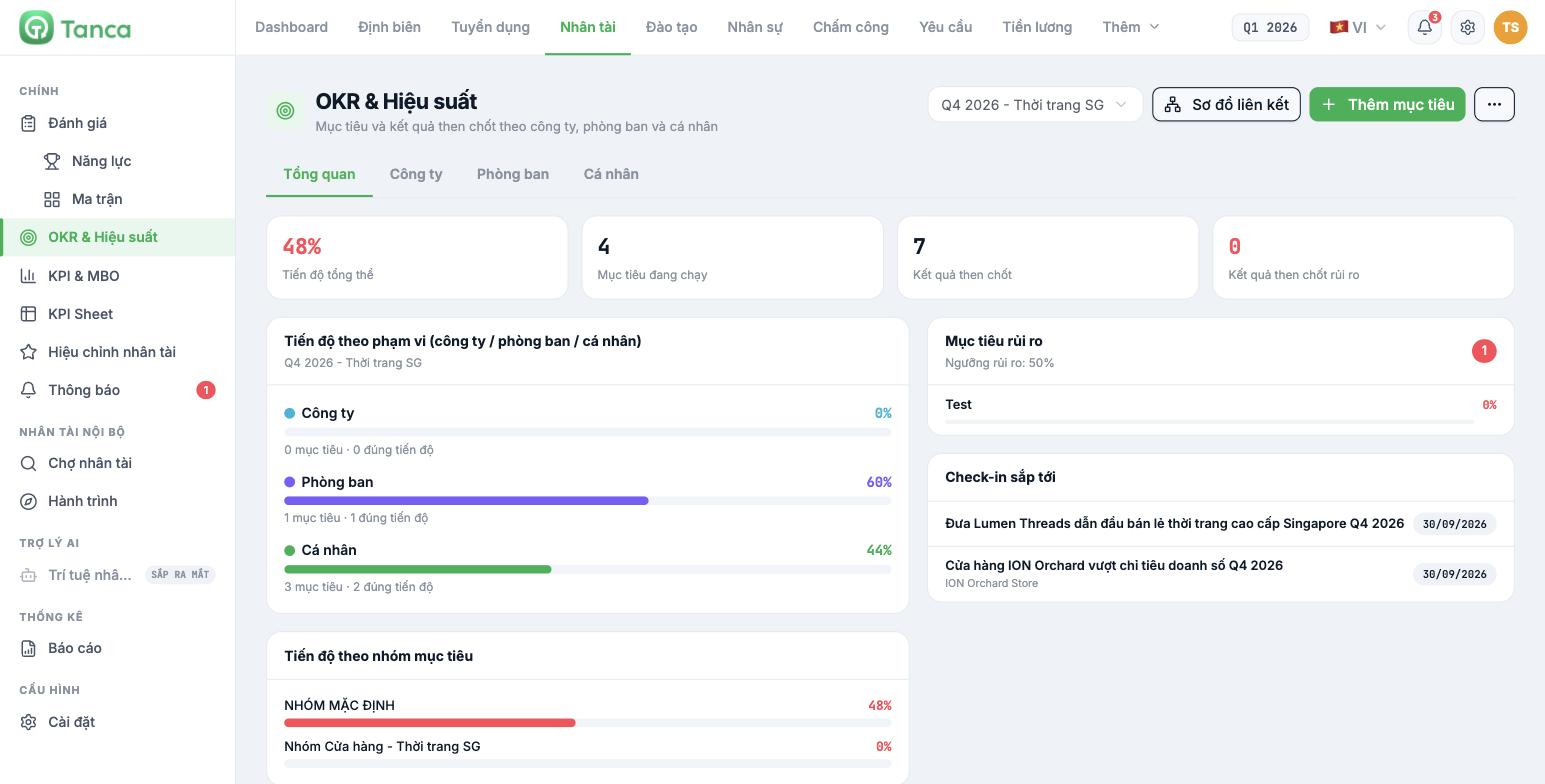
| Tile | Meaning | How to read it |
|---|---|---|
| Overall progress | Average progress of all objectives in the cycle | The single number to report to senior leadership |
| Active objectives | Number of objectives not yet completed | Compare with the total to see how much work remains |
| Key results | Total number of KRs in the cycle | Divide by the number of objectives — under 2 means objectives haven't been made concrete |
| At-risk key results | Number of KRs below the risk threshold | The priority list to address this week |
The four blocks below
- Progress by scope — split into Company / Department / Individual, with the number of objectives and the number of on-track objectives at each level.
- Progress by objective group — by the groups you declared in article B11-02. This is how to see which area is falling behind.
- At-risk objectives — objectives below the Risk threshold (50% by default).
- Upcoming check-ins — objectives coming due soon, with the date and responsible unit.
- Roadmap — a timeline view showing how far each objective extends within the cycle.
The Progress by scope › Company tile may show 0 objectives even though you have set company-level objectives — the cause and how to handle it are in article B11-07. When presenting to senior leadership, use Overall progress and Progress by objective group, not the Company level.
Getting detailed data
The Overview dashboard does not allow deep filtering. When you need detailed figures for a report, use these three export paths:
- OKR › Department / Individual tab › Export file — list of objectives, KRs, progress, status, assignees.
- OKR › Alignment Map › Export file — the parent–child alignment picture with the Aggregate score for each group.
- KPI Sheet › open the results sheet › Export file — detailed scores for each employee.
The Talent Reports screen
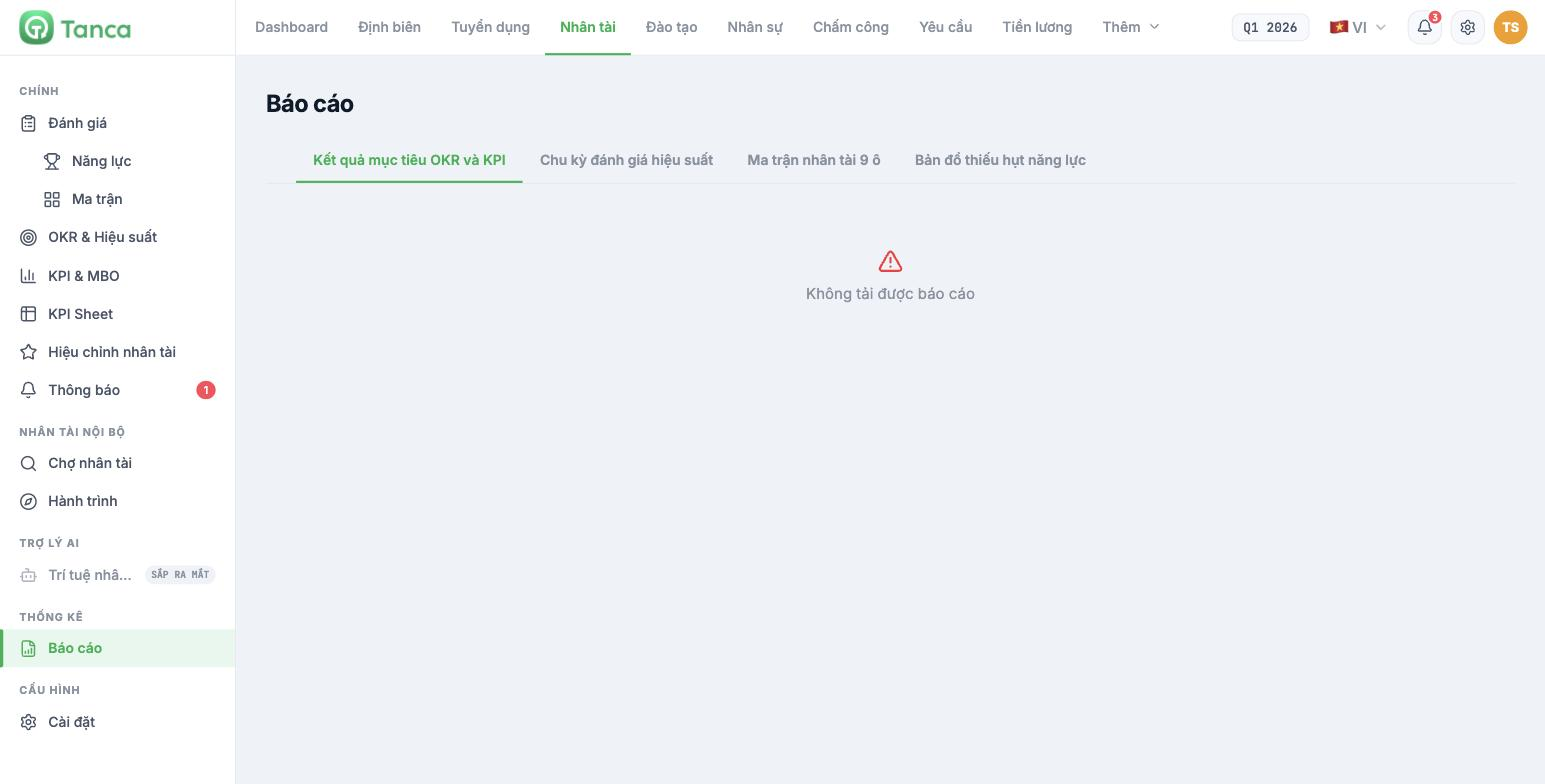
The Talent › Reports section has four tabs: OKR and KPI objective results, Performance review cycles, 9-box talent matrix, Competency gap map.
Current limitation: at the time of review, all four tabs display "Unable to load report". While waiting for a fix, use the three export paths above and consolidate in Excel. This is also how you keep a per-cycle archive, something the on-screen report doesn't provide.

