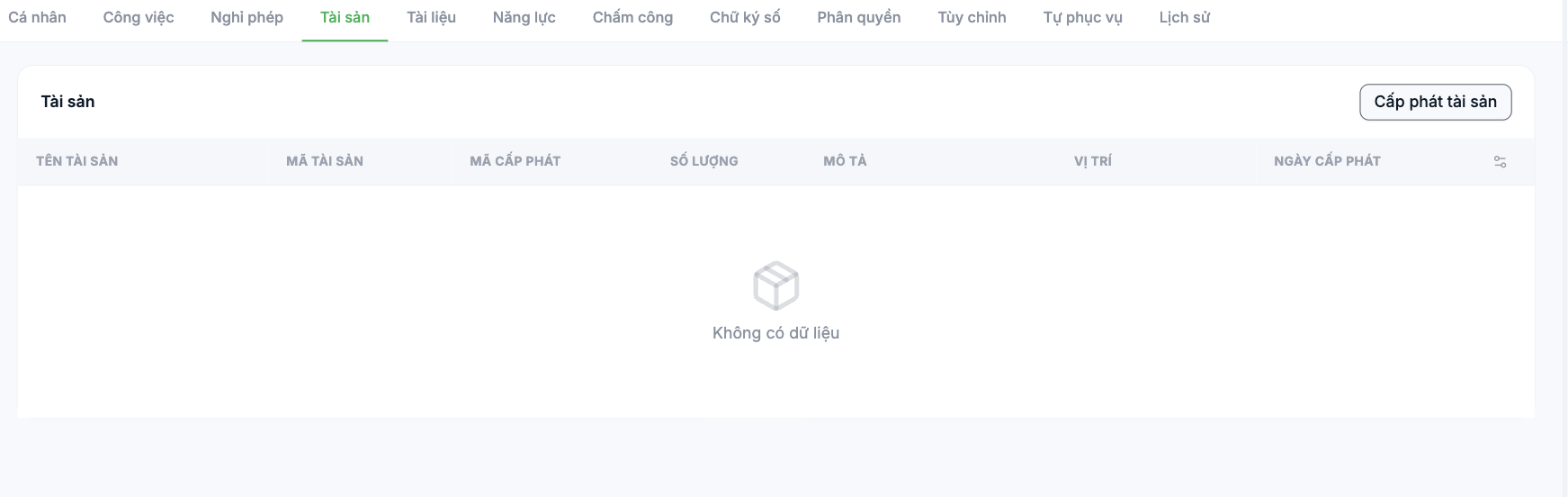
The list of company assets currently assigned to this person. Used most at two points in time: the first day on the job and the handover day when leaving.
Reading the table
| Column | Meaning |
|---|---|
| Asset name | The name in the company's asset catalog |
| Asset code | The code in inventory |
| Allocation code | The code of this allocation |
| Quantity | The quantity assigned |
| Description | Additional notes on the asset's condition |
| Location | Where the asset is being used |
| Allocation date | The date it was handed over to the employee |
Allocating an asset
- Open the employee profile and select the Assets tab.
- Click Allocate asset.
- Choose the asset from the catalog and enter the quantity, location and allocation date.
- Save. The asset appears in the table and is deducted from inventory.
Assets must first be declared in the company's asset catalog — see article group B5. If you can't find the item you need to allocate, it means it isn't in inventory yet.
Using it in onboarding and offboarding
- First day on the job: allocate the laptop, phone, access card and uniform right at handover. Employees can see this list in the app, so there are no disputes later.
- When leaving: open this tab before the handover procedure — it is the official list of what needs to be recovered. Deactivate the account only after everything has been recovered.
- Periodically: use it for stocktaking, reconciling the assets in the system with what physically exists.

