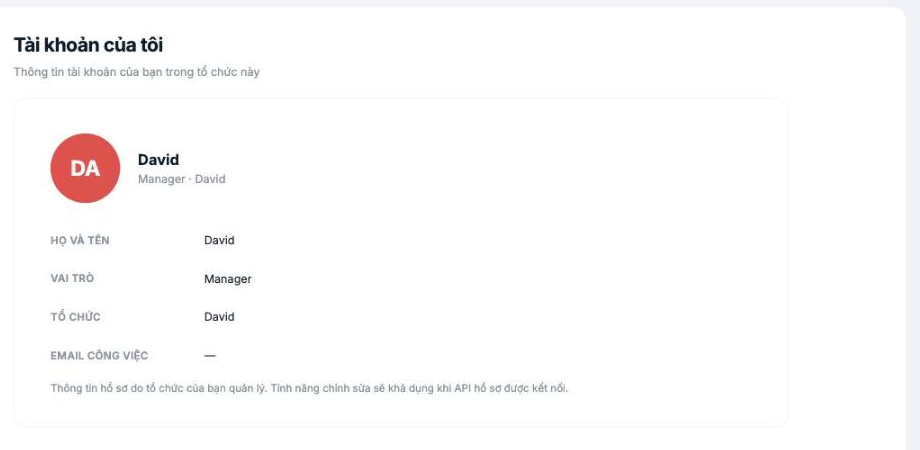
This screen shows who you are in this organization. Use it to quickly check your role and permissions when you can't access something.
| Field | Meaning |
|---|---|
| Full name | Your display name in the system |
| Role | Your role in the organization, for example Manager |
| Organization | The name of the organization you're signed in to |
| Work email | The email linked to the account |
This screen is view-only. The note at the bottom states clearly: profile information is managed by your organization, and editing will become available once the profile API is connected. To edit your personal information, go to your employee profile in the HR module — see article B2-09.
When to use this screen
- Check your role when you can't access a module. Your role determines what you see.
- Confirm the correct organization if your account belongs to multiple companies.
- Verify your email when you can't sign in — the email here is the one the system uses to identify you.
If the information is wrong
Notify your company's administrator. They can correct it in your employee profile in the HR module. The Role, however, must be changed on the Permissions tab of that profile — see article B2-17.

