The task you do most often in Tanca. On a computer, all requests awaiting your action are in the Pending Approval tab of the Requests module.
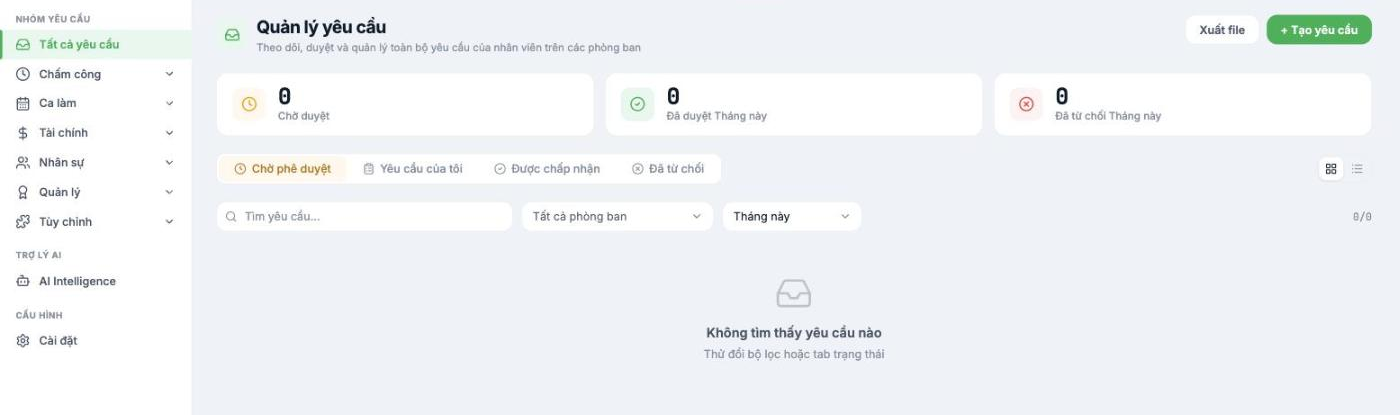
On a computer
- Go to the Requests module.
- The three boxes at the top of the page show you at a glance: the number of requests Pending, the number Approved this month, and the number Rejected this month.
- In the Pending Approval tab, filter by department or time range if the list is long.
- Open each request, review the reason and timing, then approve or reject it.
- The other three tabs — My Requests, Accepted, Rejected — are for looking up history.
On your phone
- You receive a push notification as soon as there is a new request.
- Tap the notification to open that request directly.
- Approve or reject it right on the screen.
IMAGES NEEDED — the pending requests list screen in the app and the approve/reject buttons
Approval principles
- Handle requests the same day. Pending requests make the end-of-month timesheet wrong.
- When rejecting, give a reason. Employees need to know why so they can submit correctly next time.
- If you'll be away, ask HR to designate a substitute approver before you leave; don't keep the whole team waiting.
- Check the impact on the work schedule before approving leave on peak days.
If you notice the Pending count is always above 0 at the end of the day, set a fixed reminder for first thing in the morning. This habit makes the biggest difference between teams that use Tanca smoothly and teams that are always correcting timesheets.

